
1. Introduction
This manual provides essential information for the safe and efficient operation of your suevery SV240ZA 24-inch 165Hz IPS Gaming Monitor. Please read this manual thoroughly before using the product and retain it for future reference. This monitor is designed for gaming, home office, and general computing tasks, offering a Full HD 1080p resolution, a high refresh rate, and fast response time for a smooth visual experience.
2. Consignes de sécurité
- N’exposez pas le moniteur à la pluie ou à l’humidité afin d’éviter tout risque d’incendie ou d’électrocution.
- N'ouvrez pas le moniteur casing. L'appareil ne contient aucune pièce réparable par l'utilisateur. Toute réparation doit être effectuée par un personnel qualifié.
- Placez le moniteur sur une surface stable et plane pour éviter qu'il ne tombe.
- Assurez une ventilation adéquate autour du moniteur. Ne bloquez pas les ouvertures de ventilation.
- Utilisez uniquement l'adaptateur secteur fourni avec le moniteur.
- Débranchez la prise d'alimentation de la prise murale si le moniteur n'est pas utilisé pendant une période prolongée.
3. Contenu du colis
Vérifiez que tous les éléments sont présents dans le colis :
- 1 x suevery SV240ZA Monitor
- 1 x support
- 1 x câble HDMI
- 1 x câble DisplayPort
- 1 x Manuel d'utilisation
- 1 x adaptateur secteur
4. Instructions de configuration
4.1 Assemblage du support
Attach the stand base to the monitor neck, then secure the neck to the back of the monitor. Ensure all screws are tightened securely.
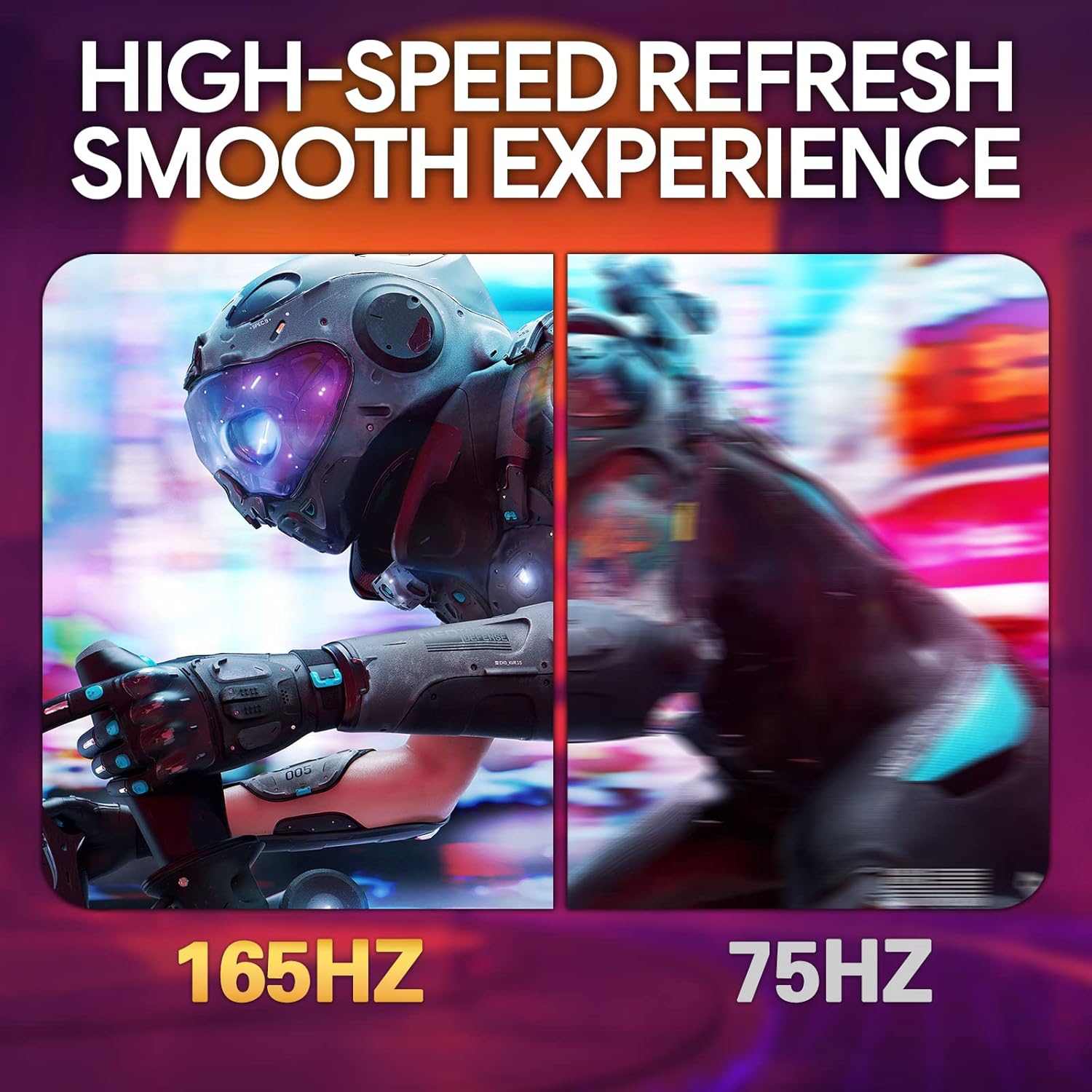
Image: The suevery SV240ZA monitor fully assembled with its desktop stand.
4.2 Montage VESA
The monitor supports VESA mounting with a 75mm x 75mm pattern. Remove the stand if attached, and use appropriate VESA screws to mount the monitor to a compatible wall mount or desk arm.

Image: Rear of the monitor illustrating the 75mm x 75mm VESA mount compatibility.
4.3 Câbles de connexion
Connect the power adapter to the monitor and a power outlet. Use either the HDMI or DisplayPort cable to connect the monitor to your computer or gaming device. For audio output, connect headphones or external speakers to the 3.5mm audio out port.

Image : Terminéview of the monitor's rear ports including USB, HDMI, DisplayPort, and Audio out.
4.4 Mise sous tension initiale
Press the power button located on the monitor to turn it on. The monitor will automatically detect the input signal. If no signal is detected, ensure your source device is powered on and connected correctly.
5. Mode d'emploi
5.1 Menu d'affichage à l'écran (OSD)
The OSD menu allows you to adjust various monitor settings. Typically, buttons on the back or bottom of the monitor are used to navigate and select options within the OSD.
5.2 Réglage des paramètres d'affichage
- Taux de rafraîchissement : The monitor supports up to 165Hz. Ensure your graphics card settings are configured to utilize the maximum refresh rate for a smoother experience.
- Temps de réponse : With a 1ms GTG response time, motion blur is significantly reduced. This setting is often managed automatically or through specific OSD options.
- Synchronisation libre : Enable AMD FreeSync in the OSD menu and your graphics card control panel to synchronize the monitor's refresh rate with your GPU's frame rate, eliminating screen tearing and stuttering.
- Paramètres de couleur : Adjust brightness, contrast, color temperature, and gamma for optimal visual quality. The IPS panel provides 99% sRGB color gamut and 8-bit color depth for rich and vibrant colors.
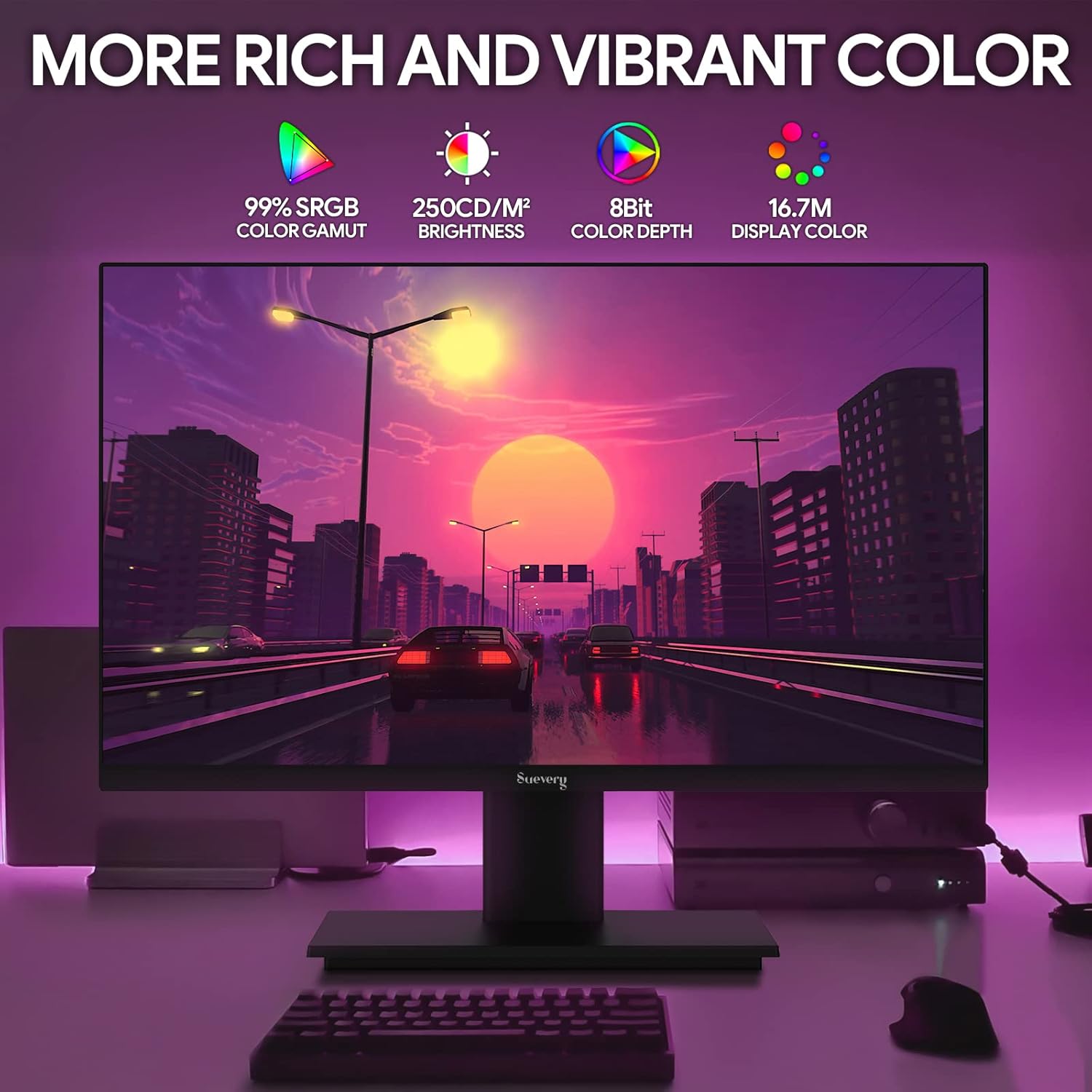
Image: The monitor's display capabilities, highlighting rich and vibrant color reproduction.
5.3 Réglage de l'inclinaison
The monitor allows for tilt adjustment from -3 to 18 degrees. Gently adjust the screen to your preferred viewangle de vue.

Image: Illustration of the monitor's adjustable tilt feature.
5.4 Sortie audio
Connect your headphones or external speakers to the 3.5mm audio out port for private listening or enhanced sound.

Image: User connecting headphones to the 3.5mm audio out port on the monitor.
6. Fonctionnalités terminéesview
6.1 Taux de rafraîchissement élevé et temps de réponse rapide
Experience smooth visuals with a 165Hz refresh rate and a 1ms GTG response time, reducing motion blur and ghosting in fast-paced content.

Image: Visual comparison demonstrating the smoothness of a 165Hz refresh rate versus 75Hz.

Image: Visual comparison highlighting the reduction of afterimage and ghosting with 1ms GTG response time.
6.2 Technologie de synchronisation adaptative
AMD FreeSync support synchronizes the monitor's refresh rate with compatible graphics cards, eliminating screen tearing and stuttering for fluid gameplay.
Image: Demonstrates the smooth display experience provided by 165Hz and FreeSync technology.
6.3 IPS Panel and Full HD Resolution
The IPS panel offers wide 178-degree viewing angles and accurate color reproduction. The 1920 x 1080p Full HD resolution provides clear and detailed images.

Image: Illustrates the enhanced detail and realism of 1080p Full HD resolution compared to standard HD.
Technologie HDR 6.4
HDR (High Dynamic Range) technology enhances contrast and color accuracy, bringing more lifelike images to your screen.

Image: Visual representation of how HDR technology improves image quality compared to SDR.
6.5 Large compatibilité
Equipped with HDMI and DisplayPort, the monitor connects to various devices such as PCs, laptops, gaming consoles, and TV boxes.

Image: The monitor connected to multiple devices, demonstrating its broad compatibility.
7. Entretien
7.1 Nettoyage du moniteur
- Débranchez toujours le moniteur avant de le nettoyer.
- Utilisez légèrement un chiffon doux et non pelucheux.ampterminer avec de l'eau ou un nettoyant pour écrans doux et non abrasif.
- Ne pas vaporiser le nettoyant directement sur l'écran.
- Avoid using harsh chemicals like alcohol, benzene, or thinners, as they can damage the screen surface.
7.2 Entretien général
- Tenez le moniteur à l'écart de la lumière directe du soleil et des sources de chaleur.
- Évitez de placer des objets lourds sur le moniteur ou ses câbles.
- N'exposez pas le moniteur à des températures ou à une humidité extrêmes.
8. Dépannage
Si vous rencontrez des problèmes avec votre moniteur, reportez-vous aux étapes de dépannage courantes suivantes :
| Problème | Cause possible | Solution |
|---|---|---|
| Aucune image à l'écran | Câble d'alimentation débranché ; câble vidéo débranché ; source d'entrée incorrecte sélectionnée. | Vérifiez les connexions des câbles d'alimentation et vidéo. Assurez-vous que la source d'entrée correcte (HDMI/DP) est sélectionnée via le menu OSD. |
| Image instable ou qui scintille | Câble vidéo mal branché ou endommagé ; problème de pilote de carte graphique ; fréquence de rafraîchissement incompatible. | Secure video cable. Update graphics card drivers. Adjust refresh rate in your computer's display settings. Enable FreeSync if applicable. |
| Aucun son ne sort de la sortie audio. | Headphones/speakers not connected; Volume too low; Incorrect audio output device selected on computer. | Ensure audio device is properly connected. Increase volume on monitor and computer. Select the monitor as the default audio output device in your computer's sound settings. |
| L'écran ne s'allume pas. | Power cable disconnected; Power adapter faulty. | Verify power cable is securely connected to both the monitor and a working power outlet. Test the outlet with another device. |
9. Spécifications
| Fonctionnalité | Spécification |
|---|---|
| Marque | surveillance |
| Modèle | SV240ZA |
| Taille de l'écran | 24 pouces |
| Résolution | FHD 1080p (1920 x 1080 pixels) |
| Rapport hauteur/largeur | 16:9 |
| Type de panneau | IPS (LCD) |
| Taux de rafraîchissement | 165 Hz |
| Temps de réponse | 1 milliseconde (GTG) |
| Rapport de contraste | 1000:1 |
| Luminosité | 220 cd/m² |
| ViewAngle d'attaque | 178 degrés |
| Connectivité | 1 x HDMI, 1 x DisplayPort, 1 x USB (charging only), 1 x 3.5mm Audio Out |
| Synchronisation adaptative | AMD FreeSync |
| VESA Mount | 75 mm x 75 mm |
| Réglage de l'inclinaison | -3 à 18 degrés |
| Dimensions (L x H x P) | 54.6 cm x 32.3 cm x 9.7 cm (approximate, without stand) |

Image: Detailed dimensions of the suevery SV240ZA monitor.
10. Garantie et assistance
10.1 Politique de garantie
The suevery SV240ZA monitor comes with a one-year free warranty. Returns and replacements are free within 30 days of purchase for quality issues.
10.2 Assistance clientèle
For any quality issues or support inquiries regarding your monitor, please contact suevery customer support. Refer to the contact information provided with your purchase documentation or visit the official suevery website d'assistance.