1. Introduction
This manual provides essential information for the safe and efficient use of your ASUS E410MA 14-inch Laptop Computer. Please read this guide thoroughly before operating your device to ensure proper setup, operation, and maintenance. Keep this manual for future reference.
2. Contenu du colis
Upon unpacking your ASUS E410MA laptop, please verify that all items listed below are present and in good condition. If any item is missing or damaged, contact your retailer immediately.
- ASUS E410MA 14-inch Laptop Computer
- Adaptateur secteur et cordon d'alimentation
- Documentation utilisateur (Guide de démarrage rapide, Carte de garantie)
3. Laptop Overview
Familiarize yourself with the various components of your ASUS E410MA laptop.
3.1 avant View (Ouvrir)
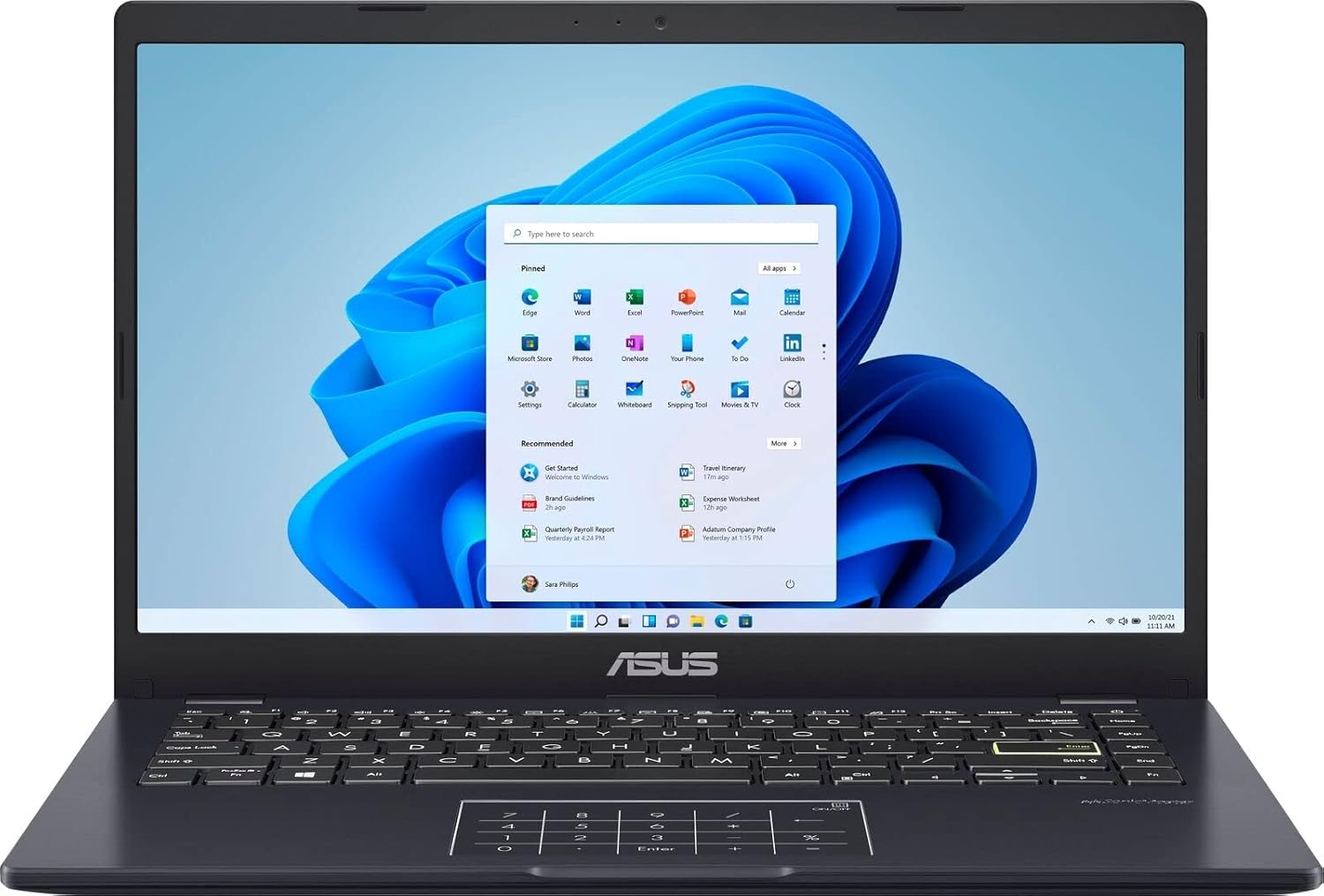
Image 3.1: The ASUS E410MA laptop shown open, displaying the Windows 11 operating system interface on its 14-inch screen. The keyboard and touchpad are visible below the screen.
3.2 Clavier et pavé tactile

Image 3.2: A top-down perspective of the ASUS E410MA laptop's keyboard and touchpad. The touchpad features an integrated NumberPad, indicated by illuminated numeric keys.
3.3 Côté View (Ouvrir)
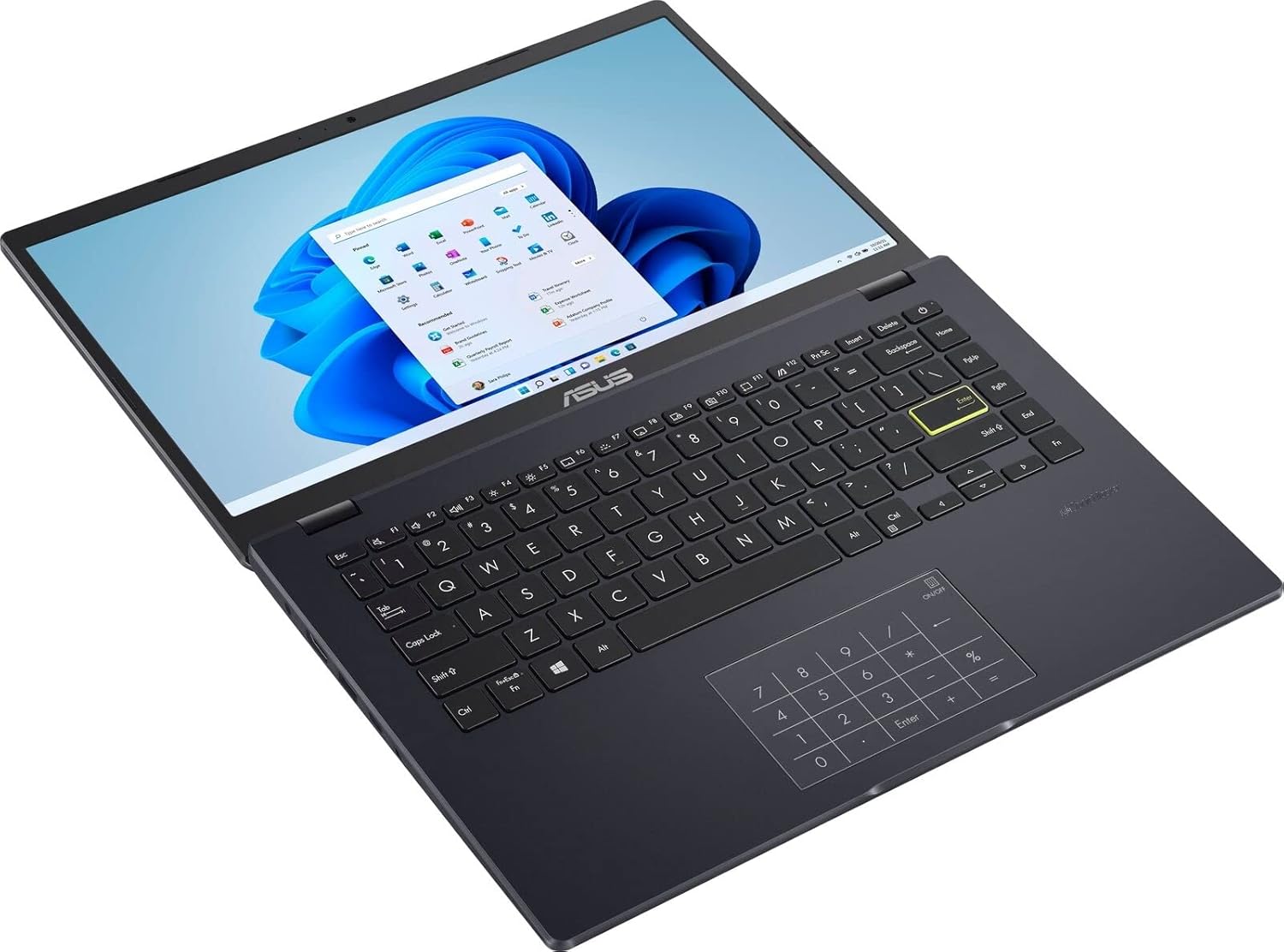
Image 3.3: Un angle view of the ASUS E410MA laptop in an open position, highlighting the keyboard layout and the display screen.
3.4 Arrière View (Fermé)

Image 3.4: L'arrière view of the ASUS E410MA laptop in a closed state, featuring the ASUS logo prominently on the lid.
3.5 Angled Rear View (Fermé)

Image 3.5: Un arrière incliné view of the ASUS E410MA laptop when closed, showcasing the ASUS logo on the lid and a glimpse of the side ports.
3.6 Globalement View (Open and Closed)
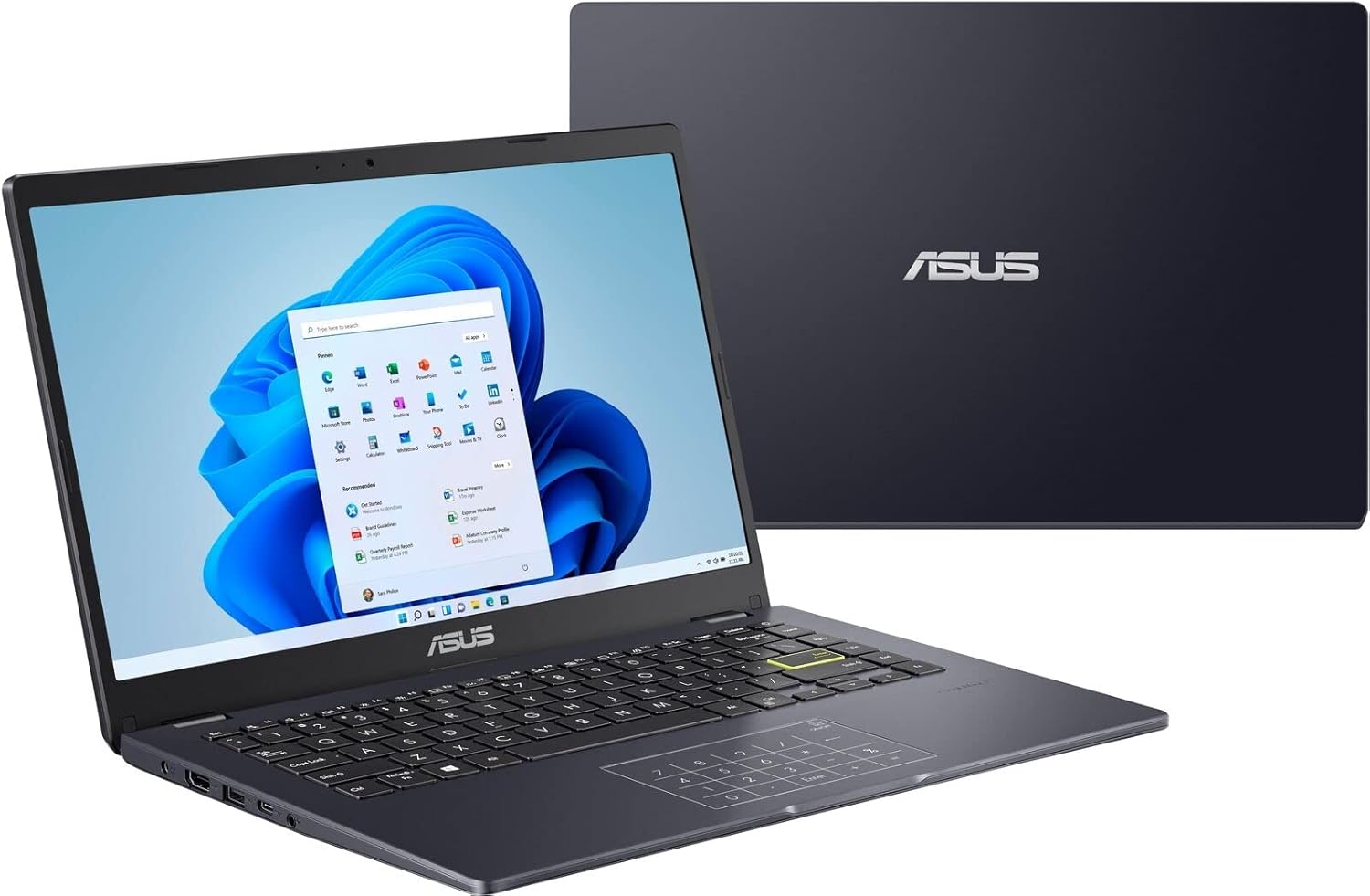
Image 3.6: A composite view showing the ASUS E410MA laptop in an open, operational state in the foreground, with a closed unit visible in the background.
4. Installation
Follow these steps to set up your ASUS E410MA laptop for the first time.
4.1 Chargement de la batterie
- Branchez l'adaptateur secteur au port d'entrée d'alimentation de l'ordinateur portable.
- Branchez le cordon d’alimentation sur une prise murale.
- Allow the battery to charge fully before initial use. The battery indicator light will change to show charging status.
4.2 Mise sous tension initiale
- Ouvrez le couvercle de l'ordinateur portable.
- Appuyez sur le bouton d'alimentation, généralement situé en haut à droite du clavier ou sur le côté.
- The laptop will boot up and guide you through the Windows 11 initial setup process.
4.3 Installation de Windows 11
Follow the on-screen instructions to complete the Windows 11 setup, which includes:
- Sélectionnez votre région et votre disposition de clavier.
- Connexion à un réseau Wi-Fi.
- Se connecter avec un compte Microsoft ou en créer un.
- Configuration des paramètres de confidentialité.
5. Utilisation de votre ordinateur portable
This section covers basic operations and features of your ASUS E410MA laptop.
5.1 Utilisation du clavier et du pavé tactile
- Clavier: The laptop features a full-sized keyboard. Use the Function (Fn) key in combination with the F-keys (F1-F12) for special functions like adjusting brightness, volume, or enabling/disabling Wi-Fi.
- Pavé tactile : Le pavé tactile prend en charge les gestes multipoints pour la navigation. Consultez les paramètres Windows pour personnaliser les gestes du pavé tactile.
- NumberPad: Your laptop's touchpad integrates an ASUS NumberPad. To activate or deactivate it, press and hold the NumberPad icon on the top-right corner of the touchpad.
5.2 Connexion de périphériques
Votre ordinateur portable est équipé de différents ports permettant de connecter des périphériques externes :
- Ports USB : Connectez des périphériques USB tels que des disques durs externes, des souris ou des claviers.
- Port HDMI: Connect to an external monitor or TV for video output.
- Prise audio: Connectez un casque ou des haut-parleurs externes.
5.3 Gestion de l'alimentation
Pour préserver l'autonomie de la batterie et optimiser les performances :
- Ajuster la luminosité de l'écran.
- Utilize Windows power modes (e.g., Balanced, Power Saver).
- Fermez les applications inutilisées.
6. Entretien
Un entretien régulier garantit la longévité et les performances optimales de votre ordinateur portable.
6.1 Nettoyage de l'ordinateur portable
- Utilisez un chiffon doux et non pelucheux légèrement dampterminer avec de l'eau ou un nettoyant d'écran spécialisé.
- Pour le clavier et le châssis, utilisez un chiffon doux. Évitez les produits chimiques agressifs et les matériaux abrasifs.
- Assurez-vous que l'ordinateur portable est éteint et débranché avant de le nettoyer.
6.2 Entretien de la batterie
- Évitez de décharger complètement la batterie fréquemment.
- Rangez l'ordinateur portable dans un endroit frais et sec s'il n'est pas utilisé pendant une période prolongée.
- N'exposez pas la batterie à des températures extrêmes.
6.3 Mises à jour logicielles
Regularly update your operating system and drivers to ensure security and performance:
- Mises à jour Windows : Aller à Paramètres > Mise à jour Windows pour rechercher et installer les mises à jour.
- Mises à jour du pilote: Consultez le support officiel d'ASUS website pour télécharger les pilotes les plus récents pour votre modèle.
6.4 Gestion du stockage
With 64GB eMMC storage, efficient management is crucial:
- Supprimez régulièrement les fichiers inutiles. files et applications.
- Utilize cloud storage services (e.g., OneDrive, Google Drive) for documents and media.
- Consider an external hard drive or USB flash drive for additional storage.
7. Dépannage
This section addresses common issues you might encounter with your ASUS E410MA laptop.
7.1 Laptop Will Not Turn On
- Assurez-vous que l'adaptateur secteur est correctement connecté à la fois à l'ordinateur portable et à une prise de courant fonctionnelle.
- Vérifiez le bon fonctionnement de la prise de courant en y branchant un autre appareil.
- Si la batterie est complètement déchargée, il faudra peut-être quelques minutes de charge avant que l'ordinateur portable puisse s'allumer.
7.2 Performances lentes
- Fermez les applications inutiles qui s'exécutent en arrière-plan.
- Vérifiez et installez les mises à jour Windows en attente.
- Ensure you have sufficient free storage space on your eMMC drive.
- Effectuez une analyse antivirus et anti-logiciels malveillants.
7.3 Problèmes de connectivité Wi-Fi
- Ensure Wi-Fi is enabled on your laptop (check Function key shortcuts).
- Redémarrez votre routeur et votre modem.
- Forget the Wi-Fi network in Windows settings and reconnect.
- Update your wireless network adapter drivers from the ASUS support website.
7.4 Problèmes d'affichage
- Réglez la luminosité de l'écran à l'aide des touches de fonction du clavier.
- If connected to an external monitor, ensure the display output settings are correct (e.g., duplicate, extend).
- Update your Intel UHD Graphics 600 drivers.
8. Spécifications
Detailed technical specifications for the ASUS E410MA-TB.CL464 laptop.
| Fonctionnalité | Spécification |
|---|---|
| Nom du modèle | E410MA-TB.CL464 |
| Taille de l'écran | 14 pouces |
| Résolution de l'écran | 1366 x 768 pixels |
| Processeur | Intel Celeron N4020 (1.1GHz, up to 2.8GHz burst) |
| BÉLIER | 4 GB DDR4 (Onboard) |
| Vitesse de la mémoire | 2400 MHz |
| Stockage | eMMC 64 Go |
| Coprocesseur graphique | Intel UHD Graphics 600 (intégré) |
| Système opérateur | Windows 11 |
| Type sans fil | Bluetooth, Wi-Fi (specific standard not detailed, typically 802.11ac or newer) |
| Ports USB 2.0 | 1 |
| Ports USB 3.0 | 1 |
| Port HDMI | 1 |
| Poids de l'article | 4.64 livre (environ 2.1 kg) |
| Dimensions du produit | 9 x 14 x 0.78 pouces (environ 22.86 x 35.56 x 1.98 cm) |
| Couleur | Noir |
| Dossier spécial | Revêtement antireflet |
9. Garantie et assistance
Your ASUS E410MA laptop comes with a limited warranty. Please refer to the warranty card included in your package for specific terms and conditions, including coverage duration and limitations.
9.1 Assistance technique
Pour obtenir une assistance technique, télécharger des pilotes ou obtenir des informations complémentaires, veuillez consulter le support officiel d'ASUS. website. You can typically find support resources by searching for your specific model number (E410MA-TB.CL464).
Before contacting support, ensure you have:
- Your laptop's serial number.
- A clear description of the issue.
- Any troubleshooting steps you have already performed.