
Introduction
This manual provides detailed instructions for the setup, operation, maintenance, and troubleshooting of your GOODTEL G10 10-inch Android tablet. Please read this guide thoroughly to ensure proper use and to maximize your device's performance and longevity.
Installation
1. Contenu du colis
Lors du déballage, vérifiez que tous les articles sont présents :
- Tablette GOODTEL G10
- Stylus for touchscreen
- Étui de protection
- Chargeur
- Manuel d'utilisation
2. Charger la tablette
Before first use, fully charge the tablet. Connect the provided charger to the USB Type-C port on the tablet and plug it into a power outlet. The charging indicator will show the charging status.
3. Mise sous/hors tension
- Pour allumer : Appuyez sur le bouton d'alimentation et maintenez-le enfoncé jusqu'à ce que l'écran s'allume.
- Pour éteindre : Maintenez le bouton d'alimentation enfoncé, puis sélectionnez « Éteindre » parmi les options affichées à l'écran.
4. Insertion d'une carte microSD
The tablet supports MicroSD/TF cards from 4GB to 256GB for expanded storage. Locate the MicroSD card slot, gently insert the card with the gold contacts facing down until it clicks into place.
5. Connexion au Wi-Fi
- Aller à Paramètres > Réseau et internet > Wifi.
- Activer/désactiver le Wi-Fi On.
- Sélectionnez le réseau Wi-Fi souhaité dans la liste.
- Saisissez le mot de passe si vous y êtes invité, puis appuyez sur Connecter.
6. Couplage Bluetooth
- Aller à Paramètres > Appareils connectés > Bluetooth.
- Activer/désactiver Bluetooth On.
- The tablet will scan for available devices. Select the device you wish to pair with from the list.
- Confirmez le code d'appairage si vous y êtes invité.

This detailed diagram illustrates the location and function of all external ports and buttons on the GOODTEL G10 tablet, such as the USB Type-C charging port, headphone jack, and MicroSD card slot.
Mode d'emploi
1. Navigation dans le système d'exploitation Android 12
Your GOODTEL G10 tablet runs on Android 12, offering an intuitive user interface. Swipe up from the bottom of the screen to access the app drawer, swipe down from the top for quick settings and notifications. The 10-inch IPS display provides wide viewing angles and responsive touch sensitivity.
2. Utilisation de l'appareil photo
The tablet features a 5MP front camera and an 8MP rear camera. Open the Camera application to capture photos and videos. Tap the screen to focus and press the shutter button to take a picture.
3. Audio et multimédia
The tablet is equipped with dual speakers for audio output. For private listening, connect headphones to the 3.5mm headphone jack. The device supports various multimedia applications for streaming videos and music.
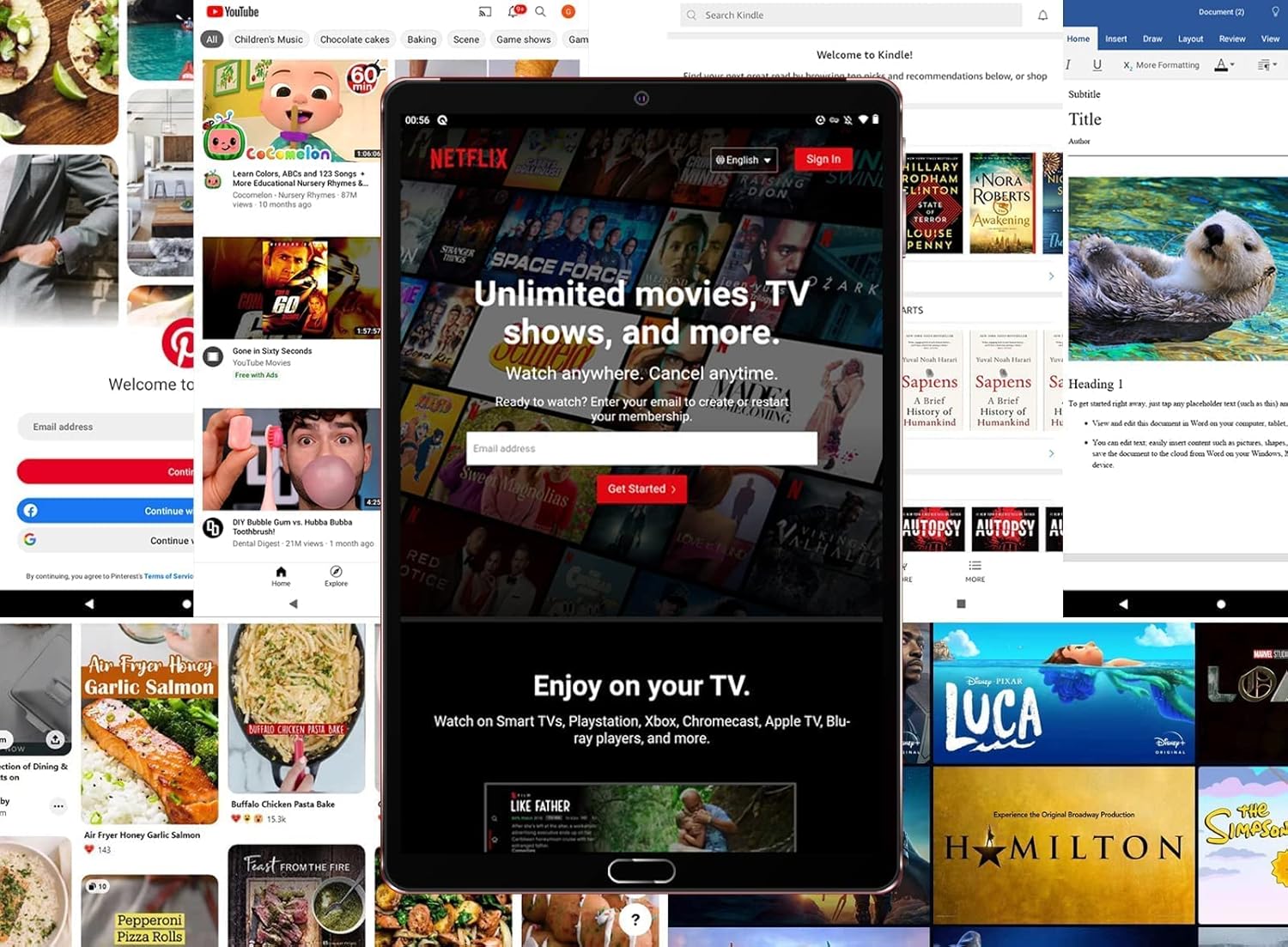
The tablet is shown running the Netflix application, illustrating its suitability for streaming video content and entertainment.
4. Stockage et performances
With 4GB RAM and 64GB internal storage (ROM), the tablet provides ampl'espace pour les candidatures et files. The Octa-Core processor ensures smooth performance for multitasking and running various applications. Expand storage up to 256GB using a MicroSD card.

This image highlights the main technical specifications and features of the GOODTEL G10 tablet, including its operating system, memory, connectivity options, and display characteristics.
5. Productivity and Communication
The G10 tablet is compatible with WPS Office and other office applications (WORD, EXCEL, PPT, PDF) for document editing and management. It supports voice and video calls, making it suitable for connecting with family, friends, and colleagues via applications like ZOOM.
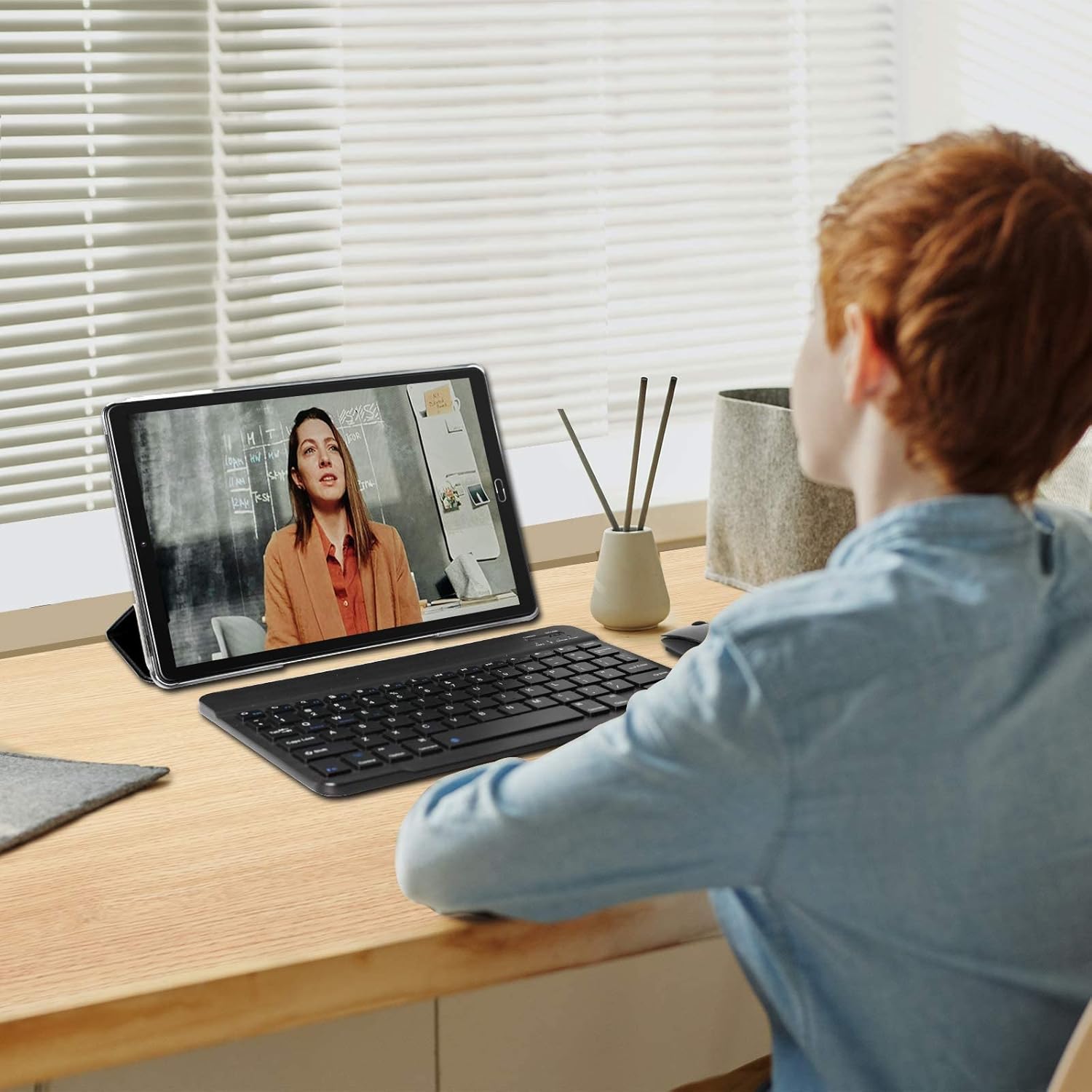
The tablet is depicted in a work or study environment, paired with an external keyboard, demonstrating its use for educational purposes or office applications.
6. Contrôle parental
The tablet includes Google's Family Link parental control feature, allowing remote device management, usage time limits, and content filtering via the Family Link application.
7. Fonctionnalités supplémentaires
The G10 supports gravity detection, FM radio, quick screenshot capture, and screen recording functionalities.

This image shows the tablet's user interface, featuring the Android home screen with common applications, indicating ease of access and navigation.
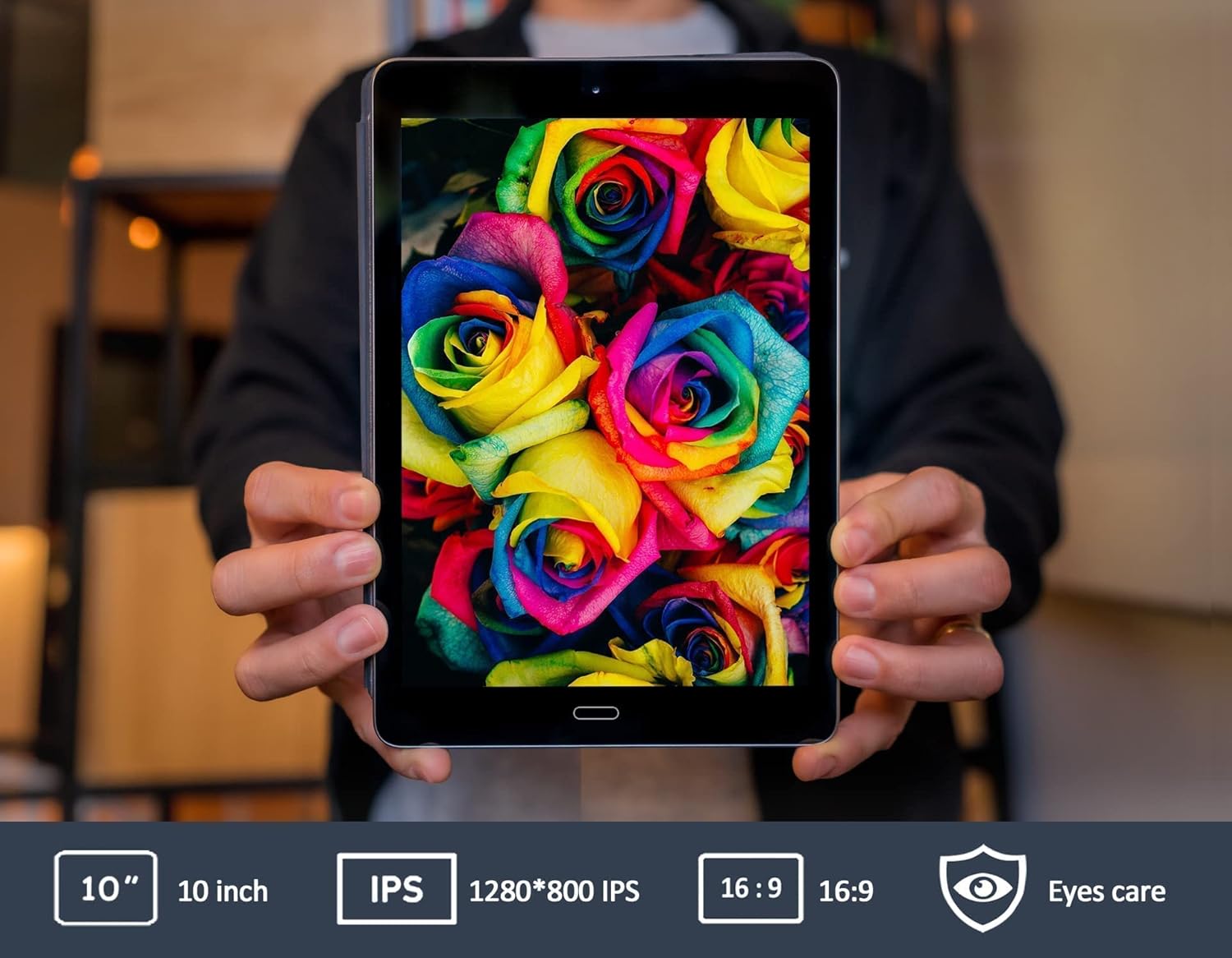
This image emphasizes the tablet's 10-inch IPS screen, known for its wide viewing angles and vivid color reproduction.

The GOODTEL G10 tablet is shown in a home setting, demonstrating its use for entertainment and interaction with smart home devices.
Entretien
1. Entretien de la batterie
La batterie de 8000 mAh offre une autonomie prolongée. Pour prolonger la durée de vie de la batterie :
- Évitez les températures extrêmes.
- Ne laissez pas la batterie se décharger complètement fréquemment.
- Utilisez le chargeur d'origine fourni.
2. Nettoyage de la tablette
Utilisez un chiffon doux non pelucheux pour nettoyer l'écran et le boîtier de la tablette. Évitez d'utiliser des produits chimiques agressifs ou des matériaux abrasifs qui pourraient endommager la surface.
3. Mises à jour logicielles
Vérifiez régulièrement les mises à jour du système dans Paramètres > Système > Mise à jour du système to ensure your tablet has the latest features and security patches. While specific software update guarantees are not available, keeping your device updated is recommended.
Dépannage
Problèmes courants et solutions :
- La tablette ne s'allume pas : Assurez-vous que la tablette est suffisamment chargée. Branchez le chargeur et attendez quelques minutes avant de tenter de la rallumer.
- Problèmes de connectivité Wi-Fi : Check if Wi-Fi is enabled in settings. Restart your Wi-Fi router. If the issue persists, try forgetting the network and reconnecting.
- Les applications sont lentes ou ne répondent pas : Close unused applications running in the background. Restart the tablet. If the problem continues, consider clearing the cache of problematic apps or performing a factory reset as a last resort (note: a factory reset will erase all data on the tablet).
- L'écran tactile ne répond pas : Restart the tablet. Ensure the screen is clean and free of debris.
Si vous rencontrez des problèmes non abordés ici, veuillez consulter la section d'assistance.
Caractéristiques
| Marque | BONTEL |
| Nom du modèle | G10 |
| Numéro de modèle | G2 |
| Système opérateur | Système d'exploitation Android 12 |
| Processeur | Octa-Core, 1.6 GHz |
| BÉLIER | 4 Go |
| Stockage interne (ROM) | 64 Go |
| Stockage extensible | MicroSD/TF (4-256 GB) |
| Taille de l'écran | 10 pouces |
| Type d'écran | IPS |
| Capacité de la batterie | 8000 mAh |
| Caméra arrière | 8 MP |
| Caméra frontale | 5 MP |
| Connectivité | WiFi, Bluetooth, AGPS, Hotspots |
| Technologie sans fil | 802.11b, 802.11g |
| Ports | USB Type-C, prise casque 3.5 mm |
| Poids | 450 gramme |
Informations sur la garantie
Specific warranty details for the GOODTEL G10 tablet are not provided in the product information. Please refer to the warranty card included in your package or contact the seller/manufacturer directly for comprehensive warranty terms and conditions. Information regarding spare parts availability and guaranteed software updates is also not available.
Soutien
For further assistance, technical support, or inquiries regarding your GOODTEL G10 tablet, please contact our service team. GOODTEL provides a friendly and professional service and technical team dedicated to offering prompt and excellent pre-sales and after-sales support.
Please refer to the contact information provided with your purchase documentation or visit the official GOODTEL website pour les options de support.