
Introduction
This manual provides comprehensive instructions for the setup, operation, maintenance, and troubleshooting of your T-WOLF X9 Bluetooth Mouse. Please read this manual carefully before using the product to ensure optimal performance and longevity.
Contenu du colis
- 1 x T-WOLF X9 Bluetooth Mouse
- 1 pile AA
- 1 x Manuel d'utilisation (ce document)
Produit terminéview

Image 1: Haut view of the T-WOLF X9 Bluetooth Mouse, showing the left and right click buttons, scroll wheel, and DPI switch button. The T-WOLF logo and Bluetooth icon are visible.
The T-WOLF X9 is a portable Bluetooth mouse designed for convenience and performance. It features a sleek design, Bluetooth 5.2 connectivity, and a 10-meter operating range. The mouse includes four buttons: left-click, right-click, scroll wheel (which also functions as a button), and a dedicated DPI switch button for adjusting cursor sensitivity.
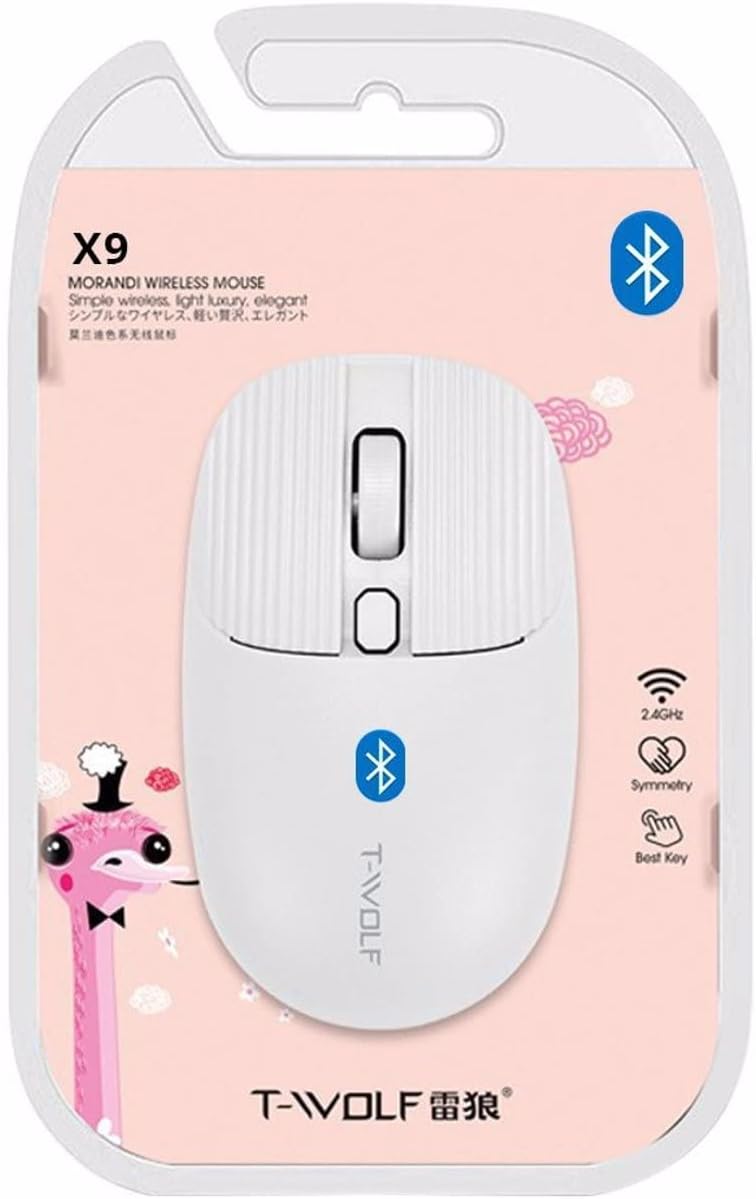
Image 2: Packaging of the T-WOLF X9 Bluetooth Mouse, highlighting key features such as 2.4GHz (though product is Bluetooth, this might be a generic packaging element), symmetry, and "Best Key".

Image 3: Côté view of the T-WOLF X9 Bluetooth Mouse, illustrating its ergonomic profile and non-slip roller design.
Installation
1. Installation de la batterie
- Localisez le compartiment à piles sous la souris.
- Ouvrez le couvercle du compartiment à piles.
- Insérez la pile AA fournie en veillant à respecter la polarité (+/-).
- Fermez soigneusement le couvercle du compartiment à piles.
2. Couplage Bluetooth
- Ensure the mouse is powered on. There may be a power switch on the underside.
- Sur votre ordinateur ou appareil, accédez aux paramètres Bluetooth.
- Activez le Bluetooth et recherchez de nouveaux appareils.
- The mouse should appear as "T-WOLF X9" or similar. Select it to initiate pairing.
- Une fois appariée, la souris est prête à l'emploi.
Mode d'emploi
1. DPI Switching
The T-WOLF X9 mouse features 3-gear DPI switching. Press the dedicated DPI button (located behind the scroll wheel) to cycle through the available DPI settings. Each press will change the cursor sensitivity, allowing you to adjust it to your preference for different tasks.
2. Fonctions des boutons
- Bouton clic gauche : Sélection et interaction primaires.
- Bouton clic droit : Ouvre les menus contextuels.
- Molette: Permet de faire défiler le contenu verticalement. Peut également être utilisé pour activer la fonction clic central.
- Bouton de changement de DPI : Ajuste la sensibilité du curseur (DPI).
Entretien
- Nettoyage: Utilisez un chiffon doux et sec pour nettoyer la souris. Pour les saletés tenaces, frottez légèrement avec un chiffon doux et sec.ampNettoyez le chiffon avec de l'eau. Évitez d'utiliser des produits chimiques agressifs ou des matériaux abrasifs.
- Remplacement de la batterie : Replace the AA battery when the mouse performance degrades or it stops responding.
- Stockage: Rangez la souris dans un endroit frais et sec lorsqu'elle n'est pas utilisée pendant une période prolongée.
Dépannage
| Problème | Solution |
|---|---|
| La souris ne répond pas |
|
| Le mouvement du curseur est erratique ou lent. |
|
| Cannot pair the mouse |
|
Caractéristiques
| Fonctionnalité | Détail |
|---|---|
| Modèle | X9 |
| Connectivité | Bluetooth 5.2 |
| Plage de fonctionnement | Jusqu'à 10 mètres |
| Boutons | 4 (Left, Right, Scroll Wheel/Middle, DPI Switch) |
| Paramètres PPP | 3-Gear Switching |
| Source d'énergie | 1 pile AA |
| Orientation de la main | Ambidextre |
| Appareils compatibles | Ordinateur portable, ordinateur personnel |
| Systèmes d'exploitation | Linux, Windows 7, Windows XP (and newer OS with Bluetooth support) |
| Dimensions | 20 x 13 x 7.5 cm (emballage) |
| Poids | 150 g (Emballage) |
Garantie et assistance
This product is covered by a standard manufacturer's warranty. For specific warranty details, please refer to the documentation provided at the time of purchase or contact your retailer. For technical support or further assistance, please reach out to the seller or manufacturer's customer service.