
Produit terminéview
The typecase Touch Keyboard Case is designed to enhance the functionality and protection of your iPad Air. It features a full-size keyboard with a multi-gesture trackpad, offering a laptop-like experience. The case boasts a 360° rotatable hinge, allowing for multiple viewing angles and usage modes. An adjustable 11-color RGB LED backlight provides comfortable typing in various lighting conditions. Integrated smart features like auto sleep/wake help conserve battery life, and a dedicated holder keeps your Apple Pencil secure.
Caractéristiques principales :
- Compatibilité: Specifically designed for iPad Air 11-inch (M3 2025 / M2 2024), iPad Air 5th Gen (2022, 10.9"), and iPad Air 4th Gen (2020, 10.9").
- Pavé tactile intégré : Supports multi-gesture controls for precise navigation.
- Clavier rétroéclairé : 11 adjustable RGB backlight colors with laser-etched keys and a full row of iPadOS shortcuts.
- Versatile Use Modes: 360° rotatable hinge for 7 different viewing modes (Laptop, Stand, Tent, Tablet, Corner, Share, Protect).
- Protection intelligente : Premium hardshell design protects all sides of your iPad, with auto sleep/wake function.
- Porte-crayons : Conveniently stores your Apple Pencil.
Contenu du colis
Veuillez vérifier que tous les articles sont présents dans le colis :
- 1 x typecase Touch Keyboard Case for iPad Air 5th/4th Gen (10.9 inch)
- Câble de charge 1 x USB-C
- 1 x Manuel d'utilisation
Guide d'installation
1. Charging the Keyboard Case
Before initial use, fully charge the keyboard case. Connect the provided USB-C charging cable to the charging port on the keyboard and to a USB power adapter (not included).
Charging indicator: The LED indicator will show charging status. Refer to the keyboard's specific LED behavior for full charge indication.
2. Insertion de votre iPad dans l'étui
Carefully align your iPad with the protective shell of the keyboard case. Gently press the iPad into place, ensuring all corners are securely seated. The case is designed to protect all sides of your iPad.
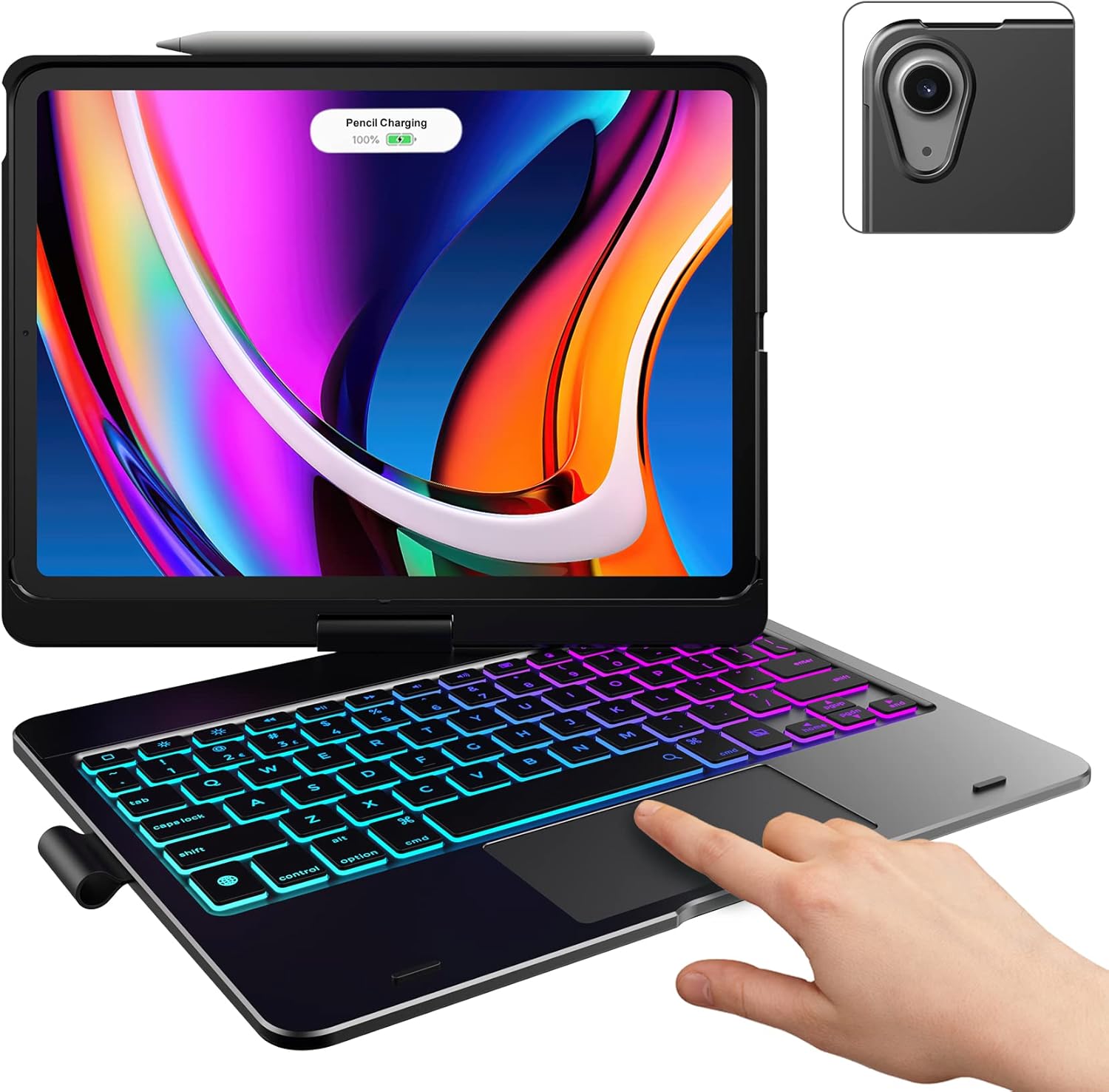
Image: The typecase keyboard case with an iPad securely inserted, ready for use. Note the integrated trackpad and backlit keys.

Image: Visual representation of the 7 versatile modes supported by the 360° rotatable hinge, including Laptop, Stand, and Tablet modes.
3. Pairing with Your iPad (Bluetooth)
- Allumez le clavier en faisant glisser l’interrupteur d’alimentation sur la position ON.
- Appuyez sur le Connecter button (or a similar Bluetooth pairing button, usually indicated by a Bluetooth icon) on the keyboard. The Bluetooth indicator light will start blinking.
- Sur votre iPad, accédez à Paramètres > Bluetooth.
- Assurez-vous que le Bluetooth est activé. On.
- Locate "typecase Keyboard" or a similar name in the "Other Devices" list and tap on it to pair.
- Once paired, the Bluetooth indicator light on the keyboard will stop blinking and remain solid, or turn off.
Note: The keyboard will automatically enter sleep mode after a period of inactivity to conserve battery. Press any key to wake it up.
Mode d'emploi
Fonctions du clavier
The keyboard features a standard layout with 78 comfortably spaced keys and a dedicated row of iPadOS shortcut keys.

Image : détaillée view of the backlit keyboard, highlighting the iPadOS shortcut keys and the vibrant 11-color RGB backlight.
Raccourcis clavier iPadOS :
| Icône de clé | Fonction |
|---|---|
| Maison | Retourne à l'écran d'accueil. |
| Luminosité vers le bas | Diminue la luminosité de l'écran. |
| Luminosité vers le haut | Augmente la luminosité de l'écran. |
| Keyboard Hide/Show | Toggles the on-screen keyboard. |
| Rechercher | Active la recherche sur iPad. |
| Piste précédente | Passe à la piste multimédia précédente. |
| Lecture/Pause | Lance ou met en pause le contenu multimédia. |
| Piste suivante | Passe à la piste multimédia suivante. |
| Muet | Couper ou rétablir le son. |
| Baisser le volume | Diminue le volume audio. |
| Augmenter le volume | Augmente le volume audio. |
| Écran de verrouillage | Verrouille l'écran de l'iPad. |
Utilisation du pavé tactile
The integrated multi-gesture trackpad allows for precise control and navigation of your iPad. Ensure the trackpad is enabled in your iPad's settings if you experience issues.
Gestes courants du pavé tactile :
- Appuyez sur un seul doigt : Click/Select.
- Défilement à deux doigts : Faites défiler vers le haut ou vers le bas.
- Pincer pour zoomer : Effectuez un zoom avant ou arrière sur le contenu.
- Balayage à trois doigts vers le haut : Accédez à l'écran d'accueil.
- Balayage à trois doigts vers la gauche/droite : Basculer entre les applications ouvertes.

Image: A hand demonstrating the use of the multi-touch trackpad for precise cursor control on the iPad screen.
Réglage du rétroéclairage
The keyboard features 11 adjustable RGB backlight colors and 3 levels of brightness. Use the dedicated backlight keys on the keyboard to cycle through colors and adjust brightness levels.
Video: This video demonstrates the 360-degree rotation feature of the typecase Touch Keyboard Case, showcasing its versatility in different viewmodes de fonctionnement.
Video: This video provides a step-by-step guide on how to properly install and remove your iPad from the typecase Touch Keyboard Case, ensuring a secure fit and preventing damage.
Entretien et soins
- Nettoyage: Utilisez un chiffon doux et sec.amp Utilisez un chiffon pour nettoyer l'extérieur du boîtier et le clavier. Évitez les produits chimiques agressifs et les matériaux abrasifs.
- Stockage: When not in use for extended periods, store the keyboard case in a cool, dry place. Ensure the iPad is removed if storing for very long durations.
- Autonomie de la batterie : To maximize battery life, turn off the keyboard when not in use. The auto sleep/wake function helps conserve power.
- Évitez les liquides : Do not expose the keyboard case to excessive moisture or liquids.
- À manipuler avec précaution : While durable, avoid dropping the case or applying excessive force to the hinge or keyboard.
Dépannage
If you encounter any issues with your typecase Touch Keyboard Case, please refer to the following common solutions:
Keyboard Not Connecting/Typing:
- Assurez-vous que le clavier est allumé et complètement chargé.
- Check your iPad's Bluetooth settings to confirm the keyboard is paired and connected. If not, try re-pairing.
- Redémarrez votre iPad et votre clavier.
- Assurez-vous qu'aucun autre appareil Bluetooth n'interfère avec la connexion.
Le pavé tactile ne répond pas :
- Vérifiez que le clavier est connecté via Bluetooth.
- Check iPad settings: Paramètres > Accessibilité > Touche > AssistiveTouch. Ensure "Mouse Keys" is off if it's causing interference.
- Nettoyez la surface du pavé tactile pour éliminer toute trace de poussière.
Le rétroéclairage ne fonctionne pas :
- Assurez-vous que le clavier est suffisamment chargé.
- Press the backlight adjustment keys to cycle through brightness levels and colors.
iPad Not Entering Sleep/Wake Mode:
- Assurez-vous que l'iPad est correctement inséré dans l'étui.
- Check iPad settings: Paramètres > Affichage et luminosité > Verrouiller/Déverrouiller. Ensure this feature is enabled.
If problems persist, please contact typecase customer support for further assistance.
Caractéristiques
| Fonctionnalité | Détail |
|---|---|
| Modèle | B09WVRD5JD |
| Compatibilité | iPad Air 11-inch (M3 2025 / M2 2024), iPad Air 5th Gen (2022, 10.9"), iPad Air 4th Gen (2020, 10.9") |
| Connectivité | Bluetooth |
| Disposition du clavier | 78-key standard with iPadOS shortcuts |
| Rétroéclairage | 11 couleurs RVB, 3 niveaux de luminosité |
| Pavé tactile | Multi-functional, multi-gesture |
| Hinge Rotation | 360° (20,000-cycle stress tested) |
| Source d'énergie | Alimenté par batterie (1 batterie au lithium polymère incluse) |
| Poids de l'article | 1.52 livres |
| Dimensions du produit (L x l x H) | 11.02 x 8.66 x 0.79 pouces |
| Matériel | Premium hardshell design |
Garantie et assistance
typecase offers a comprehensive warranty and support for your product:
- Service de remplacement de 1 ans : Enjoy worry-free after-sales support with a 1-year replacement service for manufacturing defects.
- Remboursement sous 30 jours : Si vous n'êtes pas satisfait de votre achat, vous pouvez prétendre à un remboursement dans les 30 jours suivant l'achat.
- Assistance clientèle : For any questions, technical assistance, or warranty claims, please contact typecase customer service. Refer to the contact information provided in the product packaging or on the official typecase website.

Image : Terminéview of typecase's customer support and warranty policy, including 1-year replacement and 30-day refund.