
Introduction
This manual provides detailed instructions for the installation, operation, and maintenance of your Everycom EC-901 80mm Thermal POS Receipt Printer. Please read this manual thoroughly before using the printer to ensure proper functionality and to prevent damage.
Consignes de sécurité
- Assurez-vous que l'imprimante est connectée à une source d'alimentation avec la tension appropriée.tage.
- N’exposez pas l’imprimante à l’eau ou à une forte humidité.
- Évitez de placer l'imprimante en plein soleil ou à proximité de sources de chaleur.
- Use only specified thermal paper for optimal performance and to prevent damage to the print head.
- N’essayez pas de démonter ou de réparer l’imprimante vous-même. Contactez un technicien qualifié.
Contenu du colis
Vérifiez que tous les éléments sont présents dans le colis :
- Everycom EC-901 Thermal POS Receipt Printer
- Roll paper × 1 Roll (for initial testing)
- CD-ROM (containing Drivers, Utility Software, Manuals)
- Guide papier
- Paper Bearing
- Câble USB
- Câble adaptateur secteur
Produit terminéview
The Everycom EC-901 is a compact 80mm (3-inch) thermal POS receipt printer designed for efficient and reliable printing. It features a USB and LAN interface for versatile connectivity.

Figure 1 : Face avant view of the Everycom EC-901 Thermal POS Receipt Printer.
Caractéristiques principales :
- Vitesse d'impression rapide : Up to 160mm per second for quick receipt output.
- Chargement facile du papier : Drop-in paper loading mechanism for quick and easy media changes.
- Conception compacte : Low space requirement with an integrated power supply.
- Variable Paper Width: Supports 80mm paper width.
- Connectivité : USB and LAN interface options.
- Haute résolution: 203 x 203 DPI for clear print quality.
- Faible niveau de bruit : Operates quietly, suitable for various work environments.

Figure 2: Top-open design for easy paper roll installation.
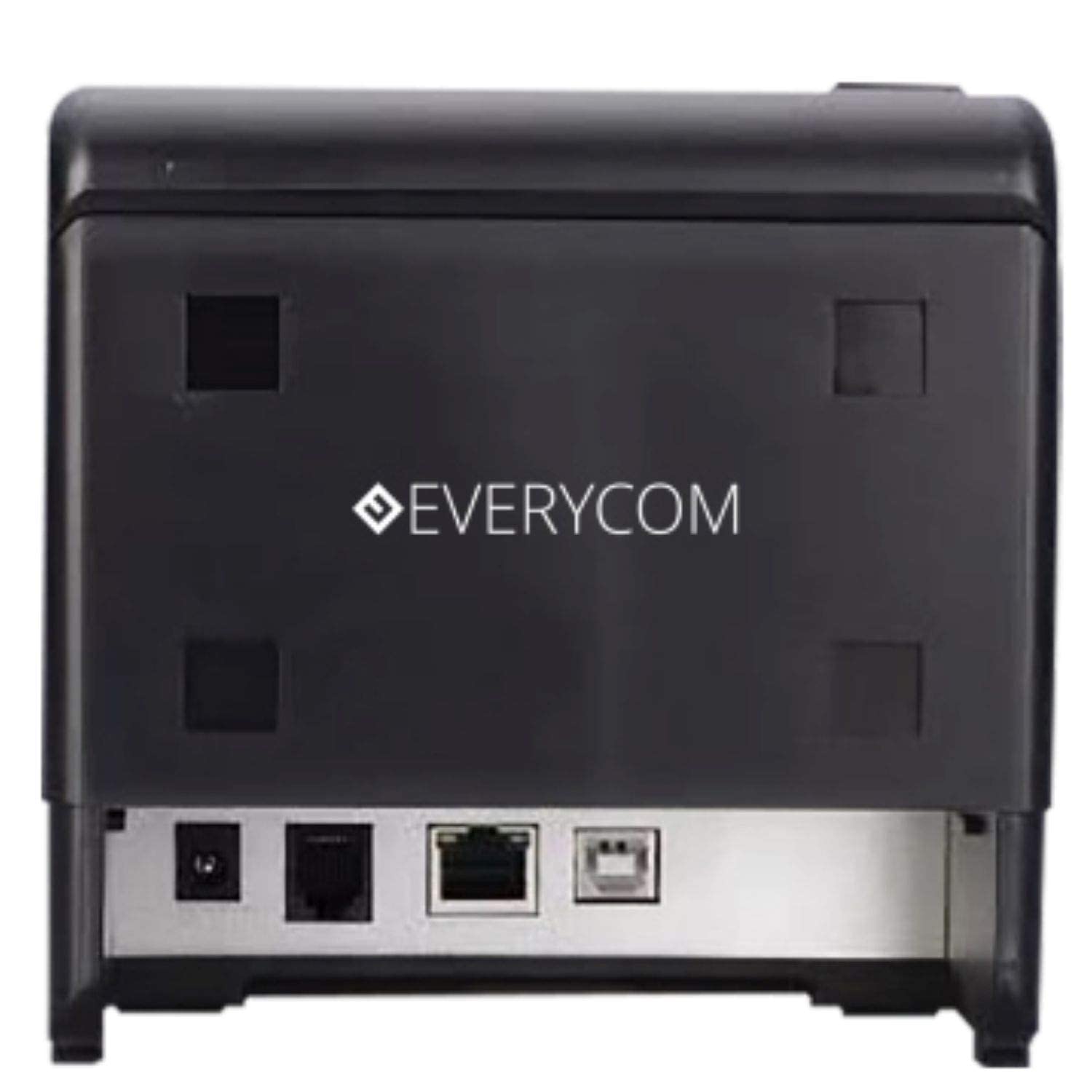
Figure 3 : Arrière view showing USB and LAN connectivity ports.

Figure 4: The EC-901 printer is designed for low noise operation.

Figure 5: The EC-901 printer features an easy-to-use design for paper installation.
Installation
1. Connexion de l'imprimante
- Connect the power adapter cable to the printer's power port and then plug it into a suitable electrical outlet.
- Pour la connexion USB : connectez une extrémité du câble USB au port USB de l’imprimante et l’autre extrémité à votre ordinateur.
- For LAN connection: Connect an Ethernet cable to the printer's LAN port and the other end to your network router or switch.
- Turn on the printer using the power switch located on the front or side of the device.
2. Installation du rouleau de papier
- Open the printer cover by pressing the release button or lifting the cover.
- Insert the thermal paper roll into the compartment with the paper feeding from the bottom and exiting towards the front.
- Tirez un petit morceau de papier au-delà du massicot.
- Fermez fermement le couvercle de l'imprimante jusqu'à ce qu'il s'enclenche.
3. Installation du pilote
Insert the provided CD-ROM into your computer's CD/DVD drive. Follow the on-screen instructions to install the printer drivers and utility software. Drivers are typically compatible with Windows operating systems, including Windows 10.
Mode d'emploi
Voyants lumineux :
- POUVOIR: Indique que l'imprimante est sous tension.
- ERREUR: Lights up or flashes to indicate an error (e.g., print head overheating, cover open).
- PAPIER: Indicates low paper or no paper.
Impression de base :
Once the printer is connected and drivers are installed, you can print receipts from your POS software or any application that supports printing. Ensure the Everycom EC-901 is selected as the default printer or the desired printer in your application's print settings.
Entretien
Nettoyage de l'imprimante :
- Éteignez l'imprimante et débranchez le câble d'alimentation avant de la nettoyer.
- Utilisez un chiffon doux et non pelucheux dampened with isopropyl alcohol to gently clean the thermal print head. Allow it to dry completely before use.
- Wipe the exterior of the printer with a soft, dry cloth. Do not use abrasive cleaners.
Replacing Paper:
When the PAPER indicator lights up or printing becomes faint, replace the paper roll following the steps outlined in the "Installing the Paper Roll" section.
Dépannage
| Problème | Cause possible | Solution |
|---|---|---|
| L'imprimante ne s'allume pas. | Câble d'alimentation débranché ou problème de prise électrique. | Vérifiez les branchements du câble d'alimentation. Assurez-vous que la prise de courant fonctionne. |
| Aucune impression ou sortie vierge. | No paper, paper loaded incorrectly, or print head issue. | Check paper roll and ensure it's loaded correctly. Clean the print head if necessary. Verify printer drivers are installed. |
| PAPER indicator is on. | Paper roll is empty or low. | Remplacez le rouleau de papier. |
| ERROR indicator is on. | Printer cover open, print head overheating, or other internal error. | Ensure the printer cover is closed properly. Turn off the printer, wait a few minutes for it to cool down, then restart. If the issue persists, contact support. |
| Imprimante non reconnue par l'ordinateur. | Driver not installed or USB/LAN cable issue. | Reinstall printer drivers. Check USB/LAN cable connections. Try a different port or cable. |
Caractéristiques
| Fonctionnalité | Détail |
|---|---|
| Nom du modèle | EC-901 |
| Technologie d'impression | Thermique |
| Presse écrite | Paper (plain thermal) |
| Taille maximale du support | 3 pouces (80 mm) |
| Vitesse d'impression maximum | 160 mm/seconde |
| Résolution | 203 x 203 DPI |
| Technologie de connectivité | USB, LAN Interface |
| Sortie de l'imprimante | Monochrome |
| Système opérateur | Windows 10 (and compatible with other Windows versions) |
| Dimensions du produit (L x l x H) | 19.8 x 14.8 x 14.8 cm |
| Poids de l'article | 1.8 kg |
| Dossier spécial | Without Auto cutter |
Garantie et assistance
For technical assistance, warranty claims, or any product-related inquiries, please contact Everycom customer support.
- Numéro sans frais : 1800 121 4480
- Horaires d'ouverture: Du lundi au samedi, de 10h00 à 6h30 (sauf jours fériés)