
1. Introduction
This manual provides detailed instructions for the installation, operation, maintenance, and troubleshooting of your Everycom EC-901 Thermal POS Receipt Printer. Please read this manual thoroughly before using the printer to ensure proper functionality and longevity.

Figure 1 : Everycom EC-901 Thermal POS Receipt Printer. This image displays the compact design of the printer with a sample receipt emerging from the top.
Caractéristiques principales :
- Vitesse d'impression rapide : Up to 160mm per second for efficient receipt generation.
- Chargement facile du papier : Drop-in paper loading mechanism for quick and simple media changes.
- Conception compacte : Integrated power supply for a clean and space-saving workstation.
- Variable Paper Width: Supports both 58mm and 80mm thermal paper rolls.
- Built-In Buzzer: Provides audible notifications for various printer statuses.
- Coupeur automatique : Automatically cuts receipts after printing for convenience.
- Connectivité : USB and LAN interfaces for versatile integration.
2. Configuration et installation
2.1 Déballage et vérification du contenu
Carefully unpack the printer and verify that all components are present. The package should contain:
- Everycom EC-901 Thermal POS Receipt Printer
- Roll paper × 1 (for initial testing)
- CD-ROM (containing drivers, utility software, and digital manuals)
- Guide papier
- Paper Bearing
- Câble USB
- Câble adaptateur secteur
2.2 Connexion de l'imprimante
- Connexion électrique : Connect the power adapter cable to the printer's power port and then to a suitable power outlet.
- Connexion de données:
- Interface USB : Connect the provided USB cable from the printer's USB port to an available USB port on your computer or POS system.
- Interface LAN : For network printing, connect an Ethernet cable from the printer's LAN port to your network router or switch.
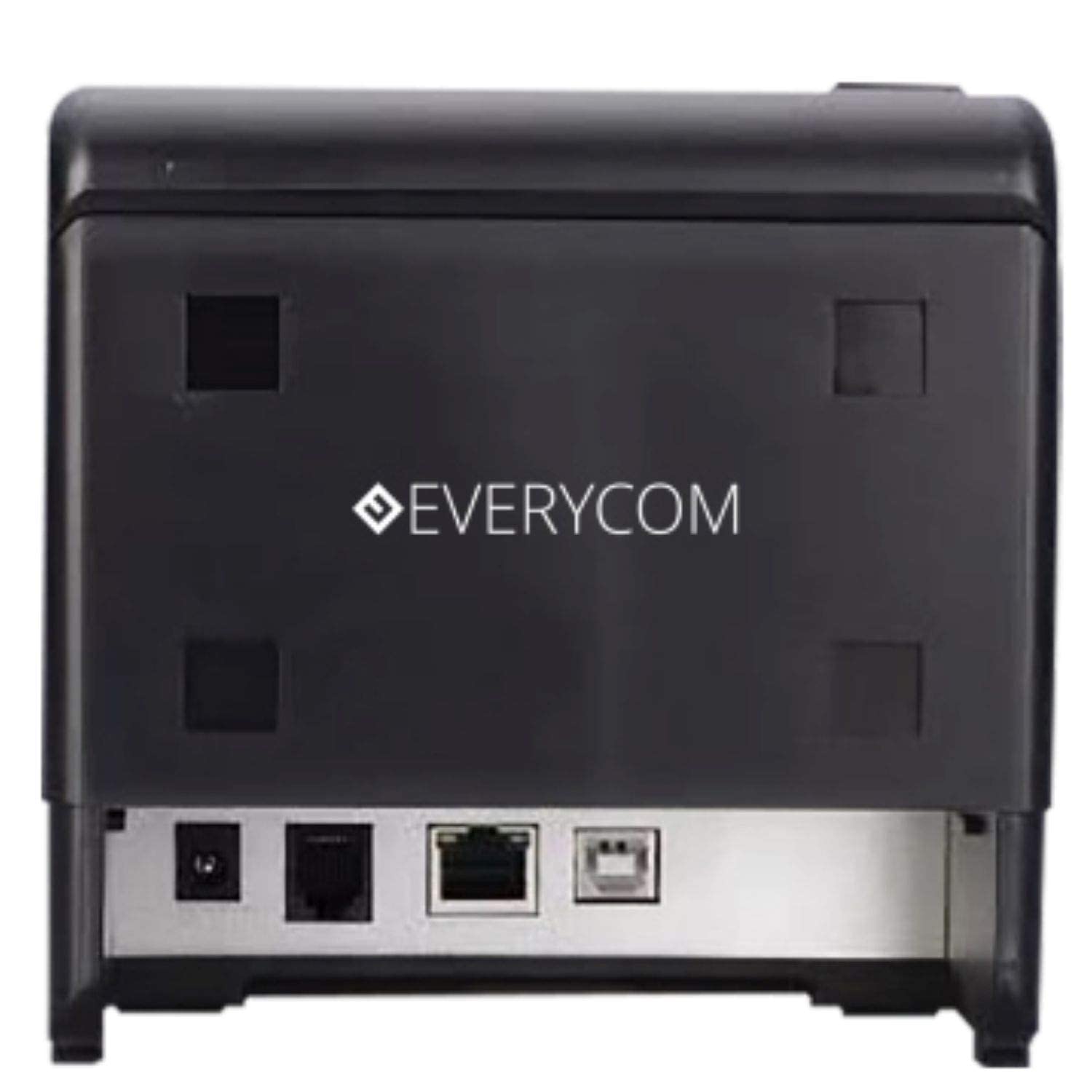
Figure 2 : Arrière view of the Everycom EC-901 printer. This image highlights the various connectivity ports including USB, LAN, and the power input.
2.3 Chargement du papier thermique
The EC-901 printer features a convenient drop-in paper loading system.
- Assurez-vous que l'imprimante est éteinte ou en mode veille.
- Press the cover open button (usually located on the side or front) to open the top cover of the printer.
- Insert the thermal paper roll into the paper compartment with the printing side facing the print head. Ensure the roll is seated correctly and feeds smoothly.
- Tirez un petit morceau de papier au-delà du massicot.
- Close the top cover firmly until it latches securely. The printer will automatically feed the paper to the correct position.

Figure 3 : Everycom EC-901 printer with the top cover open. This image illustrates the internal compartment where the thermal paper roll is loaded.
2.4 Installation du pilote
Insert the provided CD-ROM into your computer's optical drive and follow the on-screen instructions to install the printer drivers and utility software. Alternatively, drivers can be downloaded from the Everycom official website.
3. Utilisation de l'imprimante
3.1 Mise sous/hors tension
To power on the printer, press the power switch located on the front or side of the unit. The power indicator light will illuminate. To power off, press the switch again.
3.2 Impression des reçus
Once the printer is connected and drivers are installed, you can print receipts from your POS software or application. The printer supports fast printing at up to 160mm per second.
3.3 Fonction de coupe automatique
The EC-901 is equipped with an auto cutter that automatically cuts the receipt paper after each print job, ensuring clean and professional-looking receipts.
3.4 Buzzer Notifications
The built-in buzzer provides audible alerts for various printer statuses, such as paper out, cover open, or error conditions. Refer to the utility software for configuring buzzer settings.
3.5 Fonctionnement silencieux
Thermal printers generally operate with reduced noise levels, making the EC-901 suitable for various work environments where quiet operation is desired. The printer uses heat for printing, eliminating the need for ink cartridges and contributing to lower operating noise.
4. Entretien
Regular maintenance ensures optimal performance and extends the lifespan of your Everycom EC-901 printer.
4.1 Nettoyage de la tête d'impression
The thermal print head should be cleaned periodically to maintain print quality. Use a soft, lint-free cloth dampNettoyez la surface de la tête d'impression avec de l'alcool isopropylique. Essuyez délicatement. Assurez-vous que l'imprimante est éteinte et refroidie avant le nettoyage.
4.2 Nettoyage du rouleau plateau
The platen roller can accumulate paper dust. Clean it with a soft cloth dampNettoyez avec de l'alcool isopropylique. Faites tourner le rouleau manuellement pour nettoyer toute sa surface.
4.3 Nettoyage extérieur
Essuyez l'extérieur de l'imprimante avec un chiffon doux et sec. Évitez d'utiliser des produits chimiques agressifs ou des nettoyants abrasifs.
5. Dépannage
Si vous rencontrez des problèmes avec votre imprimante, reportez-vous aux étapes de dépannage courantes suivantes :
- Pas d'alimentation : Ensure the power cable is securely connected to both the printer and the power outlet. Check if the power switch is in the 'On' position.
- Aucune sortie d'impression :
- Verify that the paper roll is loaded correctly and there is sufficient paper.
- Check the data cable connection (USB or LAN) to your computer/POS system.
- Ensure the printer drivers are correctly installed and the printer is selected as the default printer in your software.
- Check for any error indicator lights or buzzer sounds.
- Mauvaise qualité d'impression :
- Nettoyez la tête d'impression comme décrit dans la section Maintenance.
- Veillez à utiliser du papier thermique de haute qualité.
- Adjust print density settings through the printer driver if available.
- Bourrages papier :
- Open the top cover and carefully remove any jammed paper.
- Ensure the paper roll is installed correctly and not too tight or loose.
- Clean the paper path and platen roller.
For persistent issues, please contact Everycom customer support.
6. Spécifications
The following table details the technical specifications of the Everycom EC-901 Thermal POS Receipt Printer:
| Fonctionnalité | Spécification |
|---|---|
| Modèle | EC-901 |
| Technologie d'impression | Impression thermique en ligne |
| Vitesse d'impression | Jusqu'à 160 mm/seconde |
| Résolution d'impression | 203 x 203 DPI |
| Largeur du papier | 80mm (3 inches), supports 58mm |
| Interface | USB, réseau local |
| Coupeur automatique | Oui |
| Dimensions du produit | 19.8 cm (P) x 14.8 cm (L) x 14.8 cm (H) |
| Poids de l'article | 1.8 kilogrammes |
| Composants inclus | Printer, 1 Roll Paper, CD-ROM, Paper Guide, Paper Bearing, USB Cable, Power Adapter Cable |
7. Garantie et assistance
7.1 Informations sur la garantie
The Everycom EC-901 Thermal POS Receipt Printer comes with a Garantie de 1 ans from the date of purchase. Please retain your purchase receipt as proof of warranty. The warranty covers manufacturing defects under normal use conditions. It does not cover damage caused by misuse, accidents, unauthorized repairs, or consumables.
7.2 Assistance clientèle
For technical assistance, warranty claims, or any product-related inquiries, please contact Everycom Customer Care:
- Numéro sans frais : 1800 121 4480
- Horaires d'ouverture: Du lundi au samedi, de 10h00 à 6h30 (sauf jours fériés)

Figure 4 : Everycom Customer Service details. This image provides the toll-free number and working hours for customer support.