
1. Introduction
This manual provides essential information for the proper use and maintenance of your Gateway 15.6-inch FHD Ultra Slim Laptop, Model GTW15G. This device is equipped with an AMD Ryzen 5 3450U Mobile Processor, 8GB of DDR4 RAM, and a 256GB Solid State Drive (SSD). It features a 15.6-inch Full HD (1920x1080) IPS display, a built-in fingerprint scanner, and runs on Windows 10, with an available free upgrade to Windows 11.
Please read this manual thoroughly before operating your laptop to ensure optimal performance and longevity.
2. Installation
2.1 Déballage et inspection initiale
Carefully remove the laptop and all accessories from the packaging. Verify that all components are present and undamaged. The package should include the laptop, power adapter, and this user manual.
2.2 Branchement de l'adaptateur secteur
Before first use, connect the power adapter to the laptop's charging port and then to a power outlet. Allow the battery to charge for at least 30 minutes before powering on for the first time.

Figure 2.1: Gateway 15.6-inch Ultra Slim Laptop overview.
2.3 Première mise sous tension et configuration de Windows
Press the power button located on the keyboard. The laptop will boot up and guide you through the Windows 10 initial setup process. Follow the on-screen instructions to configure your region, language, network connection, and user account.
2.4 Fingerprint Scanner Setup (Windows Hello)
During or after the initial Windows setup, you can configure the built-in fingerprint scanner for secure login using Windows Hello. Navigate to Paramètres > Comptes > Options de connexion and follow the prompts to set up your fingerprint.
3. Mode d'emploi
3.1 Mode marche/arrêt et veille
- Mise sous tension : Appuyez sur le bouton d'alimentation.
- Fermer: Cliquez sur le Commencer bouton, puis Alimentation > Arrêt.
- Mode veille: Fermez le couvercle ou cliquez sur Commencer bouton, puis Alimentation > Veille.
3.2 Using the Precision Touchpad
The laptop features a precision touchpad for navigation. It supports multi-touch gestures for scrolling, zooming, and other functions. Refer to Windows settings for customizing touchpad gestures.
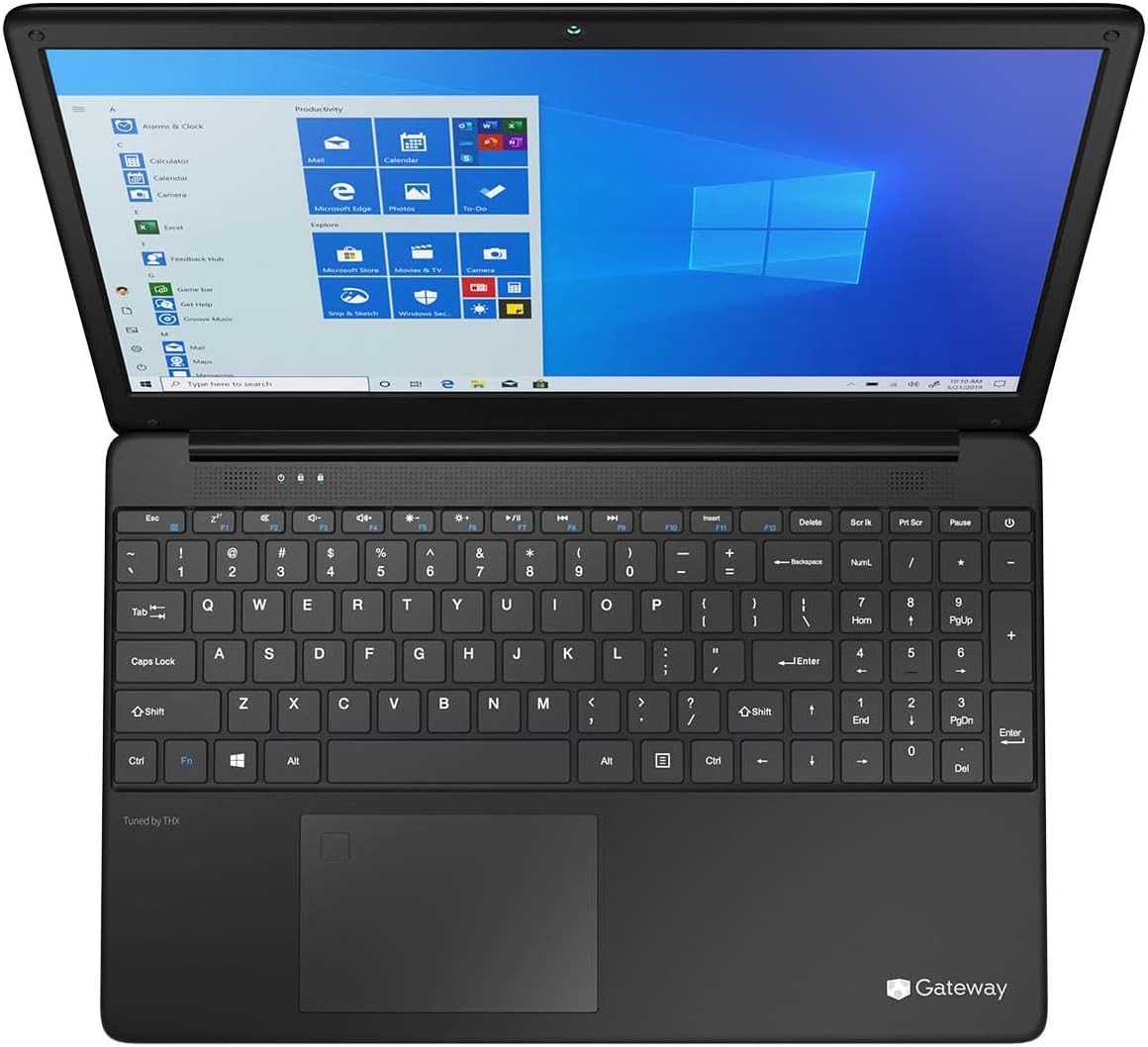
Figure 3.1: Keyboard and Precision Touchpad layout.
3.3 Connexion de périphériques externes
L'ordinateur portable offre différents ports pour connecter des périphériques :
- Ports USB 3.0 (x2) : Pour connecter des périphériques USB tels que des disques durs externes, des souris ou des claviers.
- Port USB Type-C (x1) : Supports both charging and data transfer.
- HDMI Output (x1): Se connecter à un moniteur externe ou à un téléviseur.
- Micro SD Slot (x1): Supports Micro SD cards up to 512 GB for expanded storage.
- Verrou Kensington : Pour des raisons de sécurité physique.
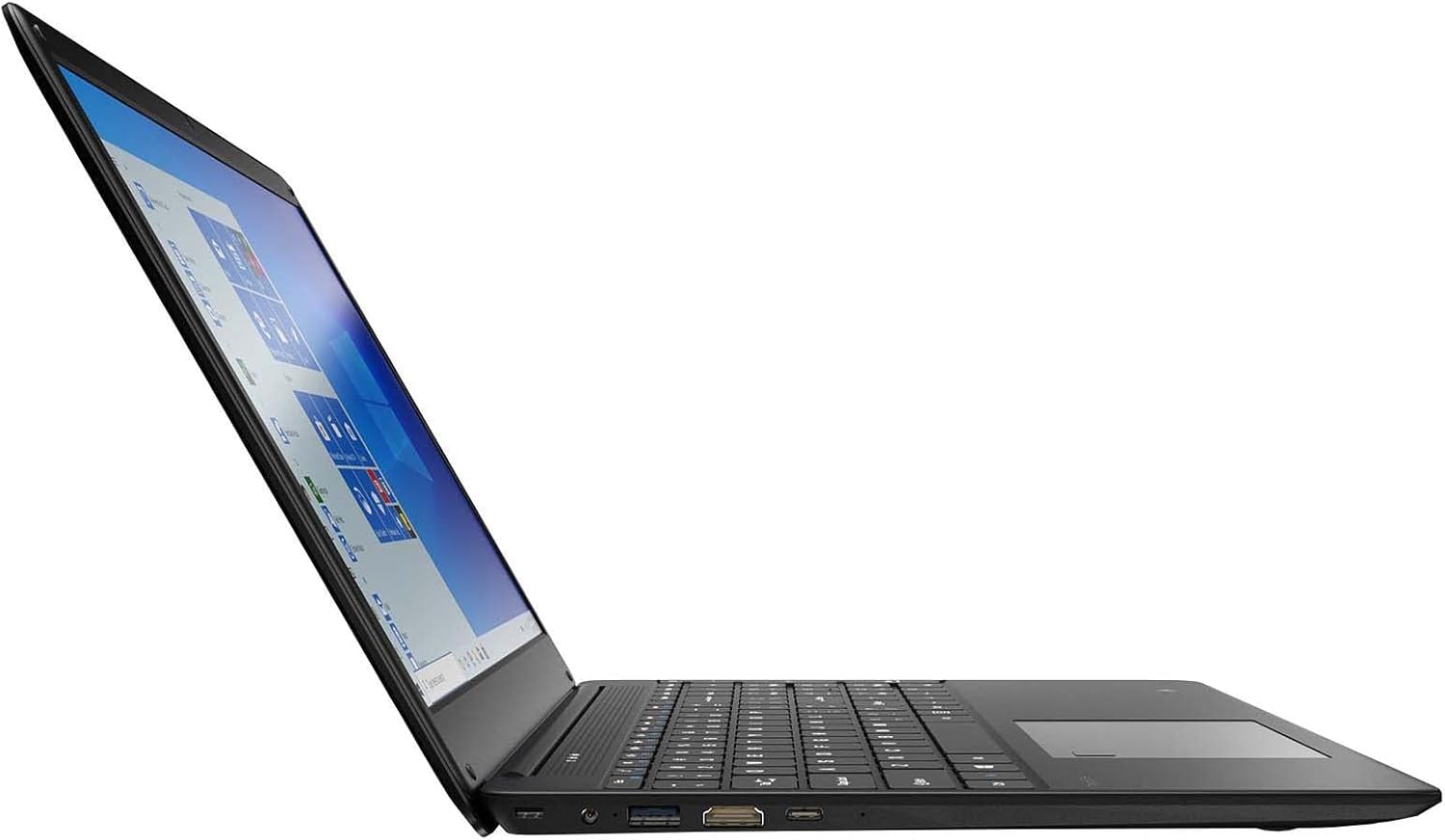
Figure 3.2: Left side ports (USB, HDMI, USB Type-C).
3.4 Connectivité sans fil
The laptop supports Wi-Fi and Bluetooth 5.1 for wireless connections. Access network settings via the Windows taskbar or Paramètres> Réseau et Internet to connect to Wi-Fi networks or pair Bluetooth devices.
3.5 Fonctionnalités audio
The built-in stereo speakers are tuned by THX Audio, providing enhanced sound quality. Adjust volume using the function keys on the keyboard or through Windows sound settings.
4. Entretien
4.1 Nettoyage de l'ordinateur portable
- Écran: Utilisez un chiffon doux et non pelucheux légèrement dampTerminer avec de l'eau ou un nettoyant pour écrans. Ne pas vaporiser de liquide directement sur l'écran.
- Châssis et clavier : Utilisez un chiffon doux et sec. Pour les taches tenaces, un chiffon légèrement plus sec peut être utile.amp On peut utiliser du tissu. Évitez les produits chimiques agressifs.
- Vents: Periodically clean the ventilation openings with compressed air to prevent dust buildup, which can affect cooling.
4.2 Entretien de la batterie
Pour optimiser l'autonomie et la durée de vie de la batterie :
- Évitez de décharger complètement la batterie fréquemment.
- N’exposez pas l’ordinateur portable à des températures extrêmes.
- Si vous devez stocker l'ordinateur portable pendant une période prolongée, assurez-vous que la batterie est chargée à environ 50-70 %.
- Optimize power settings in Windows to conserve battery power.
4.3 Mises à jour logicielles
Regularly check for and install Windows updates to ensure your system has the latest security patches and performance improvements. Navigate to Paramètres > Mise à jour et sécurité > Windows Update.
4.4 Sauvegarde des données
Sauvegardez régulièrement vos données importantes sur un disque dur externe ou un espace de stockage cloud afin d'éviter toute perte de données.
5. Dépannage
Cette section aborde les problèmes courants que vous pourriez rencontrer avec votre ordinateur portable.
5.1 L'ordinateur portable ne s'allume pas
- Assurez-vous que l'adaptateur secteur est correctement connecté à la fois à l'ordinateur portable et à une prise de courant fonctionnelle.
- Vérifiez le bon fonctionnement de la prise de courant en y branchant un autre appareil.
- Laissez l'ordinateur portable se charger pendant un certain temps avant de tenter de le rallumer.
5.2 Problèmes de connectivité Wi-Fi
- Vérifiez si le Wi-Fi est activé dans les paramètres Windows.
- Redémarrez votre routeur et votre modem.
- Assurez-vous d'être à portée du réseau Wi-Fi et d'avoir saisi le bon mot de passe.
- Exécutez l'utilitaire de résolution des problèmes réseau Windows (Settings > Network & Internet > Status > Network troubleshooter).
5.3 Performances lentes
- Fermez les applications inutiles qui s'exécutent en arrière-plan.
- Vérifiez et installez les mises à jour Windows en attente.
- Assurez-vous qu'il y a suffisamment d'espace libre sur votre SSD.
- Recherchez les logiciels malveillants ou les virus.
5.4 Surchauffe
If the laptop feels excessively warm, ensure that the ventilation vents are not blocked. Operate the laptop on a hard, flat surface to allow for proper airflow. Avoid using it on soft surfaces like beds or couches that can obstruct vents.
5.5 Autres problèmes
For issues not covered here, refer to the Windows help documentation or contact Gateway customer support.
6. Spécifications
| Fonctionnalité | Spécification |
|---|---|
| Nom du modèle | Gateway GWTN156 (GTW15G) |
| Taille de l'écran | 15.6 pouces |
| Résolution de l'écran | 1920 x 1080 pixels (FHD) |
| Processeur | AMD Ryzen 5 3450U (2.1 GHz, Up to 3.50 GHz) |
| BÉLIER | 8 Go DDR4 |
| Stockage | Disque SSD de 256 Go |
| Coprocesseur graphique | Graphiques AMD Radeon Vega 8 |
| Système opérateur | Windows 10 (Free Upgrade to Windows 11) |
| Type sans fil | Wi-Fi, Bluetooth 5.1 |
| Ports | 1x HDMI, 1x USB Type-C (Charge + Data), 2x USB 3.0, 1x Micro SD Slot (Up to 512 GB) |
| Caractéristiques spéciales | Built-in Fingerprint Scanner (Windows Hello), Stereo Speakers Tuned by THX Audio, HD Webcame |
| Poids de l'article | 5.5 livres |
| Dimensions du colis | 16.65 x 11.73 x 2.8 pouces |
7. Garantie et assistance
For warranty information and technical support, please refer to the official Gateway website or contact Gateway customer service directly. Keep your proof of purchase for warranty claims.
This product may be eligible for separate protection plans. Details regarding these plans are available from your retailer at the time of purchase.