
1. Introduction
Thank you for choosing the CHONCHOW US801 Gaming Keyboard and Mouse Combo. This manual provides detailed instructions for setting up, operating, and maintaining your new peripheral set. Please read this manual carefully before use to ensure optimal performance and longevity of your product.

Image: The CHONCHOW US801 Gaming Keyboard and Mouse Combo, showcasing its full-size layout and ergonomic design.
2. Contenu du colis
The CHONCHOW US801 Gaming Keyboard and Mouse Combo package includes:
- 1 x CHONCHOW US801 Wired Gaming Keyboard
- 1 x CHONCHOW US801 Wired Gaming Mouse
- 1 x Manuel d'utilisation (ce document)
3. Instructions de configuration
The CHONCHOW US801 Gaming Keyboard and Mouse Combo is a plug-and-play device. No additional drivers or software are typically required for basic functionality.
- Connectez le clavier : Locate an available USB 2.0 port on your computer, laptop, or gaming console. Insert the USB connector of the keyboard into the port.
- Connecter la souris : Locate another available USB 2.0 port. Insert the USB connector of the mouse into the port.
- Reconnaissance du système : Your operating system (Windows, Mac OS, Xbox, PS4) should automatically detect and install the necessary drivers. This process may take a few moments. A notification typically appears once the device is ready for use.
- Test de fonctionnalité initial : After installation, test the keyboard by typing and the mouse by moving the cursor and clicking buttons to ensure they are working correctly.
Note on Initial Connection:
In rare cases, after connecting the USB cable, the keyboard backlight may not illuminate fully or correctly. This can occur due to static electricity or repeated disconnections/reconnections causing signal issues with the operating system. If this happens, please wait patiently for approximately 20 seconds for the keyboard's light control chip to restart. If the issue persists, ensure your computer is connected to the internet, then reconnect the keyboard and wait for the "driver installation is complete" notification. If problems continue, refer to the Troubleshooting section or contact customer support.
4. Keyboard Features and Operation
4.1. Contrôle du rétroéclairage
The keyboard features adjustable RGB backlighting with multiple modes and brightness levels.
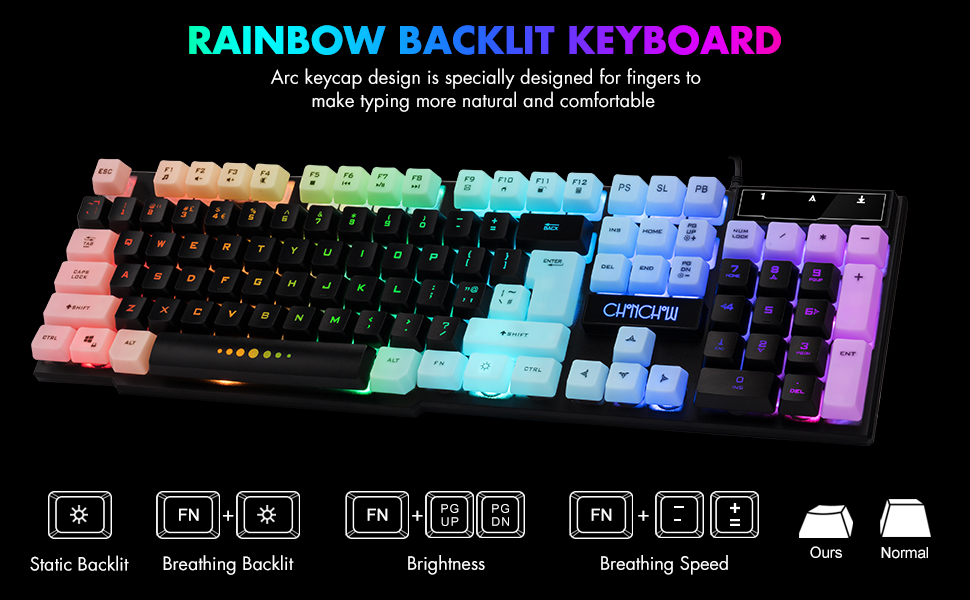
Image: Visual guide for controlling keyboard backlighting, showing key combinations for various effects.
- Activer/désactiver le rétroéclairage : Appuyez sur le Ampoule key (usually located near the right Ctrl key).
- Switch Backlight Mode (Breathing/Static): Presse FN + Ampoule clé.
- Régler la luminosité : Presse FN + PG UP pour augmenter la luminosité, ou FN + PG DN pour diminuer la luminosité.
- Ajuster la vitesse de respiration : Presse FN + + to increase breathing speed, or FN + - to decrease breathing speed.
4.2. Touches multimédias
The keyboard includes 12 multimedia function shortcut keys for quick access to common functions.

Image: Layout of the keyboard highlighting the 12 multimedia function keys and their corresponding FN key combinations.
| Combinaison de touches | Fonction |
|---|---|
| FN + F1 | Lecteur de musique |
| FN + F2 | Baisser le volume |
| FN + F3 | Augmenter le volume |
| FN + F4 | Muet |
| FN + F5 | Lecture/Arrêt |
| FN + F6 | Piste précédente |
| FN + F7 | Lecture/Pause |
| FN + F8 | Piste suivante |
| FN + F9 | |
| FN + F10 | Web Maison |
| FN + F11 | Écran de verrouillage |
| FN + F12 | Calculatrice |
4.3. Touches anti-ghosting
The keyboard features 19 anti-ghosting keys, ensuring that multiple key presses are registered simultaneously, which is crucial for gaming.

Image: The keyboard layout with 19 anti-ghosting keys visually indicated.
4.4. WIN Key Lock
The Windows key can be disabled to prevent accidental presses during gaming sessions.

Image: Close-up of the Windows key with an overlay indicating its lock function.
- Disable/Enable WIN Key: Presse FN + GAGNER clé.
5. Mouse Features and Operation
The gaming mouse features 7-color breathing LED lighting and adjustable DPI settings.

Image: The CHONCHOW gaming mouse displaying its 7-color LED breathing light effect.
5.1. Réglage DPI
The mouse offers four levels of DPI sensitivity to suit different tasks and preferences.
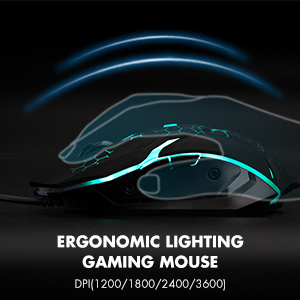
Image: The ergonomic design of the gaming mouse, highlighting its lighting and DPI settings.
- Niveaux PPP : 1200 / 1800 / 2400 / 3600 DPI.
- Ajuster le DPI : Appuyez sur le Bouton DPI (usually located behind the scroll wheel) to cycle through the available DPI settings.
5.2. Mouse Buttons
The mouse is equipped with 6 buttons for enhanced control:
- Bouton clic gauche
- Bouton clic droit
- Molette de défilement (cliquable)
- Bouton DPI
- Bouton Suivant
- Bouton de retour en arrière
6. Compatibilité
The CHONCHOW US801 Gaming Keyboard and Mouse Combo offers wide compatibility with various operating systems and devices.
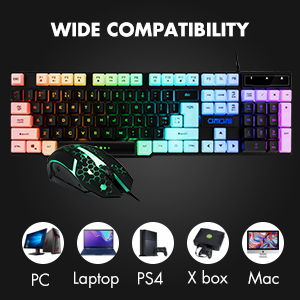
Image: Icons representing various compatible devices including PC, Laptop, PS4, Xbox, and Mac.
- Systèmes d'exploitation : Windows 2000 / 2003 / XP / Vista / Win7 / Win8 / Win10
- Appareils : PC, Computer, Laptop, PS4, Xbox, Mac
7. Entretien
Un entretien approprié garantit la longévité et les performances optimales de votre clavier et de votre souris.
- Nettoyage: Use a soft, dry cloth to wipe down the surfaces of the keyboard and mouse. For deeper cleaning, especially for dust under keycaps, the keycaps are removable. Gently pull them off for cleaning and press them back into place. Avoid using harsh chemicals or abrasive materials.
- Déversements : The keyboard features drainage holes to help mitigate damage from minor spills. In case of a liquid spill, immediately disconnect the keyboard from your device, turn it upside down to drain, and allow it to dry completely before reconnecting.
- Stockage: Store the keyboard and mouse in a cool, dry place away from direct sunlight and extreme temperatures.
8. Dépannage
If you encounter issues with your CHONCHOW US801 Gaming Keyboard and Mouse Combo, please refer to the following common solutions:
- Clavier/souris ne répondent pas :
- Assurez-vous que les deux câbles USB sont correctement branchés aux ports USB de votre appareil.
- Try connecting the keyboard and mouse to different USB ports.
- Redémarrez votre ordinateur ou votre console de jeu.
- Testez les périphériques sur un autre ordinateur afin d'éliminer tout problème spécifique au système.
- Backlight Issues (Not Bright / Partially Lit):
- Wait approximately 20 seconds after connecting; the keyboard's light control chip may be restarting due to static electricity or repeated connections.
- Ensure your computer is connected to the internet, then reconnect the keyboard. Wait for the "driver installation is complete" notification.
- Réglez la luminosité à l'aide de FN + PG HAUT/PG DN.
- Clés non reconnues / Fantômes :
- Assurez-vous que le clavier est propre et exempt de débris sous les touches.
- Verify that the WIN key lock is not accidentally engaged if you are experiencing issues with the Windows key.
- Le curseur de la souris saute ou se comporte de manière erratique :
- Nettoyez le capteur optique situé sous la souris.
- Assurez-vous d'utiliser la souris sur une surface appropriée (par exemple, un tapis de souris).
- Si le curseur est trop sensible, ajustez les paramètres DPI à une valeur inférieure.
If the problem persists after attempting these steps, please contact CHONCHOW customer support for further assistance.
9. Spécifications
| Fonctionnalité | Détail |
|---|---|
| Marque | CHONCHOW |
| Numéro de modèle | US801 |
| Technologie de connectivité | Câble USB |
| Disposition du clavier | 104-Keys Full Size |
| Rétro-éclairage du clavier | RGB (Rainbow Backlit) |
| Fonctionnalités spéciales du clavier | 19 Anti-Ghosting Keys, 12 Multimedia Keys, WIN Key Lock, Ergonomic, Removable Keycaps |
| Niveaux de DPI de la souris | 1200 / 1800 / 2400 / 3600 DPI |
| Boutons de la souris | 6 Buttons (Left, Right, Forward, Backward, DPI, Scroll Wheel) |
| Rétroéclairage de la souris | LED respirante 7 couleurs |
| Dimensions du produit (clavier) | 17 x 5.1 x 1.3 pouces |
| Poids de l'article | 1.94 livres |
| Matériel | Plastique |
10. Garantie et assistance
CHONCHOW stands behind the quality of its products. Your CHONCHOW US801 Gaming Keyboard and Mouse Combo is covered by the following:
- 30-Day Refund or Replacement: Pour tout problème survenant dans les 30 jours suivant l'achat.
- Service après-vente de 12 mois : For quality-related problems within 12 months of purchase.
For friendly and easy-to-reach support, please contact our customer service team. Refer to your purchase documentation or the CHONCHOW official website pour les coordonnées.