
Introduction
The cellularline KEY PRO In-Ear Earphones are designed to provide clear audio and versatile connectivity. Featuring Environment Noise Cancelling (ENC) with 4 integrated microphones, these earphones ensure crisp call quality by reducing background noise. With Multipoint Technology, you can connect to two devices simultaneously, and the advanced LED display provides real-time battery status for both the charging case and individual earbuds. Enjoy up to 30 hours of total playtime and intuitive touch controls for managing calls, music, and volume.
1. Installation
1.1. Contenu de la boîte
- cellularline KEY PRO In-Ear Earphones
- Étui de chargement sans fil
- Manuel d'utilisation
1.2. Charge initiale
Before first use, fully charge the earphones and the charging case. Place the earphones into the charging case. Connect the charging case to a power source using a compatible USB cable. The LED display on the case will indicate the charging status.
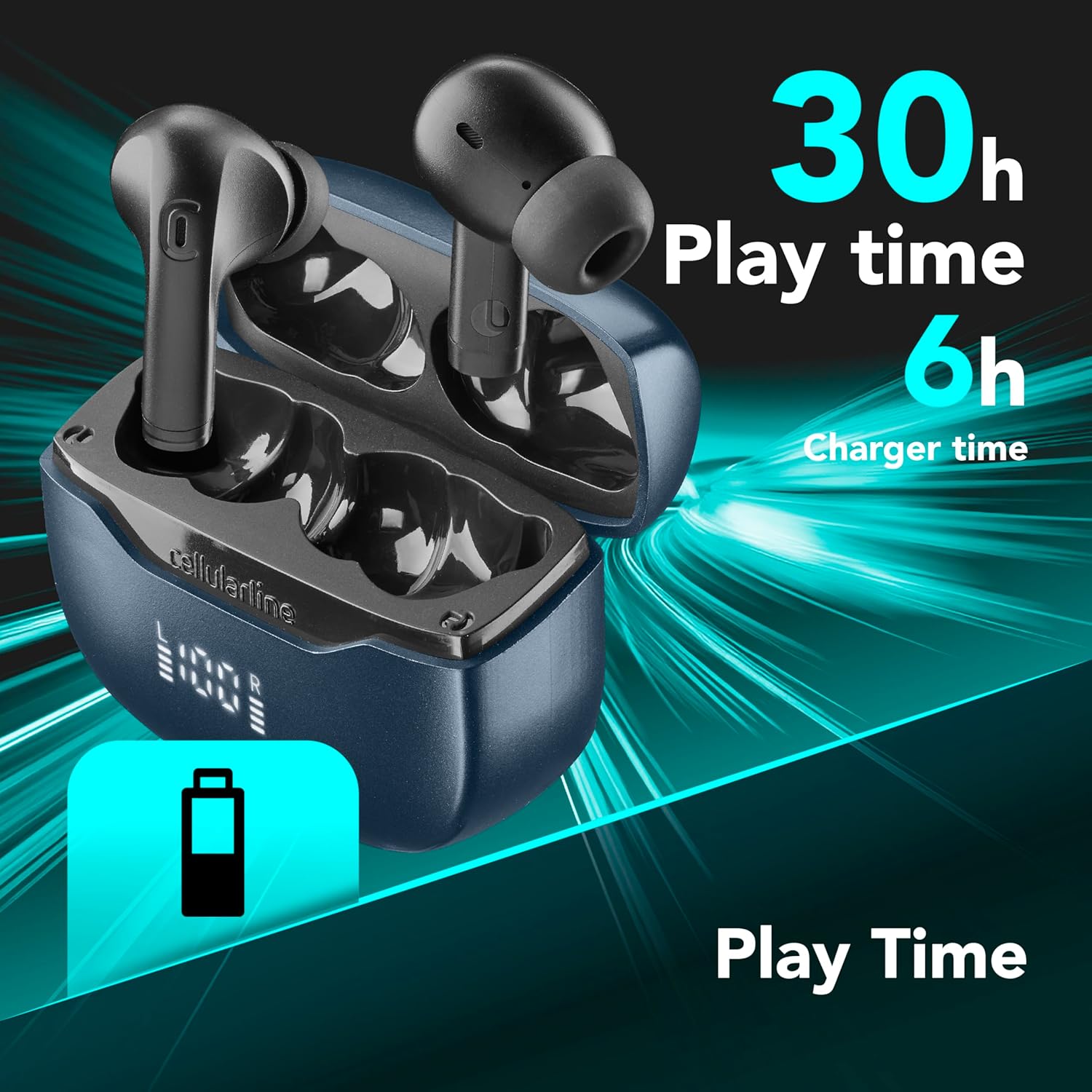
Image: The earphones and charging case. The image highlights a total playtime of 30 hours and a charger time of 6 hours, indicating battery life and charging duration.
A full charge provides approximately 30 hours of total playtime, with the charging case contributing to this extended battery life.
1.3. Couplage avec un appareil
Autopairing: Once removed from the charging case, the earphones will automatically connect to each other and enter pairing mode. Look for "cellularline KEY PRO" in your device's Bluetooth settings.
Technologie multipoint : These earphones support simultaneous connection to two devices. To connect a second device, ensure the earphones are already connected to the first device. Then, put the earphones back into pairing mode (refer to your device's Bluetooth settings or the earphones' touch control guide for specific instructions, if available). Connect the second device. The earphones will intelligently switch between the two connected devices as needed.

Image: The cellularline KEY PRO earphones are shown alongside a smartphone and a laptop, demonstrating their ability to connect to multiple devices simultaneously via Multipoint Technology.
2. Mode d'emploi
2.1. Commandes tactiles
The KEY PRO earphones feature intuitive touch controls for managing various functions. Specific gestures (single tap, double tap, long press) on either earphone will control playback, calls, and voice assistance.

Image: A visual representation of the touch control functions on the earphone, including icons for managing calls, playing/pausing music, adjusting volume, skipping tracks, and activating voice assistance.
- Gestion des appels : Répondre aux appels, mettre fin à ceux-ci ou les rejeter.
- Lecture de musique : Lecture, pause, passage au morceau suivant.
- Contrôle du volume : Réglez le volume audio.
- Assistance vocale : Activez l'assistant vocal de votre appareil.
Refer to the detailed control scheme in the included quick start guide for precise gesture commands.
2.2. Environment Noise Cancelling (ENC)
The KEY PRO earphones are equipped with ENC technology and 4 microphones (2 per earphone) to reduce ambient noise during calls. This ensures your voice is transmitted clearly to the recipient, even in noisy environments.

Image: Two earphones are depicted with sound wave patterns, symbolizing the active noise cancellation feature during calls, enabled by the four integrated microphones.
2.3. Affichage LED
The charging case features an advanced LED display that shows the battery status of both the case and each individual earphone (Left 'L' and Right 'R') in real-time percentage. This allows for easy monitoring of remaining charge.

Image: Un détail view of the charging case's LED display, showing the battery levels for the left (L) and right (R) earphones, providing an instant battery-life check.
3. Entretien
3.1. Nettoyage
Regularly clean your earphones and charging case to ensure optimal performance and hygiene. Use a soft, dry, lint-free cloth to wipe the surfaces. For ear tips, gently remove them and clean with a mild soap solution if necessary, then rinse and dry thoroughly before reattaching. Avoid using harsh chemicals or abrasive materials.
3.2. Stockage
When not in use, store the earphones in their charging case to protect them from dust, dirt, and physical damage. Store the case in a cool, dry place, away from direct sunlight and extreme temperatures.
3.3. Résistance à l'eau
The cellularline KEY PRO earphones are designed to be waterproof. While they can withstand splashes and sweat, avoid submerging them in water for extended periods or exposing them to high-pressure water jets. Ensure the earphones are dry before placing them back in the charging case to prevent damage.
4. Dépannage
4.1. Les écouteurs ne se connectent pas
- Assurez-vous que les deux écouteurs sont chargés.
- Place earphones back in the case, close the lid, then open it again to re-initiate autopairing.
- Désactivez puis réactivez le Bluetooth de votre appareil.
- Forget the earphones from your device's Bluetooth list and attempt to pair again.
4.2. Absence de son ou faible volume
- Vérifiez le niveau sonore de votre appareil connecté et de vos écouteurs.
- Assurez-vous que les écouteurs sont correctement positionnés dans vos oreilles.
- Nettoyez les haut-parleurs et les embouts des écouteurs de tout débris.
- Reconnectez les écouteurs à votre appareil.
4.3. Problèmes de charge
- Vérifiez que le câble de chargement et l'adaptateur secteur fonctionnent correctement.
- Ensure the charging contacts on both the earphones and the case are clean and free of obstruction.
- Make sure the earphones are correctly seated in the charging case.
4.4. Call Quality Issues
- Veillez à ce que les microphones ne soient pas obstrués.
- Si le système ENC est confronté à un bruit de fond excessif, déplacez-vous dans un environnement plus calme.
- Check your device's network connection.
5. Spécifications
| Marque | Cellularline |
| Nom du modèle | BTKEYPROTWSK |
| Couleur | Noir noir) |
| Placement des oreilles | Dans l'oreille |
| Facteur de forme | Véritablement sans fil |
| Contrôle du bruit | Environment Noise Cancelling (ENC) |
| Technologie de connectivité | Sans fil (Bluetooth) |
| Version Bluetooth | 5.3 |
| Méthode de contrôle | Touche |
| Durée de vie moyenne de la batterie | 30 heures (durée totale de jeu) |
| Gamme de fréquences | 20 Hz - 20,000 XNUMX Hz |
| Type de pilote audio | Pilote à armature équilibrée |
| Niveau de résistance à l'eau | Étanche |
| Appareils compatibles | Téléphones portables, ordinateurs portables, tablettes |
| Composants inclus | Earphones, Wireless Charging Case, User Manual |
| Fabricant | Cellularline SpA |
| Pays d'origine | Chine |
6. Informations sur la garantie
The cellularline KEY PRO In-Ear Earphones come with a Garantie constructeur d'un an. This warranty covers defects in materials and workmanship under normal use. Please retain your proof of purchase for warranty claims. For detailed terms and conditions, refer to the warranty card included in the packaging or visit the official cellularline website.
7. Assistance clientèle
If you encounter any issues or have questions regarding your cellularline KEY PRO earphones that are not addressed in this manual, please contact cellularline customer support. You can typically find contact information on the official cellularline websur le site ou auprès du détaillant où vous avez acheté le produit.
Pour obtenir de l’aide supplémentaire, veuillez visiter : www.lignecellulaire.com