
1. Introduction
This user manual provides detailed instructions for the proper use and maintenance of your Zebra DS8178 Wireless 2D/1D Barcode Scanner. Please read this manual thoroughly before operating the device to ensure optimal performance and safety. The DS8178 is designed for efficient and reliable barcode scanning in various environments, offering both 1D and 2D barcode reading capabilities with wireless connectivity.
2. Consignes de sécurité
Respectez les consignes de sécurité suivantes afin d'éviter toute blessure ou tout dommage à l'appareil :
- Do not expose the scanner or cradle to extreme temperatures, moisture, or corrosive substances.
- Évitez toute exposition directe des yeux à la source lumineuse du scanner.
- Use only the specified power adapter and USB cable for charging.
- Ne tentez pas de démonter ou de modifier l'appareil. Confiez toute réparation à un personnel qualifié.
- Gardez l'appareil à l'écart des champs magnétiques puissants.
3. Contenu du colis
Vérifiez que tous les éléments sont présents dans votre colis :
- Zebra DS8178 Wireless Barcode Scanner
- USB Communication/Charging Cradle
- Câble USB
- Guide de démarrage rapide (non inclus dans ce manuel)
4. Produit terminéview
Familiarize yourself with the components of your Zebra DS8178 scanner and its cradle.

Figure 4.1 : Côté view of the Zebra DS8178 Wireless Barcode Scanner, showing its ergonomic design.

Figure 4.2 : Devant view of the Zebra DS8178 Wireless Barcode Scanner, highlighting the scanning window and trigger button.

Figure 4.3 : Devant view of the USB Communication/Charging Cradle, featuring the pairing button.
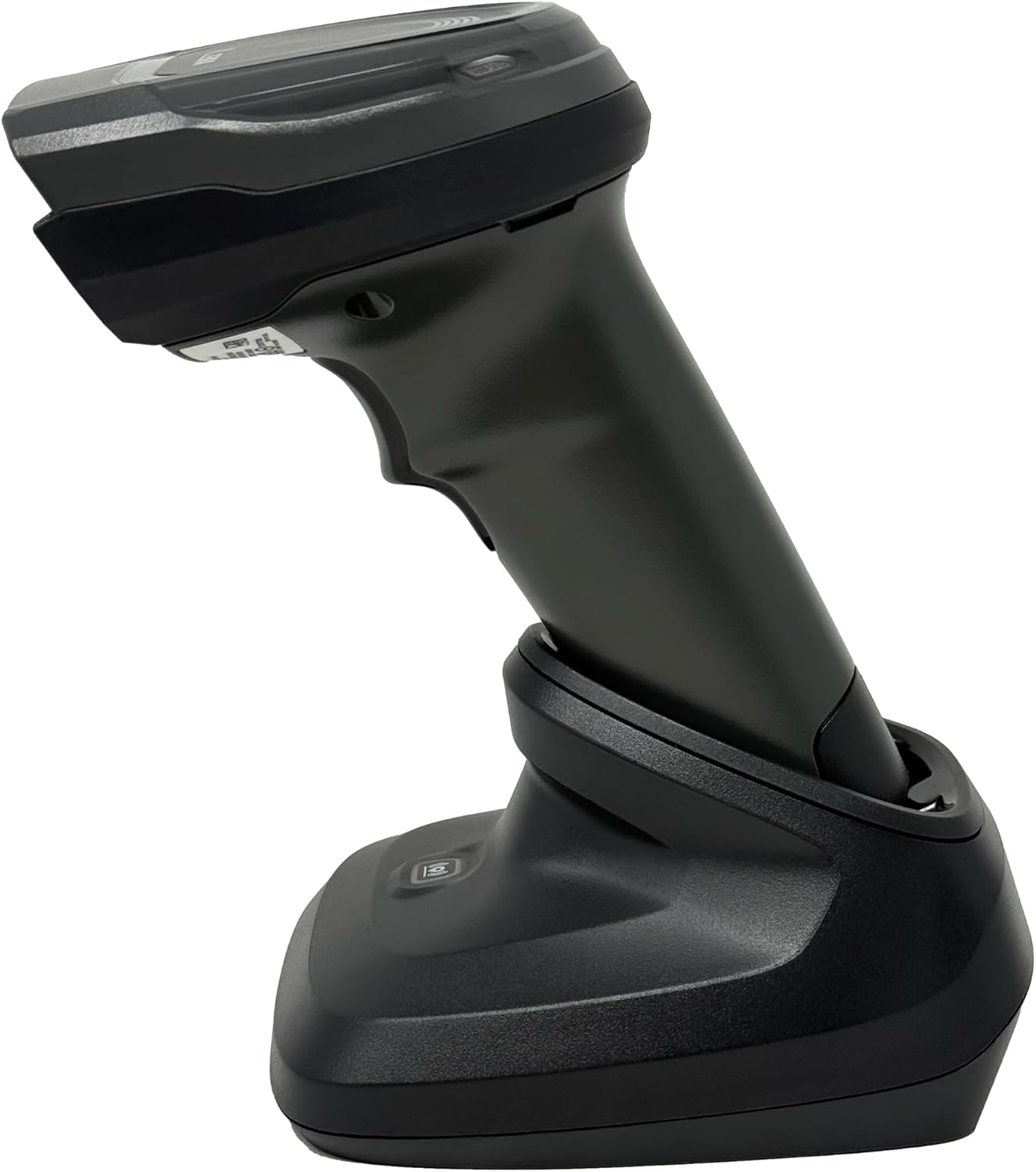
Figure 4.4 : The Zebra DS8178 scanner securely docked in its USB cradle, ready for charging or communication.
4.1 Composants du scanner
- Fenêtre de numérisation : Area through which barcodes are read.
- Déclenchement: Active le faisceau de balayage.
- Indicateurs LED : Provide status feedback (e.g., battery, scan success).
- Compartiment à piles : Houses the removable/rechargeable battery.
4.2 Cradle Components
- Scanner Slot: Where the scanner docks for charging and communication.
- Port USB : Connects the cradle to a host device (PC, laptop).
- Bouton d'appairage: Initiates Bluetooth pairing with the scanner.
- Indicateurs LED : Show cradle status (e.g., power, connection).
5. Installation
5.1 Chargement du scanner
- Connect the USB cable to the cradle's USB port.
- Connectez l'autre extrémité du câble USB à un port USB alimenté de votre ordinateur ou à un adaptateur secteur USB.
- Place the DS8178 scanner into the cradle. Ensure it is seated correctly.
- The scanner's LED indicator will show charging status. A full charge typically takes approximately 3-4 hours.
5.2 Connecting the Cradle to a Host Device
The cradle connects to your computer via a standard USB cable.
- Plug the USB cable into the USB port on the back of the cradle.
- Connect the other end of the USB cable to an available USB port on your desktop or laptop computer.
- Le système d'exploitation devrait détecter et installer automatiquement les pilotes nécessaires.
5.3 Couplage Bluetooth
The DS8178 offers two primary Bluetooth pairing methods: via the cradle or direct to a host device.
5.3.1 Pairing via Cradle (Recommended for PC/Laptop)
- Ensure the cradle is connected to your host device (PC/Laptop) via USB.
- Place the DS8178 scanner into the cradle.
- The scanner will automatically pair with the cradle. Once paired, the scanner can be removed from the cradle and will communicate wirelessly with the host device through the cradle.
- A successful connection is indicated by a specific LED pattern on both the scanner and cradle (refer to the scanner's LED guide for details).
5.3.2 Direct Bluetooth Pairing (for Phones/Tablets or PC/Laptop without cradle)
- Power on the DS8178 scanner.
- Scan the "Pairing Barcode" (usually found in a quick start guide or on the scanner itself) to put the scanner into discoverable mode. Alternatively, press and hold the Bluetooth pairing button on the scanner (if available) or scan a specific Bluetooth pairing configuration barcode.
- On your phone, tablet, or computer, navigate to the Bluetooth settings.
- Rechercher available devices. The DS8178 should appear in the list (e.g., "Zebra DS8178").
- Select the scanner to initiate pairing. You may be prompted to confirm a passkey or scan a pairing barcode displayed on your screen.
- Once paired, the scanner's LED will indicate a successful connection.
6. Fonctionnement
6.1 Lecture des codes-barres
- Point the scan window of the DS8178 scanner at the barcode you wish to read.
- Press and hold the trigger button. A red aiming pattern will appear.
- Center the aiming pattern over the barcode. For 1D barcodes, the aiming line should cross the entire barcode. For 2D barcodes, the aiming pattern should encompass the entire code.
- Once the barcode is successfully read, the scanner will emit an audible beep and/or the LED indicator will flash green.
- Relâchez la gâchette.
6.2 Cordless Range
The Zebra DS8178 offers a cordless range of up to 330 feet (100 meters) from its cradle or directly paired host device, depending on environmental conditions and line of sight. Obstructions such as walls or other electronic devices may reduce the effective range.
6.3 Modes de numérisation
- Mode de déclenchement: The scanner reads a barcode only when the trigger is pressed.
- Presentation Mode (Hands-Free): When placed in the presentation cradle, the scanner can be configured to automatically detect and read barcodes placed within its field of view without requiring a trigger press. This mode is ideal for high-volume scanning applications.
7. Entretien
7.1 Nettoyage du scanner
To maintain optimal scanning performance, keep the scan window clean.
- Utilisez un chiffon doux, propre et non pelucheux.ampened with water or a mild cleaning solution (e.g., isopropyl alcohol).
- Gently wipe the scan window and the exterior of the scanner.
- N’utilisez pas de nettoyants abrasifs, de solvants ou de produits chimiques agressifs.
- Assurez-vous que le scanner est éteint avant de le nettoyer.
7.2 Entretien de la batterie
The DS8178 features a 2500mAh removable and rechargeable battery. Proper battery care extends its lifespan.
- Chargez complètement la batterie avant la première utilisation.
- Évitez de décharger complètement la batterie régulièrement.
- Rangez le scanner dans un endroit frais et sec lorsqu'il n'est pas utilisé pendant une période prolongée.
- If the battery performance significantly degrades, it may need replacement. Contact support for genuine replacement batteries.
8. Dépannage
| Problème | Cause possible | Solution |
|---|---|---|
| Le scanner ne s'allume pas. | Batterie faible ou déchargée. | Charge the scanner using the USB cradle and cable. |
| Le scanner ne se connecte pas via Bluetooth. | Mode de couplage désactivé ; hors de portée ; interférences ; Bluetooth désactivé sur l’appareil hôte. | Ensure scanner is in pairing mode. Check host device Bluetooth settings. Move closer to the host device. Reduce interference. |
| Le scanner ne lit pas les codes-barres. | Barcode damaged/poor quality; scan window dirty; incorrect symbology enabled; scanner not aimed correctly. | Try scanning a different barcode. Clean the scan window. Ensure correct aiming. Check scanner configuration for enabled symbologies. |
| Aucune donnée transmise à l'hôte. | Not paired; application not in focus; incorrect interface settings. | Confirm successful Bluetooth pairing. Ensure the target application (e.g., text editor, POS software) is active and ready to receive input. |
9. Spécifications
| Fonctionnalité | Détail |
|---|---|
| Modèle | DS8178 |
| Marque | Zebra (formerly Symbol) |
| Technologie de connectivité | Bluetooth, USB Cable, Wireless |
| Appareils compatibles | Desktop, Laptop, Phones, Tablets |
| Source d'énergie | Battery Powered, Corded Electric, Rechargeable |
| Capacité de la batterie | 2500mAh (Removable/Rechargeable) |
| Cordless Range | Jusqu'à 330 pieds (100 mètres) |
| Capacité de numérisation | 1D and 2D Barcodes |
| Angle réel de View | 17 degrés |
| Code UPC / GTIN | 649661651499 |
10. Garantie et assistance
This Zebra DS8178 Barcode Scanner comes with a Garantie limitée de 90 joursCette garantie couvre les défauts de matériaux et de fabrication dans des conditions normales d'utilisation. Elle ne couvre pas les dommages causés par une mauvaise utilisation, un accident, des modifications non autorisées ou des causes externes.
For technical support, warranty claims, or to purchase genuine replacement parts (such as batteries), please contact your reseller or visit the official Zebra support website. Please have your model number (DS8178) and any purchase information ready when contacting support.