
Introduction
This manual provides detailed instructions for the installation, operation, maintenance, and troubleshooting of the HP ProDesk 400 G3 MS-7957 motherboard. Please read this manual thoroughly before proceeding with any installation or operation to ensure proper functionality and safety.
Consignes de sécurité
Respectez toujours les consignes de sécurité suivantes afin d'éviter d'endommager la carte mère ou de vous blesser :
- Débranchez l'alimentation électrique de la prise murale avant d'installer ou de retirer tout composant.
- Wear an anti-static wrist strap or frequently touch a grounded metal object to discharge static electricity before handling the motherboard.
- Manipulez la carte mère par ses bords pour éviter de toucher les composants sensibles.
- Assurez une ventilation adéquate à l'intérieur du boîtier de l'ordinateur afin d'éviter toute surchauffe.
- Protégez la carte mère de l'humidité et des températures extrêmes.
Produit terminéview
The HP ProDesk 400 G3 MS-7957 is a MicroATX motherboard designed for Intel processors with an LGA 1151 socket. It supports DDR4 RAM and features a B250 chipset, offering a reliable foundation for desktop computing.
Caractéristiques principales
- Compatible CPU Brand: Intel
- Type de prise : LGA 1151/Socket H4
- Facteur de forme : MicroATX
- Connecteurs E/S : Ethernet (RJ-45), USB 2.0, USB 3.0, VGA, DisplayPort, HD Audio Jack
Identification des composants
Familiarize yourself with the layout of the motherboard to facilitate proper installation and connection of components.

Figure 1 : Angulaire view of the HP ProDesk 400 G3 MS-7957 motherboard. This image highlights the CPU socket (LGA 1151), four DDR4 RAM slots, PCIe slots, and various headers for front panel connections and storage devices.
Configuration et installation
Avant de commencer
- Ensure your computer case is compatible with the MicroATX form factor.
- Gather all necessary components: CPU, RAM, CPU cooler, power supply, storage devices, and graphics card (if not using integrated graphics).
- Prepare your workspace by ensuring it is clean, well-lit, and static-free.
Installation de la carte mère
- Install the CPU into the LGA 1151 socket. Carefully align the CPU with the socket's notch and gently lower it into place. Close the retention arm.
- Appliquez de la pâte thermique sur le processeur et installez le refroidisseur de processeur conformément aux instructions du fabricant.
- Install the DDR4 RAM modules into the designated slots. Ensure they are fully seated until the clips lock into place.
- Mount the motherboard into the computer case using the appropriate standoffs and screws.
- Connectez le connecteur d'alimentation ATX principal à 24 broches et le connecteur d'alimentation du processeur à 4 ou 8 broches de votre alimentation à la carte mère.
- Install any expansion cards (e.g., graphics card) into the PCIe slots.

Figure 2 : Vue de dessus en angle view of the HP ProDesk 400 G3 MS-7957 motherboard. This perspective provides a clear view of the processor socket, memory slots, and the layout of the various internal connectors and components.
Connexion des périphériques
- Connect SATA storage devices (HDDs/SSDs) to the SATA ports on the motherboard.
- Connect front panel headers (power button, reset button, USB ports, audio jacks) to their respective pins on the motherboard. Refer to your case manual for specific pin assignments.
- Connect external peripherals such as monitor, keyboard, mouse, and Ethernet cable to the rear I/O panel.
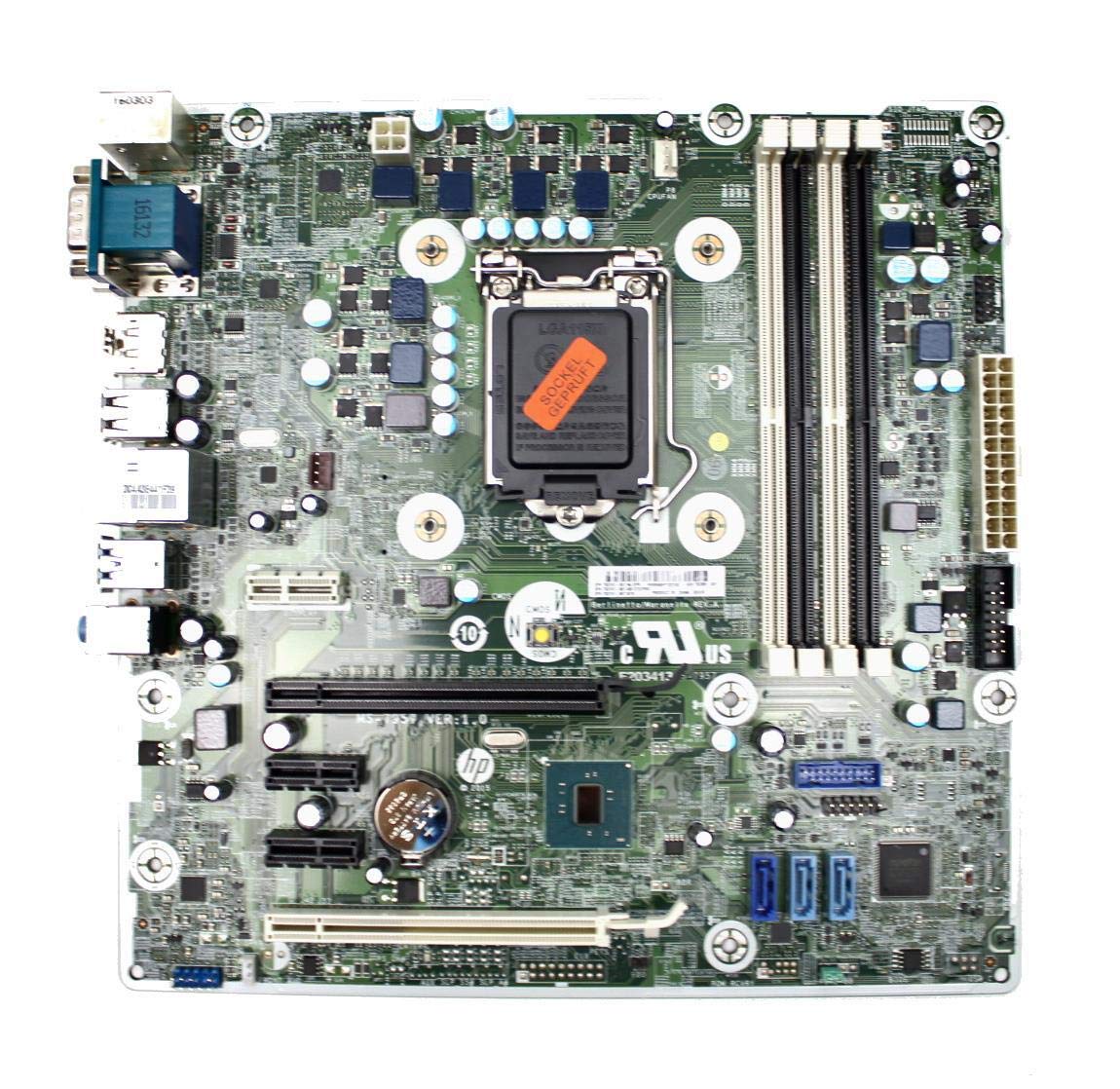
Figure 3: Rear I/O panel of the HP ProDesk 400 G3 MS-7957 motherboard. This image displays the available external connectivity options, including PS/2 ports, serial port, VGA, DisplayPort, USB 2.0, USB 3.0, Ethernet (RJ-45), and HD audio jacks.
Mode d'emploi
Mise sous tension initiale
After all components are installed and connected, connect the power cable to the power supply and press the power button on your computer case. The system should initiate the boot process.
Configuration BIOS/UEFI
Pour accéder à l'utilitaire de configuration du BIOS/UEFI, appuyez sur la touche désignée (généralement Du, F2, F10, ou F12) lors de la séquence de démarrage initiale. Ici, vous pouvez configurer l'ordre de démarrage, l'heure système et d'autres paramètres matériels.
Installation du pilote
After installing your operating system, it is crucial to install the latest drivers for your motherboard's chipset, integrated graphics, audio, and network adapter. These drivers can typically be found on the HP support website ou celui du fabricant du chipset website.
Entretien
- Nettoyage: Nettoyez régulièrement la poussière de la carte mère et des composants à l'aide d'air comprimé. Assurez-vous que le système est éteint et débranché avant le nettoyage.
- Mises à jour du BIOS/UEFI : Periodically check for BIOS/UEFI updates from HP's official support website. Updates can improve stability, compatibility, and performance. Follow update instructions carefully to avoid system damage.
- Mises à jour du pilote: Maintenez tous les pilotes système à jour afin de garantir des performances optimales et une compatibilité avec les nouveaux logiciels et matériels.
Dépannage
Cette section propose des solutions aux problèmes courants que vous pourriez rencontrer :
- Pas d'alimentation : Check all power connections, including the 24-pin ATX and CPU power cables. Ensure the power supply is switched on and the wall outlet is functional.
- Pas d'affichage : Verify that your monitor is connected to the correct video output (VGA or DisplayPort) and is powered on. Reseat the graphics card (if applicable) and RAM modules.
- Instabilité/Pannes du système : This could be due to overheating, faulty RAM, or outdated drivers. Check CPU and GPU temperatures, run memory diagnostic tools, and update drivers.
- Périphérique non détecté : Ensure the peripheral is properly connected. Try a different port or update the relevant drivers.
- Problèmes liés au BIOS/UEFI : If you encounter issues after changing BIOS settings, try resetting the CMOS by removing the CMOS battery for a few minutes or using the clear CMOS jumper (refer to motherboard diagram for location).
Caractéristiques
| Fonctionnalité | Spécification |
|---|---|
| Marque | HP |
| Prise de processeur | LGA 1151 |
| Appareils compatibles | Ordinateur de bureau |
| Technologie RAM | DDR4 |
| Processeurs compatibles | Intel Core i3-6xxx, Intel Core i5-6xxx, Intel Core i7-6xxx, Intel Core i3-7xxx, Intel Core i5-7xxx, Intel Core i7-7xxx, Intel Core i3-8xxx, Intel Core i5-8xxx, Intel Core i7-8xxx |
| Type de chipset | Intel B250 |
| Plate-forme | Fenêtres |
| Nom du modèle | MS-7957 |
| Modèle de processeur | Core i3 (Note: Supports i3, i5, i7 as listed above) |
| Type de connecteur d'alimentation principale | 24 broches |
| Interface de la carte graphique | PCI Express |
| Emplacements mémoire disponibles | 4 |
| Nombre total de ports SATA | 6 |
| Nombre total de ports USB | 2 (Note: Refers to internal headers, rear I/O has more) |
| Nombre total de ports Ethernet | 1 |
| Total PCIe Ports | 3 |
| Fabricant | Computer Store Berlin (Reseller/Supplier) |
| Numéro de pièce | 4061435962741 |
| ASIN | B08CS13PTQ |
Garantie et assistance
Ce produit est livré avec un Garantie de 1 ans à compter de la date d'achat. Cette garantie couvre les défauts de matériaux et de fabrication dans des conditions normales d'utilisation.
For technical support, warranty claims, or further assistance, please contact your point of purchase or refer to the official HP support resources for the ProDesk 400 G3 series.