
BESDER ZX-X2-W/200W
BESDER Smart Home Security FULL HD 1080P IP WiFi Camera User Manual
Model: ZX-X2-W/200W
Introduction
Thank you for choosing the BESDER Smart Home Security Camera. This manual provides detailed instructions for setting up, operating, and maintaining your camera. Please read this manual carefully before use to ensure proper functionality and safety.
This camera offers Full HD 1080P resolution, Pan/Tilt functionality, Two-Way Audio, and IR Night Vision for comprehensive home surveillance. It supports both wired and WiFi connections, mobile monitoring via iOS and Android apps, and cloud services.
Contenu du colis
Veuillez vérifier le contenu du colis à l'ouverture. Si des articles sont manquants ou endommagés, veuillez contacter le service client.
- 1 x BESDER IP Camera 1080P
- 1 x Manuel d'utilisation
- 1 x alimentation cc 5V
- 1 x Small Bracket
- Vis de fixation et chevilles
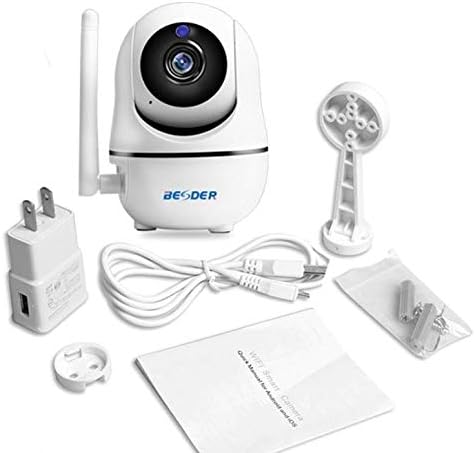
Figure 1 : Package contents of the BESDER Smart Home Security Camera, showing the camera unit, power adapter, USB cable, mounting bracket, screws, and the user manual.
Produit terminéview
Familiarize yourself with the various components of your BESDER Smart Home Security Camera.
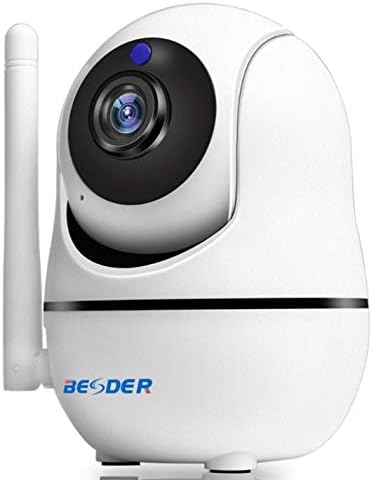
Figure 2 : Devant view of the BESDER Smart Home Security Camera, highlighting the camera lens, infrared LEDs for night vision, and the status indicator light.

Figure 3 : Arrière view of the BESDER Smart Home Security Camera, detailing the memory card slot (for microSD up to 128GB), reset button, built-in speaker, DC 5V power input, and the Ethernet network port for wired connection.
Composants clés :
- Objectif de l'appareil photo : Capture une vidéotage.
- LED IR: Fournir un éclairage infrarouge pour la vision nocturne.
- Voyant d'état : Indicates camera status (e.g., power on, network connection).
- Microphone: Pour l'entrée audio et la communication audio bidirectionnelle.
- Conférencier: For audio output and two-way audio communication.
- Fente pour carte mémoire : Supports microSD cards up to 128GB for local storage.
- Bouton de réinitialisation : Utilisé pour restaurer les paramètres d'usine.
- Entrée d'alimentation CC 5V : Se connecte à l'adaptateur secteur fourni.
- Network Port (RJ45): Pour une connexion Ethernet filaire.
Installation
1. Mise sous tension
- Connect the DC 5V power adapter to the camera's power input port.
- Branchez l’adaptateur secteur sur une prise murale.
- The camera will power on, and the status indicator light will illuminate. Wait for the camera to complete its self-test (it may pan and tilt).
2. Network Connection (Wired or Wireless)
The camera supports both wired (Ethernet) and wireless (Wi-Fi) connections.
Connexion filaire :
- Connect one end of an Ethernet cable (not included) to the camera's network port.
- Connectez l'autre extrémité du câble Ethernet à votre routeur ou à votre commutateur réseau.
- La caméra se connectera automatiquement au réseau.
Connexion sans fil (Wi-Fi) :
- Download the recommended mobile application (e.g., XMEYE or iCsee) from your device's app store (iOS or Android).
- Enregistrez un compte et connectez-vous.
- Follow the in-app instructions to add your camera. This typically involves scanning a QR code on the camera or using a Wi-Fi configuration method (e.g., AP mode, SmartLink).
- Ensure your mobile device is connected to the 2.4GHz Wi-Fi network you intend to connect the camera to.
- Enter your Wi-Fi password when prompted by the app.
- The camera will attempt to connect to your Wi-Fi network. Once connected, the status indicator light will change (refer to app or camera manual for specific light indications).
3. Installation de la carte microSD (facultatif)
- Ensure the camera is powered off before inserting or removing the microSD card.
- Locate the microSD card slot (refer to Figure 3).
- Insérez délicatement la carte microSD dans son logement, contacts dorés vers le bas, jusqu'à ce qu'elle s'enclenche.
- Power on the camera. You may need to format the SD card via the mobile app settings for optimal performance.
Mode d'emploi
1. Mobile Monitoring (iOS/Android)
- Open the XMEYE or iCsee app on your smartphone.
- Sélectionnez votre appareil photo dans la liste des périphériques pour view le flux en direct.
- Use the on-screen controls to pan (horizontal rotation) and tilt (vertical rotation) the camera lens.
- Accès à la lecture des enregistrements de footage stored on the microSD card or cloud service.
2. Audio bidirectionnel
- Alors que viewing the live feed in the app, tap the microphone icon to speak through the camera's speaker.
- Appuyez sur l'icône du haut-parleur pour écouter le son provenant du microphone de la caméra.
3. Vision nocturne infrarouge
- The camera automatically switches to IR night vision mode in low-light conditions.
- The IR LEDs will illuminate, providing clear black and white video up to 15 meters.
4. Détection de mouvement et alarmes
- Activez la détection de mouvement dans les paramètres de l'application.
- Configurez les niveaux de sensibilité et les zones de détection selon vos besoins.
- When motion is detected, the camera can send push notifications to your phone and/or record footage.
5. Service Cloud
- The camera supports cloud storage services (subscription may be required).
- Refer to the mobile app for details on activating and managing cloud storage.
Entretien
- Nettoyage: Utilisez un chiffon doux et sec pour nettoyer l'objectif et le boîtier de l'appareil photo. N'utilisez pas de produits nettoyants liquides ni d'aérosols.
- Mises à jour du micrologiciel : Regularly check for firmware updates via the mobile app to ensure optimal performance and security.
- Placement: Ensure the camera is placed in a location where it is protected from direct water exposure and extreme temperatures.
- Gestion de la carte SD: Periodically check the status of your microSD card. If it becomes full, older recordings may be overwritten, or recording may stop.
Dépannage
| Problème | Cause possible | Solution |
|---|---|---|
| Caméra hors ligne/Impossible de se connecter au Wi-Fi | Incorrect Wi-Fi password; Camera too far from router; Router issues; 5GHz Wi-Fi network. |
|
| Aucun écran/Écran noir | Power issue; Network issue; Lens obstruction. |
|
| L'audio bidirectionnel ne fonctionne pas | Microphone/haut-parleur désactivé dans l'application ; volume trop faible ; latence réseau. |
|
| La détection de mouvement ne se déclenche pas. | Détection de mouvement désactivée ; sensibilité trop faible ; zone de détection incorrecte. |
|
| La carte SD n'enregistre pas | Carte SD pleine/corrompue ; format incorrect ; carte SD mal insérée. |
|
Caractéristiques
| Fonctionnalité | Détail |
|---|---|
| Nom du modèle | BESDER Smart Home Security |
| Référence constructeur | ZX-X2-W/200W |
| Résolution vidéo | Full HD 1080P (1920x1080) |
| Capteur | 1/2.8'' F22 CMOS sensor (for 1080P) |
| Compression vidéo | H.264, supports dual stream, 0.1 – 6 Mpbs |
| Lentille | 3.6 mm G7 (default) |
| Distance de vision nocturne IR | Max 15 meters (6 IR LEDs) |
| Connectivité | Wi-Fi (2.4 GHz), Ethernet filaire |
| Stockage | MicroSD card up to 128GB (not included), Cloud Service |
| Audio | Audio bidirectionnel (microphone et haut-parleur intégrés) |
| surveillance mobile | iOS, Android (APP: XMEYE or iCsee) |
| Alimentation électrique | CC 5 V 2 A |
| Température de fonctionnement | -5 à 60°C (23 à 140°F) |
| Dimensions | 6.39 x 4.33 x 3.11 cm (dimensions approximatives de l'emballage) |
Garantie et assistance
For warranty information and technical support, please refer to the contact details provided with your purchase or visit the official BESDER webConsultez le site. Conservez votre reçu d'achat comme preuve d'achat.
Fabricant: BESDER
Ask a question about this manual
Ask about setup, troubleshooting, compatibility, parts, safety, or missing instructions. Manuals+ will review the question and use this page’s manual context to help answer it.