
1. Introduction
Thank you for choosing the DELUX M625BU(3050) RGB Wired Gaming Mouse. This manual provides detailed instructions for setting up, operating, and maintaining your gaming mouse to ensure optimal performance and an enhanced gaming experience. Please read this manual thoroughly before use.
2. Contenu du colis
- DELUX M625BU(3050) RGB Wired Gaming Mouse
- Manuel d'utilisation
3. Produit terminéview
The DELUX M625BU(3050) is an ergonomic wired gaming mouse designed for precision and customization. It features a high-performance A3050 PixArt optical sensor, 7 programmable buttons, and customizable RGB lighting.
3.1 Disposition de la souris et boutons
Familiarize yourself with the buttons and their default functions:

Image: DELUX M625BU(3050) Gaming Mouse Button Layout
- Bouton gauche : Fonction de clic principale.
- Bouton droit : Fonction de clic secondaire.
- Molette: Défilement vers le haut/bas, clic du milieu.
- Bouton PPP : Permet de faire défiler les paramètres DPI.
- Bouton avant : Navigue vers l'avant dans web navigateurs/applications.
- Bouton de retour : Navigue en arrière dans web navigateurs/applications.
- Bouton de tir : Rapid-fire function (default).
3.2 Conception ergonomique
The mouse features an ergonomic streamline structure and non-slip rubber sides, designed to fit comfortably in your palm for extended gaming sessions.
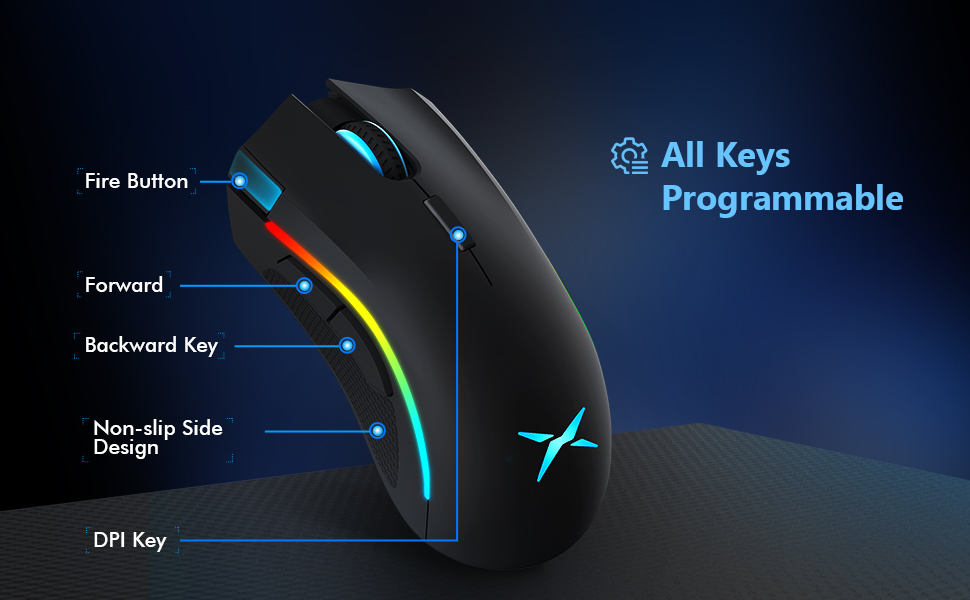
Image: Ergonomic Design Features
4. Installation
The DELUX M625BU(3050) mouse is a plug-and-play device, requiring no additional drivers for basic functionality.
- Connecter la souris : Plug the USB connector of the mouse's 1.8m braided cable into an available USB port on your computer.
- Reconnaissance du système : Your operating system (Windows XP, Vista, 7, 8, or 10) will automatically detect and install the necessary drivers.
- Installation logicielle facultative : For advanced customization of buttons, DPI, and RGB lighting, download and install the DELUX Pro Game Software from the official DELUX website.

Image: Plug and Play Connectivity
5. Mode d'emploi
5.1 Réglage du DPI (points par pouce)
The mouse features an A3050 PixArt optical sensor with adjustable DPI settings. You can cycle through preset DPI levels by pressing the DPI button located behind the scroll wheel.

Image: DPI Adjustment Levels
- Available DPI levels: 800, 1600, 3200, 4000.
- Each press of the DPI button will switch to the next level.
- The current DPI level may be indicated by a specific LED color or pattern (refer to software for detailed customization).
5.2 effets d'éclairage RVB
The mouse features customizable RGB lighting with various effects.
- Changement de modes d'éclairage : Press the Left Button, Scroll Wheel, and Right Button simultaneously for 3 seconds to cycle through different lighting modes (e.g., full lighting, breathing, floating).
- Personnalisation via logiciel : Use the DELUX Pro Game Software to customize RGB backlight effects from 16.8 million colors, adjust lighting direction, and speed.
5.3 Boutons programmables et logiciel
All 7 buttons on the M625BU(3050) mouse are programmable using the DELUX Pro Game Software.
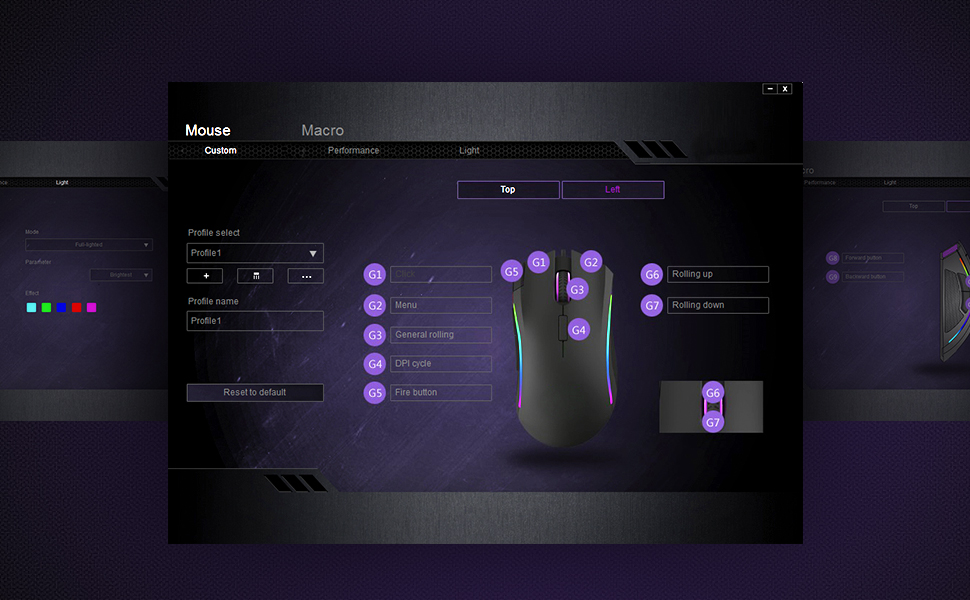
Image: Pro Game Software Interface for Customization
- Fonctions des boutons : Reassign any button to perform different functions, including keyboard keys, multimedia controls, or specific file exécution.
- Macros : Create and assign complex macro sequences to buttons for automated actions.
- Sensitivity and Polling Rate: Fine-tune pointer speed, DPI sensitivity, and polling rate (125/250/500/1000Hz) for precise control.
6. Entretien
To ensure the longevity and optimal performance of your DELUX M625BU(3050) gaming mouse, follow these maintenance guidelines:
- Nettoyage: Utilisez un chiffon doux et sec pour essuyer la surface de la souris. Pour les saletés tenaces, frottez légèrement.ampNettoyez le chiffon avec de l'eau ou une solution nettoyante douce. Évitez les produits chimiques agressifs.
- Entretien du capteur : Keep the optical sensor on the underside of the mouse clean and free from dust or debris. Use a cotton swab if necessary.
- Entretien des câbles : Évitez les coudes brusques ou les tractions excessives sur le câble tressé afin de prévenir tout dommage.
- Stockage: Rangez la souris dans un endroit propre et sec lorsqu'elle n'est pas utilisée.
7. Dépannage
If you encounter issues with your DELUX M625BU(3050) mouse, refer to the following common solutions:
| Problème | Solution possible |
|---|---|
| La souris ne répond pas |
|
| Le mouvement du curseur est erratique ou imprécis. |
|
| L'éclairage RGB ne fonctionne pas ou est incorrect. |
|
| Programmable buttons not functioning |
|
| Scroll wheel behaves erratically (e.g., scrolls opposite direction) |
|
8. Spécifications
| Fonctionnalité | Détail |
|---|---|
| Numéro de modèle | M625BU(3050) |
| Connectivité | Wired (1.8m Braided Cable) |
| Capteur | A3050 PixArt Optical Sensor |
| Paramètres PPP | 800 / 1600 / 3200 / 4000 DPI |
| Taux de sondage | 125 / 250 / 500 / 1000 Hz |
| Boutons | 7 boutons programmables |
| Éclairage | Effets lumineux RVB personnalisables |
| Ergonomie | Ergonomic Streamline Structure, Non-slip Rubber Side |
| Dimensions du produit | 5.14 x 2.71 x 1.67 pouces |
| Poids de l'article | 3.53 onces |
| Compatibilité | Windows XP, Vista, 7, 8, 10 |
9. Garantie et assistance
All DELUX products include a Garantie de 12 mois à compter de la date d'achat. De plus, DELUX offre assistance technique gratuite à vie pour ce produit.
For warranty claims, technical assistance, or further inquiries, please contact DELUX customer support through the official DELUX website ou votre revendeur.