
1. Introduction
The ANCEL FX1000 is a professional vehicle diagnostic tool designed to read and clear trouble codes, view live data, and perform various special functions for a single-car manufacturer. It supports full OBD service modes and is compatible with vehicles manufactured from 1996 onwards. This manual provides detailed instructions for setting up and operating your device.
2. caractéristiques du produit
- Full OBDII Service Modes: Supports 8 OBDII service modes for comprehensive diagnostics.
- Multi-System Diagnostics: Capable of diagnosing all major vehicle systems including Engine, Transmission, SRS (Supplemental Restraint System), SAS (Steering Angle Sensor), TPMS (Tire Pressure Monitoring System), ABS (Anti-lock Braking System), and more.
- Fonctions spéciales : Includes advanced functions such as DPF (Diesel Particulate Filter) Regeneration, Battery Replacement, ABS Bleeding, Oil Service Reset, EPB (Electronic Parking Brake) Reset, and Throttle Position Adaption.
- Prise en charge multilingue : Supports 7 languages: English, French, Spanish, German, Russian, Polish, and Portuguese.
- Manufacturer-Specific Tool: Designed for a single-car manufacturer, allowing in-depth diagnostics for a specific brand's vehicle series.
- Mises à jour en ligne gratuites à vie : Ensures your device always has the latest software and vehicle coverage.
3. Contenu du colis
Your ANCEL FX1000 package should include the following items:
- ANCEL FX1000 Diagnostic Tool
- Câble de connexion OBDII
- Micro USB Cable (for PC connection and updates)
- Télécharger le guide
- Mallette de transport rigide
4. Disposition de l'appareil
Familiarize yourself with the buttons and ports on your ANCEL FX1000 device for optimal operation.

Image: ANCEL FX1000 device showing LCD display, Return button, Scroll Left/Right/Up/Down buttons, Fn button, and Ok button. Dimensions are also indicated.
- Écran LCD : Shows diagnostic information and menu options.
- Bouton retour : Permet de revenir à l'écran ou au menu précédent.
- Scroll Buttons (Up/Down/Left/Right): Permet de naviguer dans les menus et de sélectionner les options.
- Bouton Fn : Function button, may have context-specific uses.
- Bouton OK : Confirme les sélections ou accède aux sous-menus.
- Connecteur OBDII : Permet de connecter l'appareil au port OBDII du véhicule.
- Port USB : For connecting to a computer for software updates.
5. Configuration et connexion
Follow these steps to connect your ANCEL FX1000 to your vehicle:
- Repérez le port OBDII de votre véhicule. Il se trouve généralement sous le tableau de bord, côté conducteur.
- Ensure the vehicle's ignition is ON, but the engine is NOT running. For push-button start vehicles, press the start button until all dashboard lights illuminate without starting the engine.
- Plug the OBDII connector from the ANCEL FX1000 into your vehicle's OBDII port. The device will power on automatically.
- Once powered on, the device is ready for use.
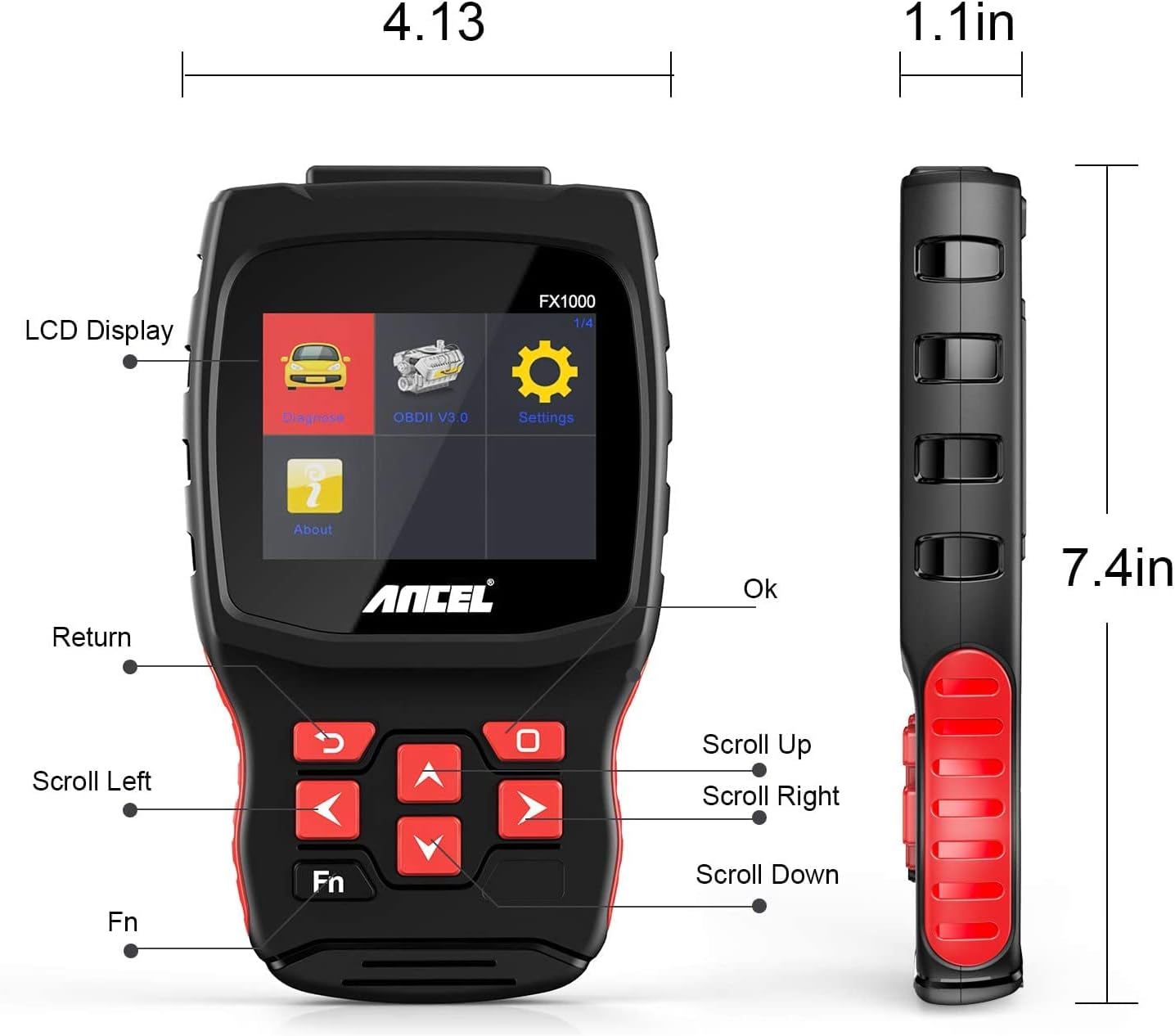
Image: A hand holding the ANCEL FX1000 connected to a vehicle's OBDII port, with the car's dashboard visible.
6. Navigation et paramètres
The ANCEL FX1000 features a user-friendly interface. Use the arrow buttons to navigate and the OK button to select.
- Diagnostiquer: Access vehicle-specific diagnostic functions.
- OBDII V3.0: Access general OBDII functions for all compatible vehicles.
- Paramètres: Configurer les préférences de l'appareil.
- À propos de: View device information such as serial number, firmware version, and software version.
Options du menu Paramètres :
- Langue: Changer la langue d'affichage.
- Unité: Basculez entre Celsius et Fahrenheit pour les lectures de température.
- Bip: Activer ou désactiver le retour sonore.
- Enregistrer: View recorded diagnostic data.
- Test des boutons : Test the functionality of the device buttons.
- LCD Test: Test the LCD display.
7. Diagnostic du système
The ANCEL FX1000 allows you to perform in-depth diagnostics on various vehicle systems. After selecting 'Diagnose' and your vehicle's manufacturer (e.g., Toyota), you can choose specific systems.
Image: Visual representation of systems diagnosed by FX1000, including Engine, ABS, TPMS, Transmission, Oil Service, Airbag, Battery, Audio, and Headlight Activate.
Fonctions diagnostiques :
- Lire le code d'erreur : Retrieves current, pending, and history Diagnostic Trouble Codes (DTCs).
- Effacer le code d'erreur : Efface les codes d'anomalie (DTC) de l'ordinateur de bord du véhicule.
- Lire le flux de données : Affiche les paramètres de données en temps réel provenant des capteurs du véhicule.
- Test actif : Allows bidirectional control to test specific components.
- Fonction spéciale: Accesses advanced maintenance and service functions.
8. Fonctions spéciales
The ANCEL FX1000 offers several special functions for vehicle maintenance:

Image: Visual representation of special functions including Oil Service Reset, ABS Bleeding, TPMS Reset, and EPB Reset.
- Réinitialisation du service d'huile : Réinitialise le témoin de vidange après une vidange d'huile.
- Saignement de l'ABS : Effectue les opérations de purge du système de freinage antiblocage.
- Réinitialisation EPB : Réinitialise le système de frein de stationnement électronique.
- Adaptation de la position du papillon des gaz : Adapts the throttle position sensor.
- Régénération du FAP : Lance le processus de régénération du filtre à particules diesel.
- Remplacement de la batterie : Registers new battery replacements.
9. OBDII Functions (General)
The 'OBDII V3.0' menu provides general diagnostic functions compatible with all OBDII-compliant vehicles (1996 and newer).
- Read Current Trouble Code: Displays active DTCs.
- Effacer le code d'erreur : Erases all stored DTCs.
- Read Current Data: View Données de capteurs en temps réel.
- Read Pending Trouble Code: Displays DTCs that have not yet fully matured.
- Lire les données de l'image figée : Shows a snapshot of vehicle conditions when a DTC was set.
- Readiness Tests: Vérifie l'état des dispositifs de surveillance des émissions.
Readiness Test:
The Readiness Test is crucial for emissions inspections. It indicates whether various emission control systems have completed their self-tests. Look for 'Complete' or 'Supported' status for all monitors. If a monitor shows 'Not Complete' or 'Not Supported', it may indicate an issue or that the drive cycle has not been completed.
10. Clearing Trouble Codes
To clear trouble codes, navigate to the 'Clear Trouble Code' option within the relevant diagnostic menu. The device will prompt you to confirm. After clearing, it is recommended to cycle the vehicle's ignition off and on to ensure all related warning lights are reset.
Note: The ANCEL FX1000 can only read and clear SRS error codes; it does NOT support SRS reset functions.
11. Mise à jour logicielle
To ensure your ANCEL FX1000 has the latest vehicle coverage and features, regular software updates are recommended. The device offers lifetime free online updates.
- Connect the device to your computer using the provided Micro USB cable.
- Follow the instructions in the 'Download Guide' included in your package to install the update software on your computer.
- Register your device using the serial number and your email address.
- Select the specific car manufacturer software you need for your device.
- Perform the update as prompted by the software.

Image: ANCEL FX1000 connected via USB cable to a laptop, illustrating the update process.
12. Dépannage
If you encounter issues while using your ANCEL FX1000, refer to the following common scenarios:
-
Ask a question about this manual
Ask about setup, troubleshooting, compatibility, parts, safety, or missing instructions. Manuals+ will review the question and use this page’s manual context to help answer it.