
1. Introduction
The Marmitek View ME is an indoor Wi-Fi camera designed for remote monitoring of your home. It offers Full HD 1080p video, motion detection, two-way audio communication, and infrared night vision. This camera integrates seamlessly with the Smart me application, allowing you to control and monitor your home from your smartphone or tablet.
2. Contenu du colis
Vérifiez que tous les éléments sont présents dans le colis :
- Marmitek View ME Indoor Wi-Fi Camera
- Adaptateur secteur
- Câble USB
- Mounting Accessories (if applicable, not explicitly listed but common)
- Manuel d'instructions (ce document)

Image: The Marmitek View ME product box, showing the camera and branding.
3. Produit terminéview
Familiarize yourself with the different parts of your Marmitek View ME camera.
Devant View
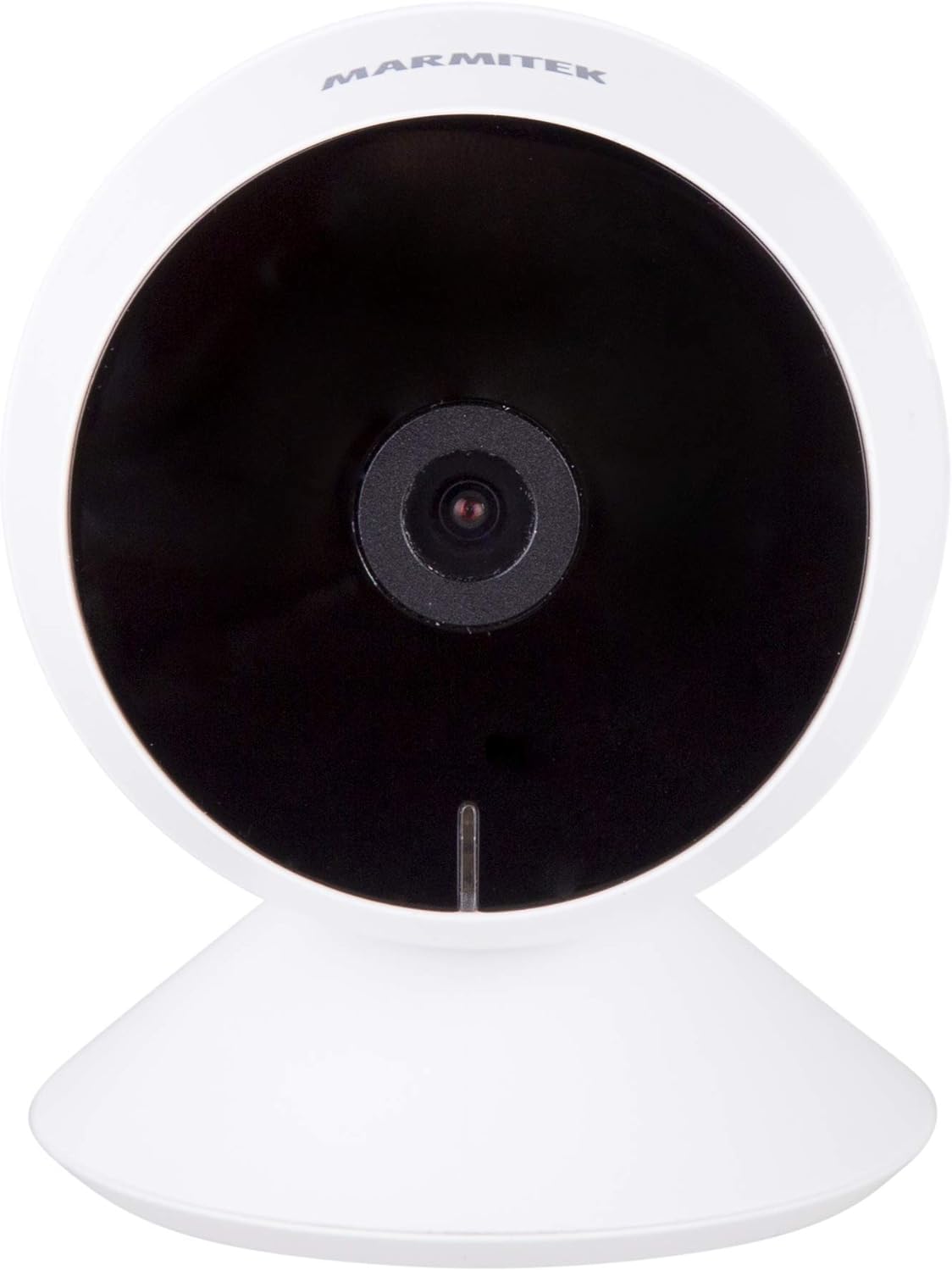
Image : Avant view of the Marmitek View ME camera, showing the lens and indicator light.
Côté View

Image : Côté view of the Marmitek View ME camera, highlighting its compact design.
Arrière View

Image : Arrière view of the Marmitek View ME camera, showing the micro-USB port, speaker, and reset button.
4. Installation
4.1 Placement
Position the camera in a central location within the area you wish to monitor. Ensure it has a clear line of sight and is within range of your Wi-Fi network. The camera is designed for indoor use and can be placed on a desk, shelf, or mounted on a wall or ceiling.

Image: The Marmitek View ME camera discreetly placed on a shelf in a living room environment.
4.2 Connexion d'alimentation
- Connect the USB cable to the micro-USB port on the back of the camera.
- Branchez l'autre extrémité du câble USB à l'adaptateur secteur fourni.
- Insérez l’adaptateur secteur dans une prise électrique standard.
- The camera will power on, and an indicator light will illuminate.

Image: The Marmitek View ME camera connected to its power adapter via a USB cable.
4.3 Installation de l'application et création du compte
The Marmitek View ME camera operates with the Smart me application. No gateway or additional software is required.
- Téléchargez le Moi, intelligent application depuis l'App Store (iOS) ou Google Play Store (Android).
- Ouvrez l'application et suivez les instructions à l'écran pour créer un nouveau compte ou vous connecter si vous en avez déjà un.

Image: The Smart me application logo, featuring a Wi-Fi symbol.
4.4 Connexion au Wi-Fi
- Ensure your smartphone is connected to a 2.4 GHz Wi-Fi network. The camera does not support 5 GHz networks.
- In the Smart me app, tap the "+" icon to add a new device.
- Select "Camera" or the specific model if listed.
- Follow the in-app instructions to put the camera into pairing mode (usually indicated by a flashing light). You may need to press the reset button on the camera.
- Saisissez le mot de passe de votre réseau Wi-Fi lorsque vous y êtes invité.
- The app will generate a QR code. Hold your phone with the QR code in front of the camera lens at a distance of 15-20 cm until you hear a confirmation sound from the camera.
- Once connected, the camera's indicator light will change, and you will see the camera added to your Smart me app.
4.5 Installation de la carte SD (facultatif)
The camera supports local storage via an SD card (not included) for recording videos.
- Locate the SD card slot on the camera (refer to the product overview images).
- Gently insert a compatible microSD card (Class 10 or higher, up to 128GB recommended) into the slot with the contacts facing down until it clicks into place.
- In the Smart me app, navigate to the camera settings to format the SD card before first use.
5. Mode d'emploi
5.1 En direct View
Open the Smart me app and select your View ME camera from the device list to access the live video feed. You can view foo en temps réeltage depuis n'importe où avec une connexion Internet.

Image: A person interacting with the Smart me application on a smartphone, demonstrating remote access.
5.2 Audio bidirectionnel
The camera features an integrated speaker and microphone for two-way communication. While in live view, tap the microphone icon in the app to speak through the camera, and listen to audio from the camera's surroundings.
5.3 Motion Detection & Notifications
The integrated motion detector can alert you to activity. Configure motion detection settings and notification preferences within the Smart me app. You will receive push notifications on your smartphone when motion is detected.
5.4 Enregistrement et lecture
If an SD card is installed, the camera can record video footage. You can set the camera to record continuously, on motion detection, or manually. Access recorded videos through the playback function in the Smart me app.
5.5 Vision nocturne
The camera is equipped with infrared night vision, providing clear video footage up to 10 meters in low-light or dark conditions. This feature activates automatically when ambient light is insufficient.
5.6 Intégration à la maison intelligente
The Marmitek View ME camera is part of the Smart me ecosystem. You can link it with other Smart me products to create automated scenarios. For example, configure a rule to turn on a connected light bulb when the camera detects motion.

Image: A diagram illustrating the interconnectedness of various Smart me devices, including the camera, within a smart home setup.
6. Entretien
6.1 Nettoyage
To clean the camera, gently wipe the lens and exterior with a soft, dry cloth. Do not use harsh chemicals or abrasive cleaners, as these can damage the device.
6.2 mises à jour du micrologiciel
Periodically check the Smart me app for available firmware updates. Keeping your camera's firmware up-to-date ensures optimal performance and security.
6.3 Gestion de la carte SD
If using an SD card for storage, regularly check its status in the app. Format the card periodically to maintain performance and free up space, or replace it if it becomes corrupted or full.
7. Dépannage
- La caméra ne se connecte pas au Wi-Fi : Ensure your Wi-Fi network is 2.4 GHz. Check Wi-Fi password. Move the camera closer to the router. Try resetting the camera by pressing the reset button for 5 seconds.
- Pas de direct view: Check your internet connection and the camera's power supply. Ensure the camera is online in the Smart me app.
- La détection de mouvement ne fonctionne pas : Vérifiez que la détection de mouvement est activée dans les paramètres de l'application. Ajustez les niveaux de sensibilité. Assurez-vous que la caméra view n'est pas obstrué.
- Problèmes audio bidirectionnels : Check your phone's microphone and speaker permissions for the Smart me app. Ensure the camera's microphone and speaker are not obstructed.
- La carte SD n'enregistre pas : Assurez-vous que la carte SD est correctement insérée et formatée dans l'application. Vérifiez si la carte est pleine ou corrompue.
8. Spécifications
| Fonctionnalité | Spécification |
|---|---|
| Numéro de modèle | 08528 |
| Dimensions (L x l x H) | 7.8 x 6 x 6 cm |
| Poids | 240 grammes |
| Résolution vidéo | Full HD 1080p |
| Connectivité | Wi-Fi (2.4 GHz uniquement) |
| Gamme de vision nocturne | Jusqu'à 10 mètres (infrarouge) |
| Audio | Two-way (Built-in microphone and speaker) |
| Stockage | Carte microSD (jusqu'à 128 Go, non incluse) |
| Source d'énergie | CA/CC (230 volts, 2.5 watts) |
| Utilisation intérieure/extérieure | Intérieur |
| Indice de protection IP | IP54 |
| Appareils compatibles | Smartphone, tablette (iOS, Android) |
9. Consignes de sécurité
- Utilisez uniquement l'adaptateur secteur et le câble fournis.
- N'exposez pas l'appareil photo à l'eau ou à l'humidité.
- Évitez de placer l'appareil photo près de sources de chaleur ou en plein soleil pendant des périodes prolongées.
- N’essayez pas de démonter ou de réparer l’appareil photo vous-même. Contactez le service d’assistance pour obtenir de l’aide.
- Gardez l'appareil photo hors de portée des enfants et des animaux domestiques.
10. Garantie et assistance
Marmitek products are manufactured to high quality standards. For warranty information, please refer to the warranty card included with your product or visit the official Marmitek website. For technical support, troubleshooting assistance, or further inquiries, please contact Marmitek customer service through their official channels.