1. Introduction
This manual provides detailed instructions for the installation, operation, and maintenance of your YUNTX 10.1 Inch Android 10 Car Stereo. This unit is designed to be compatible with Mitsubishi Lancer models from 2010 to 2017, offering advanced features such as GPS navigation, Bluetooth connectivity, split-screen functionality, and steering wheel control support. Please read this manual thoroughly before installation and use to ensure proper functionality and safety.
2. Contenu de la boîte
Vérifiez que tous les composants énumérés ci-dessous sont inclus dans votre colis :
- 1 x faisceau de câblage ISO
- 1 x antenne GPS
- 1 x Cadre métallique
- 2 câble RCA
- 2 x Câbles USB
- 1 x External MIC Adaptor
- 1 x Manuel d'utilisation
Vidéo : Plusview of included components (starts at 2:34).
3. Guide d'installation
L'installation par un professionnel est recommandée. Assurez-vous que l'alimentation du véhicule est coupée avant de commencer l'installation.
3.1 Schéma de câblage
Refer to the diagram below for proper connection of the power socket, RCA outputs, USB cables, GPS antenna, and radio antenna.
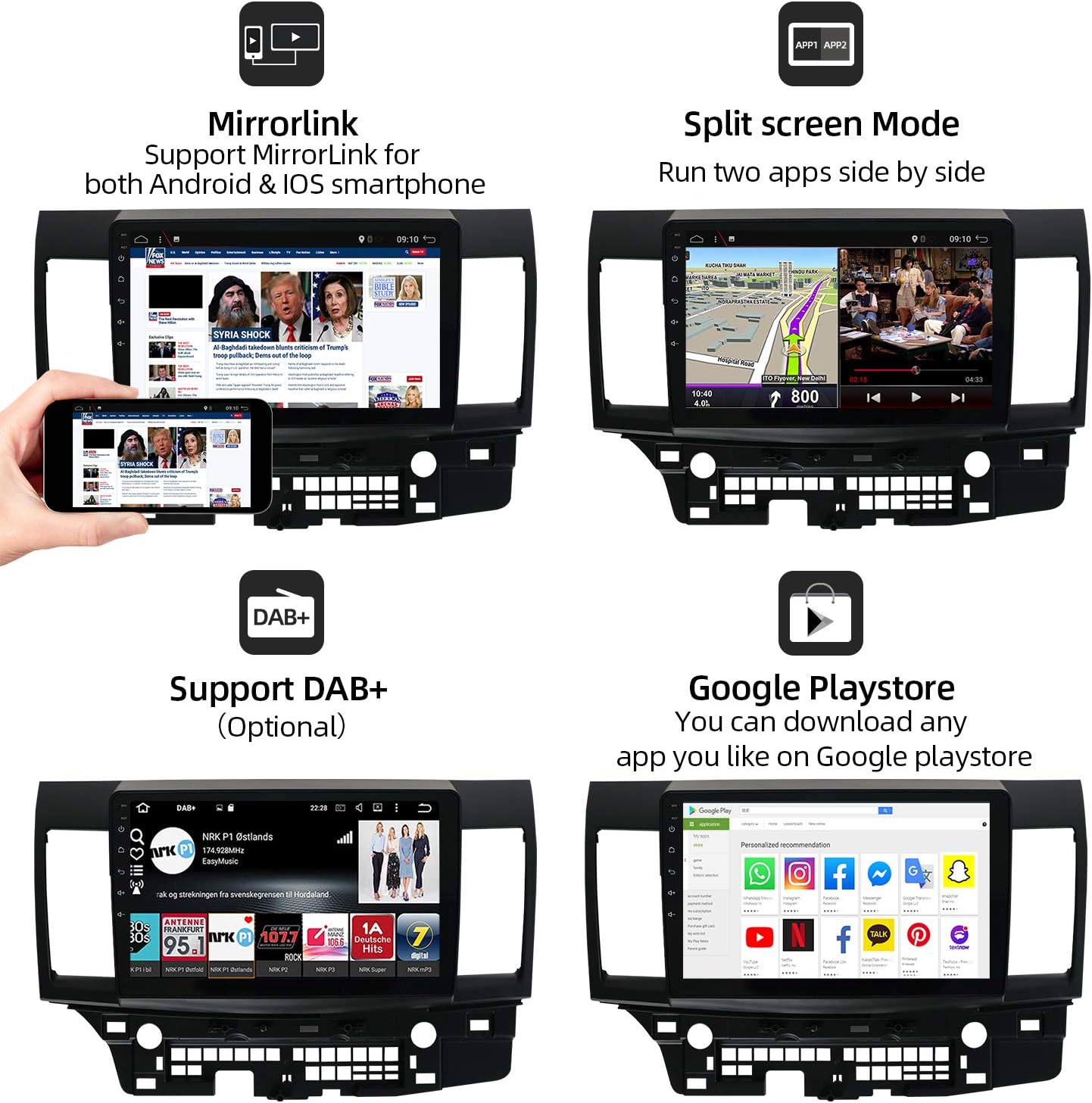
Image : Arrière view of the car stereo with labeled connection points for various cables.
3.2 Compatibilité avec le véhicule
This unit is designed to integrate seamlessly into Mitsubishi Lancer models from 2010 to 2017. The image below illustrates the appearance before and after installation.

Image: Comparison of the car's dashboard with the original radio versus the YUNTX Android 10 Car Stereo installed.
4. Mode d'emploi
This section details the primary functions and how to operate your YUNTX Android 10 Car Stereo.
4.1 Navigation GPS
The unit features built-in GPS navigation with support for offline maps and real-time traffic updates. You can use pre-installed maps or download your preferred navigation apps from the Google Play Store.

Image: Display showing GPS navigation with a route on a map.
Video: Demonstrating GPS navigation functionality (starts at 2:15).
4.2 Connectivité Bluetooth
Connect your smartphone via Bluetooth for hands-free calling and audio streaming. The unit supports phone's Bluetooth tethering for internet access and file transfert.
Video: Demonstrating Bluetooth phone call functionality (starts at 2:25).
4.3 Mode écran partagé
Utilisez la fonction d'écran partagé pour exécuter deux applications simultanément, comme la navigation et la lecture de musique.

Image: Display showing navigation on one side and a media player on the other.
Video: Demonstration of activating and using split screen mode (starts at 0:21).
4.4 Commande au volant (SWC)
Configure your steering wheel buttons to control the car stereo functions for convenience and safety.

Image : Interface de programmation des commandes au volant.
Video: Guide on setting up steering wheel controls (starts at 1:23).
4.5 Entrée caméra arrière
The unit supports rear camera input, providing a clear view of the area behind your vehicle when reversing. A free rear camera is included with your purchase.

Image : Affichage de la caméra de recul avec lignes de stationnement dynamiques.
Video: Demonstration of rear camera input (starts at 1:14).
4.6 Connectivité Wi-Fi et 4G
Connect to the internet via Wi-Fi hotspot from your smartphone or by purchasing a 4G dongle. This enables online movies, web navigation et téléchargements d'applications.
Video: Setting up Wi-Fi connection (starts at 0:48).
4.7 EasyConnection (Mirror Link)
The EasyConnection feature allows you to mirror your smartphone's screen to the car stereo display via USB or Wi-Fi, supporting both Android and iOS devices.

Image: Mirror Link functionality displaying a phone screen on the head unit.
Video: Guide on using EasyConnection for screen mirroring (starts at 0:34).
4.8 FM/AM Tuner with RDS
Access your favorite radio stations with the built-in FM/AM tuner, featuring RDS (Radio Data System) for enhanced information display.
Video: Demonstrating FM/AM radio tuning (starts at 0:58).
4.9 Réglages de l'égaliseur (EQ)
Customize your audio experience with the integrated equalizer, offering various presets (Flat, Pop, Easy, Rock, Classic, Jazz, User) and manual adjustments for frequency levels.
Video: Adjusting equalizer settings (starts at 1:56).
4.10 Interface personnalisable
Personalize your stereo with multi-color button lighting and custom wallpapers.
Video: Customizing button colors (starts at 1:00).
Video: Changing wallpapers (starts at 1:36).
4.11 Car Performance Monitoring
The unit supports real-time car performance monitoring through compatible OBD2 devices (sold separately) and the 'Torque' app.
Video: Displaying car performance data using the Torque app (starts at 1:10).
5. Spécifications
| Fonctionnalité | Détail |
|---|---|
| Système opérateur | Android 10 |
| BÉLIER | 2 GB (as per product title, JSON spec says 1GB, using title for clarity) |
| ROM | 32 Go (conformément au titre du produit) |
| Taille de l'écran | 10.1 pouces |
| Résolution | 1024 x 600 |
| Communication sans fil | AM/FM, RDS, Bluetooth, Wi-Fi |
| Technologies de connectivité | Bluetooth, Cellular (via dongle), Wi-Fi |
| Caractéristiques spéciales | Bluetooth, Touchscreen, GPS, Split Screen, SWC Support, Rear Camera Input |
| Type de carte | Supports both online and offline maps |
| Type de montage | Montage sur panneau |
| Poids de l'article | 4.59 livres |
| Dimensions du colis | 18.7 x 14.6 x 7 pouces |
6. Dépannage
Si vous rencontrez des problèmes avec votre autoradio, reportez-vous aux étapes de dépannage courantes suivantes :
- Pas d'alimentation : Check all power connections and fuses. Ensure the ignition wire is correctly connected.
- Pas de son : Verify speaker wiring connections. Check the audio settings (volume, balance, fader, EQ). Ensure the ampL'amplificateur (s'il est externe) est mis sous tension.
- Signal GPS perdu : Assurez-vous que l'antenne GPS est correctement installée et qu'elle est dégagée. view du ciel. Vérifiez la connexion de l'antenne à l'appareil.
- Problèmes de connexion Bluetooth : Assurez-vous que le Bluetooth est activé sur la chaîne stéréo et sur votre appareil mobile. Supprimez les appareils précédemment appairés et essayez de vous reconnecter.
- Écran tactile non réactif : Essayez de redémarrer l'appareil. Si le problème persiste, une réinitialisation d'usine peut être nécessaire (attention : cette opération effacera toutes les données utilisateur).
- Blocages/plantages d'unités : Perform a soft reset by pressing the RST button (if available) or by disconnecting and reconnecting the power.
Pour tout problème persistant, veuillez contacter le service client.
7. Entretien
Pour garantir la longévité et les performances optimales de votre autoradio YUNTX, suivez ces consignes d'entretien :
- Nettoyage: Utilisez un chiffon doux et sec pour nettoyer l'écran et l'extérieur. Évitez les nettoyants abrasifs et les solvants.
- Mises à jour logicielles : Periodically check for available software updates to improve performance and add new features. Follow the instructions provided with the update package carefully.
- Conditions environnementales : Évitez d'exposer l'appareil à des températures extrêmes, à la lumière directe du soleil pendant des périodes prolongées ou à une humidité excessive.
8. Garantie et assistance
Your YUNTX car stereo comes with a manufacturer's warranty. Please refer to the warranty card included in your package for specific terms and conditions. For technical support, troubleshooting assistance, or warranty claims, please contact YUNTX customer service through the retailer where the product was purchased or visit the official YUNTX website.