
iConnectivity AUDIO12
iConnectivity PlayAUDIO12 Audio Interface User Manual
Model: AUDIO12
1. Introduction
The iConnectivity PlayAUDIO12 is a professional-grade audio and MIDI interface designed for live performance and studio applications. It provides a robust and reliable solution for integrating computer-based audio and MIDI into your setup, featuring fail-safe computer switching and high-quality audio conversion.
This manual provides detailed instructions for setting up, operating, maintaining, and troubleshooting your PlayAUDIO12 device to ensure optimal performance and longevity.

Figure 1.1 : Face avant view of the PlayAUDIO12, highlighting its compact design and intuitive controls.
2. Contenu de l'emballage et installation
2.1. Déballage
À l'ouverture du colis, vérifiez que tous les composants sont présents et non endommagés. Le colis standard comprend :
- iConnectivity PlayAUDIO12 Audio Interface
- USB Cables (Type-B to Type-A)
- Adaptateur secteur
- Quick Start Guide (digital version available online)
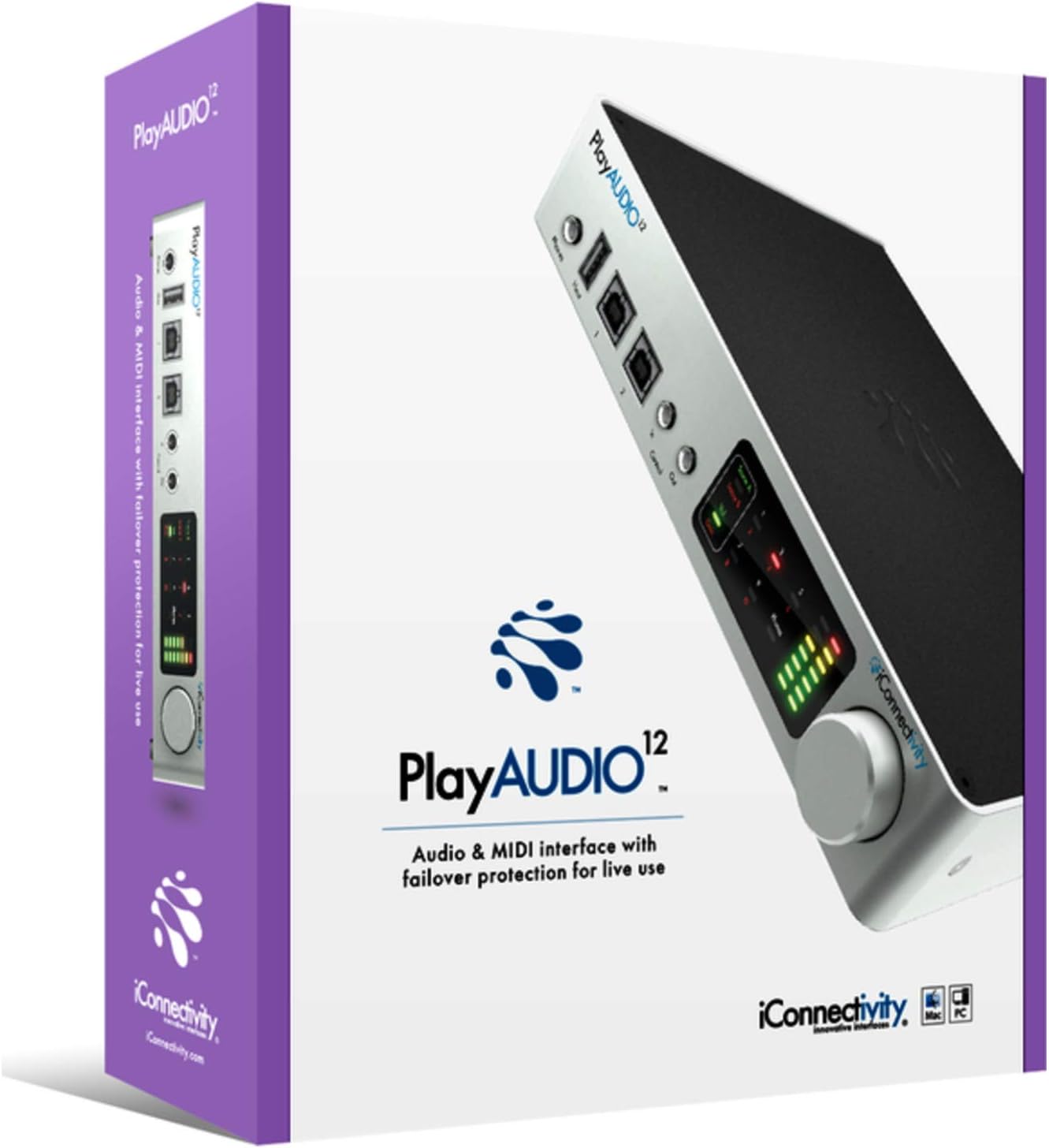
Figure 2.1: The PlayAUDIO12 packaging, ensuring safe transport and clear branding.
2.2. Connexion de l'appareil
Follow these steps to connect your PlayAUDIO12 to your computer and audio system:
- Connexion électrique : Connect the included power adapter to the DC input on the rear panel of the PlayAUDIO12 and then to a power outlet.
- Connexion USB : Use the provided USB cables to connect the PlayAUDIO12's "Host 1" and "Host 2" USB ports to your computer(s). For failover protection, connect both ports to two separate computers.
- Sorties audio: Connect your studio monitors, mixer, or PA system to the 12 ultra-low noise outputs on the rear panel using appropriate cables.
- Entrées/Sorties de contrôle : If using external footswitches or linking additional PlayAUDIO12 units, connect them to the "Control In" and "Control Out" ports on the front panel.

Figure 2.2: Rear panel connections of the PlayAUDIO12, detailing the 12 audio outputs and power input.
2.3. Installation du logiciel
The PlayAUDIO12 is class-compliant on Windows, meaning no specific drivers are typically required for basic functionality. However, for advanced features and firmware updates, it is recommended to download and install the latest iConnectivity software from the official website.
- Visit the official iConnectivity website: www.iconnectivity.com
- Navigate to the Support or Downloads section for PlayAUDIO12.
- Download and install any available drivers, firmware updates, or control applications.
3. Operating the PlayAUDIO12
3.1. Commandes du panneau avant
The front panel of the PlayAUDIO12 features capacitive touch controls and clear metering for easy operation, even in low-light conditions.
- Mesure: Visual indicators for audio levels, allowing you to monitor your signals at a glance.
- Sortie téléphones : Dedicated headphone output for monitoring.
- Host 1 / Host 2 Indicators: Show which computer is currently active.
- Entrée/Sortie de contrôle : Ports for external footswitches or linking additional PlayAUDIO12 units.

Figure 3.1 : Angulaire view of the PlayAUDIO12, showcasing the front panel's capacitive touch controls and metering.
3.2. Computer Switching and Failover
The PlayAUDIO12 is designed for seamless computer switching, providing a robust failover solution for live performances. If one connected computer fails, the unit can automatically switch to the secondary computer, ensuring uninterrupted audio and MIDI flow.
- Commutation automatique : Configurable through the iConnectivity software to automatically switch based on signal loss or other parameters.
- Commutation manuelle : Utilize the "Control In" footswitch input for manual computer switching, allowing for user-assignable controls.
3.3. MIDI Capabilities
Beyond its audio capabilities, the PlayAUDIO12 offers extensive MIDI connectivity, leveraging iConnectivity's expertise in MIDI technology. It can route MIDI data between connected computers, external MIDI devices, and software applications.
- Routage MIDI : Flexible routing options for complex MIDI setups.
- MIDI Host Ports: Connect USB MIDI controllers and devices directly to the PlayAUDIO12.
3.4. Expanding Your Setup
For larger productions requiring more outputs, the PlayAUDIO12 can be linked with additional PlayAUDIO12 interfaces. Use the "Control Out" connection to slave additional units, expanding your connectivity as your production needs grow.
4. Entretien
Proper maintenance ensures the longevity and reliable performance of your PlayAUDIO12.
- Nettoyage: Utilisez un chiffon doux et sec pour nettoyer l'extérieur de l'appareil. Évitez les nettoyants abrasifs et les solvants.
- Stockage: Lorsqu'il n'est pas utilisé, rangez l'appareil dans un endroit frais et sec, à l'abri de la lumière directe du soleil et des températures extrêmes.
- Mises à jour du micrologiciel : Regularly check the iConnectivity website for firmware updates. Keeping your device's firmware up-to-date can improve performance, add new features, and resolve potential issues.
5. Dépannage
If you encounter issues with your PlayAUDIO12, refer to the following common troubleshooting steps:
- Pas de sortie audio :
- Vérifiez que tous les câbles audio sont correctement connectés.
- Check the volume levels on the PlayAUDIO12, your computer, and your audio system.
- Ensure the correct audio output device is selected in your computer's sound settings and DAW.
- L'ordinateur ne reconnaît pas l'appareil :
- Essayez de vous connecter à un autre port USB de votre ordinateur.
- Ensure USB cables are not damaged.
- Restart your computer and the PlayAUDIO12.
- Verify that the necessary drivers or software are installed (if applicable).
- Problèmes MIDI :
- Check MIDI routing settings within your DAW or iConnectivity software.
- Ensure MIDI devices are properly connected and powered.
- Connexion intermittente :
- Ensure power supply is stable.
- Avoid using unpowered USB hubs.
For more complex issues, consult the detailed troubleshooting guide on the iConnectivity website ou contacter le support client.
6. Spécifications
| Fonctionnalité | Détail |
|---|---|
| Numéro de modèle | AUDIO12 |
| Poids de l'article | 2.29 livres |
| Dimensions du produit | 3 x 3 x 3 pouces |
| Technologie de connectivité | USB |
| Nombre de canaux | 12 |
| Logiciels pris en charge | Windows (class compliant) |
| Système opérateur | Fenêtres |
| Appareils compatibles | Ordinateur personnel |
| Conversion AN/NA | Jusqu'à 24 bits/96 kHz |
7. Garantie et assistance
7.1. Informations sur la garantie
iConnectivity products typically come with a limited manufacturer's warranty covering defects in materials and workmanship. Please refer to the warranty card included with your product or visit the official iConnectivity webConsultez ce site pour connaître les conditions générales de garantie les plus récentes et détaillées.
Note: Warranty terms may vary by region and retailer. Keep your proof of purchase for warranty claims.
7.2. Assistance clientèle
For technical assistance, product registration, or further inquiries, please contact iConnectivity customer support through their official channels:
- Website: www.iconnectivity.com/support
- Ressources en ligne : FAQs, knowledge base, and user forums may be available on their website.
When contacting support, please have your product model (AUDIO12) and serial number ready.