Introduction
This manual provides essential information for setting up, operating, and maintaining your HP 27f 4K Monitor. Please read these instructions carefully before using your monitor to ensure proper functionality and longevity.
Caractéristiques principales
- Ultra High Definition 4K: Experience cinematic quality with the incredible definition of 4K.
- Height Adjustment Stand: Easily adjust your display to the most comfortable position with 100 mm range of travel.
- Panoramique View: Angle ultra large de 178° viewavec des détails cohérents et des couleurs vibrantes.
- Conception moderne: A sleek design that complements your workspace.
- Micro-edge Display: Virtually no bezel encircling the display for an ultra-wide viewing experience and seamless multi-monitor setups.
- Technologie de panneau IPS : Provides consistent color and image clarity across a wide viewangle de vue.
- AMD FreeSync™ : Reduces blurring and tearing for smoother visuals.
Qu'y a-t-il dans la boîte
Vérifiez que tous les composants sont présents dans l'emballage :
- HP 27f 4K Monitor
- A/C power cable (1.9 m / 6.2 ft)
- Power adapter (1.0 m / 3.3 ft)
- HDMI cable (1.8 m / 5.9 ft)
- Quick setup poster
- Carte de liste de numéros de service
- Documents de garantie
Installation
1. Assemblage du moniteur
Carefully remove the monitor and stand components from the packaging. Attach the stand base to the stand column, then secure the stand to the back of the monitor. Ensure all connections are firm.
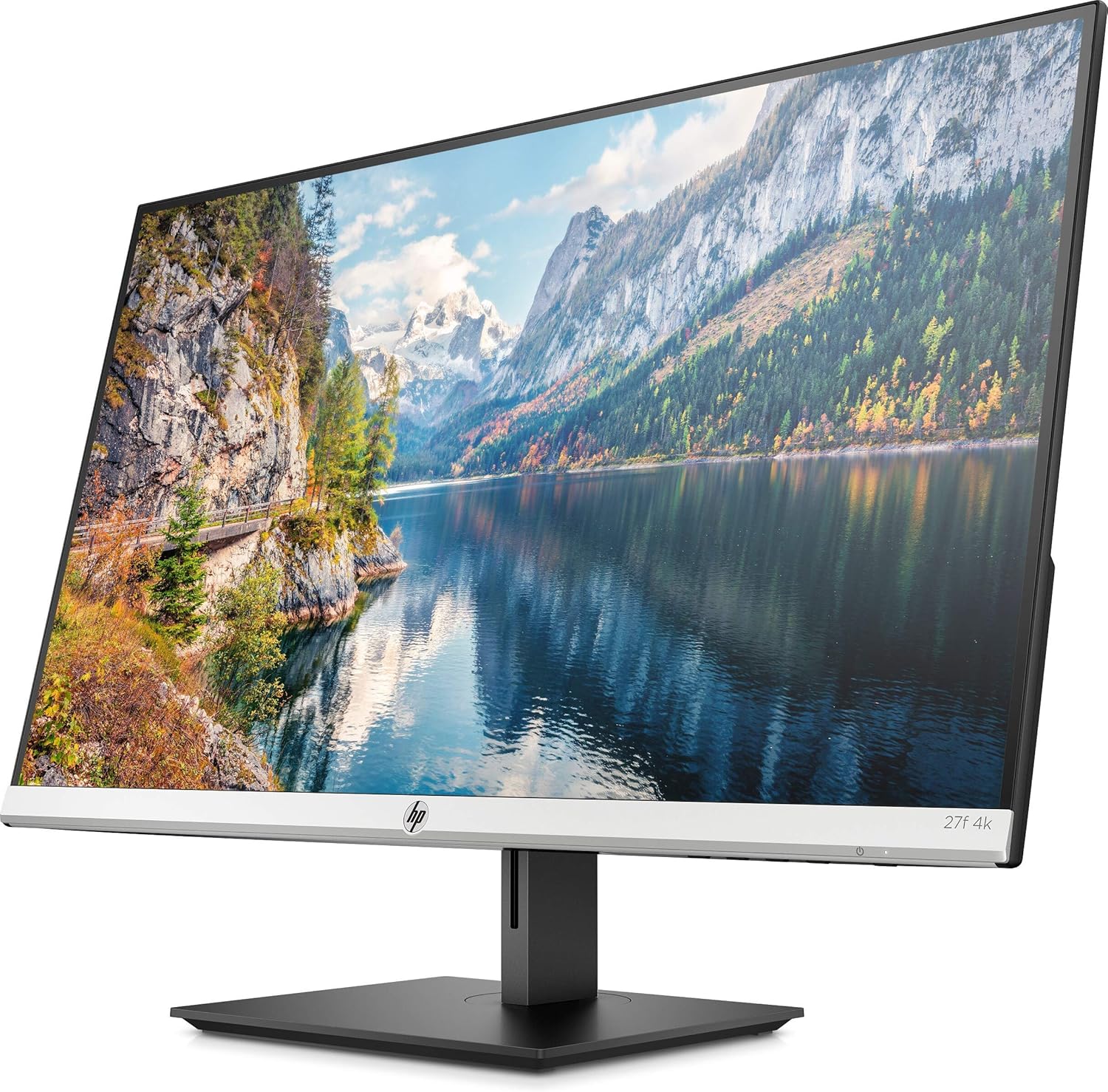
Figure 1 : Face avant view of the HP 27f 4K Monitor with its stand.
2. Câbles de connexion
Connect the power adapter to the monitor's power input and then to a power outlet. Use the provided HDMI cable to connect your computer to one of the HDMI ports on the monitor. Alternatively, use a DisplayPort cable if your computer supports it.

Figure 2 : Arrière view of the monitor displaying the HDMI and DisplayPort inputs.
3. Mise sous tension
Press the power button on the monitor to turn it on. The monitor should automatically detect the input signal from your computer.
Fonctionnement du moniteur
Réglage de l'affichage
The HP 27f 4K Monitor features a height-adjustable stand and can be tilted and rotated for optimal viewing comfort. Adjust the height by gently pushing or pulling the monitor up or down. Tilt the screen forward or backward as needed. The monitor can also be rotated to a portrait orientation.

Figure 3 : Côté profile of the monitor demonstrating its adjustable stand.
Menu d'affichage à l'écran (OSD)
Use the buttons located on the bottom bezel of the monitor to access the On-Screen Display (OSD) menu. This menu allows you to adjust various settings such as brightness, contrast, color temperature, input source, and other display preferences.
Configuration multi-écrans
The micro-edge bezel design allows for seamless multi-monitor configurations, enhancing your productivity and immersive experience.

Figure 4 : Example of a multi-monitor setup using HP 27f 4K Monitors.
Expérience visuelle
The HP 27f 4K Monitor delivers stunning 4K resolution and utilizes IPS Panel Technology for wide viewing angles and vibrant colors. AMD FreeSync™ technology helps reduce screen tearing and stuttering for a smoother visual experience, especially during fast-paced content.
Video 1: An official HP video showcasing the stunning 4K clarity of the HP 27f 4K Display.
Entretien
Nettoyage du moniteur
Pour nettoyer l'écran, essuyez-le délicatement avec un chiffon doux en microfibre non pelucheux. Pour les traces tenaces, frottez légèrement avec un chiffon doux.ampen the cloth with water or a screen-cleaning solution specifically designed for monitors. Avoid using harsh chemicals, abrasive cleaners, or spraying liquid directly onto the screen.
To clean the monitor's exterior, use a soft, damp cloth. Ensure the monitor is powered off and unplugged before cleaning.
Dépannage
Pas de courant
- Assurez-vous que le câble d’alimentation est correctement connecté au moniteur et à une prise de courant fonctionnelle.
- Vérifiez si l'adaptateur secteur est correctement connecté.
- Vérifiez le bon fonctionnement de la prise de courant en y branchant un autre appareil.
No Signal/Blank Screen
- Vérifiez que le câble vidéo (HDMI ou DisplayPort) est correctement connecté à la fois au moniteur et à votre ordinateur.
- Assurez-vous que votre ordinateur est allumé et non en mode veille.
- Use the OSD menu to manually select the correct input source (e.g., HDMI 1, HDMI 2, DisplayPort).
- Try connecting the monitor to a different video port on your computer or using a different video cable to rule out cable or port issues.
Display Issues (Flickering, Blurry Image)
- Vérifiez que le câble vidéo n'est pas endommagé ou que les connexions ne sont pas desserrées.
- Assurez-vous que les pilotes graphiques de votre ordinateur sont à jour.
- Adjust the display resolution and refresh rate settings on your computer to match the monitor's capabilities.
- If using AMD FreeSync™, ensure it is enabled in both the monitor's OSD and your graphics card settings.
Caractéristiques
Detailed technical specifications for the HP 27f 4K Monitor:

Figure 5: Diagram illustrating the dimensions of the HP 27f 4K Monitor.
| Fonctionnalité | Spécification |
|---|---|
| Taille d'affichage de l'écran debout | 27 pouces |
| Résolution de l'écran | 3840x2160 (4K UHD 2160p) |
| Résolution d'écran maximale | 3840 pixels |
| Marque | HP |
| Série | HP 27f 4K Display |
| Numéro de modèle de l'article | 27f 4K |
| Poids de l'article | 10.56 livres |
| Dimensions du produit | 24.16 x 7.62 x 19.74 pouces |
| Couleur | Natural silver and Black |
| Voltage | 240 Volts (CA) |
| Rapport hauteur/largeur | 16:9 |
| Description de la surface de l'écran | Antireflet |
Garantie et assistance
Your HP 27f 4K Monitor comes with a standard manufacturer's warranty. Please refer to the warranty documentation included in your product packaging for specific terms and conditions.
Pour obtenir de l'aide technique, télécharger des pilotes ou obtenir des informations supplémentaires sur les produits, veuillez consulter le site Web officiel de HP. website or contact HP customer service using the contact information provided in your documentation.