
1. Introduction
The Transcend DrivePro 550 is a dual-lens dash camera designed to provide comprehensive recording of both the road ahead and the vehicle's interior. Equipped with a front lens featuring a Sony image sensor and a rear lens with infrared LEDs, it ensures clear video capture in various lighting conditions. This manual provides detailed instructions for setting up, operating, and maintaining your DrivePro 550 dash camera.
2. Contenu du colis
Vérifiez que tous les éléments énumérés ci-dessous sont inclus dans votre colis :
- Transcend DrivePro 550 Dash Camera Unit
- microSD Memory Card (64GB)
- Car Mount (Suction Mount)
- Car Lighter Power Adapter
- Hardwire Power Cable

Image: Retail box of the Transcend DrivePro 550 Dash Camera, showing included accessories.
3. Produit terminéview
Familiarize yourself with the components of your DrivePro 550 dash camera.
3.1 avant View

Image : Avant view of the DrivePro 550, showing the main screen displaying live dual-channel recording.
- Lentille avant : Records the road ahead. Features a Sony image sensor for high-quality video.
- Lentille arrière : Records the vehicle's interior. Equipped with four infrared LEDs for enhanced night vision.
- Écran LCD de 2.4 pouces : Affichages en direct view, enregistré footage, et les options du menu.
- Boutons de contrôle : Pour la navigation et la sélection dans le menu.
3.2 Côté View et les ports

Image : Côté view of the DrivePro 550, highlighting the power input and microSD card slot.
- Port d'entrée CC : Pour connecter l'adaptateur secteur.
- Emplacement pour carte microSD : Pour insérer la carte mémoire.
3.3 Dimensions
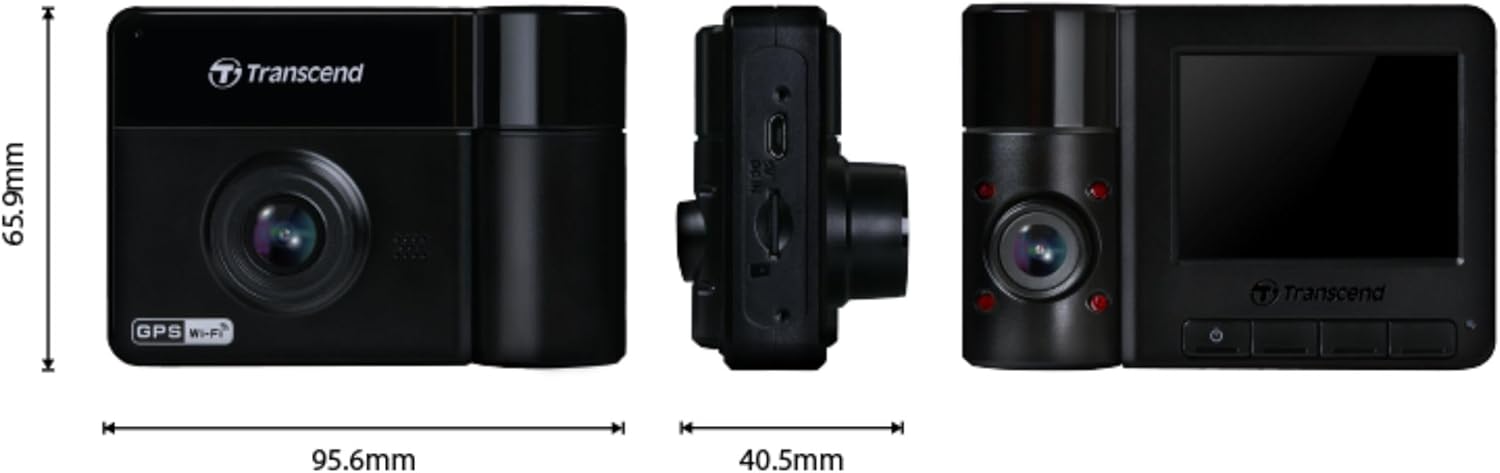
Image: Technical drawing showing the dimensions of the DrivePro 550 unit.
4. Installation
Follow these steps to properly install your DrivePro 550 in your vehicle.
4.1 Installation de la caméra embarquée
- Choisissez un emplacement sur votre pare-brise qui ne vous gêne pas la vue. view de la route. La zone derrière l'arrièreview Le miroir est souvent idéal.
- Clean the chosen area on the windshield thoroughly to ensure a strong suction.
- Attach the suction cup mount to the windshield and secure it by flipping the lever.
- Slide the DrivePro 550 onto the mount until it clicks into place. Adjust the camera angle to ensure both front and interior lenses have a clear view.

Image: The DrivePro 550 dash camera securely mounted on a car windshield.
4.2 Insertion de la carte microSD
- Assurez-vous que la caméra embarquée est éteinte.
- Repérez l'emplacement pour carte microSD sur le côté de l'appareil.
- Insert the provided 64GB microSD card into the slot with the gold contacts facing the back of the camera until it clicks into place.
4.3 Connexion de l'alimentation
- Connect the car lighter power adapter or the hardwire power cable to the DC IN port on the dash camera.
- Plug the other end of the power adapter into your vehicle's 12V power outlet (cigarette lighter socket). If using the hardwire cable, follow professional installation guidelines.
- Route the power cable neatly along the windshield and dashboard to avoid obstructing your view ou en interférant avec les commandes de conduite.
5. Fonctionnement de base
5.1 Mise sous/hors tension
- The DrivePro 550 will automatically power on and begin recording when your vehicle's engine starts and power is supplied.
- Pour allumer/éteindre manuellement l'appareil, maintenez le bouton d'alimentation enfoncé.
5.2 Modes d'enregistrement
- Enregistrement continu: The camera records continuously in a loop. When the memory card is full, the oldest files sont écrasés.
- Enregistrement d'urgence : Activated automatically by the built-in G-sensor upon detecting an impact or sudden movement. These files are protected from being overwritten. You can also manually trigger emergency recording by pressing the designated button.

Image: Split-screen view showing simultaneous recording from the front and interior lenses.
5.3 Taking Snapshots
During recording, press the snapshot button to capture a still image of the current view. This can be useful for documenting incidents or scenic views.
6. Fonctionnalités avancées
6.1 Wi-Fi Connectivity and DrivePro App
The DrivePro 550 features built-in Wi-Fi, allowing you to connect it to your smartphone or tablet via the Transcend DrivePro App. The app enables:
- En direct en temps réel view des deux flux de caméra.
- Playback of recorded videos.
- Downloading video filedirectement sur votre appareil mobile.
- Réglage des paramètres de la caméra.
Download the DrivePro App from the App Store (iOS) or Google Play Store (Android).

Image: Smartphone screen showing the Transcend DrivePro App interface, connected to the dash camera.
Vision nocturne améliorée 6.2
The DrivePro 550 is designed for superior low-light performance:
- The front lens utilizes a Sony image sensor to capture high-resolution images with rich color, even in low light. It supports 1440P 2K QHD recording at 30fps for smooth and crisp footage.
- The rear lens is equipped with four infrared LEDs, significantly improving recording quality in dark interior environments.

Image: Visual comparison of video quality captured by the DrivePro 550 during daytime and nighttime conditions.
6.3 Mode de stationnement
When enabled, Parking Mode activates recording when motion is detected, even when your vehicle is parked and the engine is off. This feature requires a continuous power supply to the dash camera (e.g., via the hardwire power cable).
6.4 Enregistrement en accéléré
Time-lapse recording allows you to condense hours of footage into a shorter video, providing continuous surveillance without consuming excessive storage space.
6.5 Driver Assistance Systems (ADAS)
The DrivePro 550 includes several ADAS features to enhance driving safety:
- Head-up Display: Shows current speed and driver safety alerts.
- Système d'avertissement de sortie de voie (LDWS) : Vous alerte si votre véhicule dévie de sa voie.
- Système d'alerte de collision frontale (FCWS) : Warns you if you are getting too close to the vehicle ahead.
- Alarme de vitesse : Notifies you if your vehicle's speed exceeds a preset limit.
- Headlight Reminder: Automatically activates when the DrivePro detects poor lighting conditions.
- Alerte de fatigue du conducteur : Reminds the driver to rest after driving for a set period.
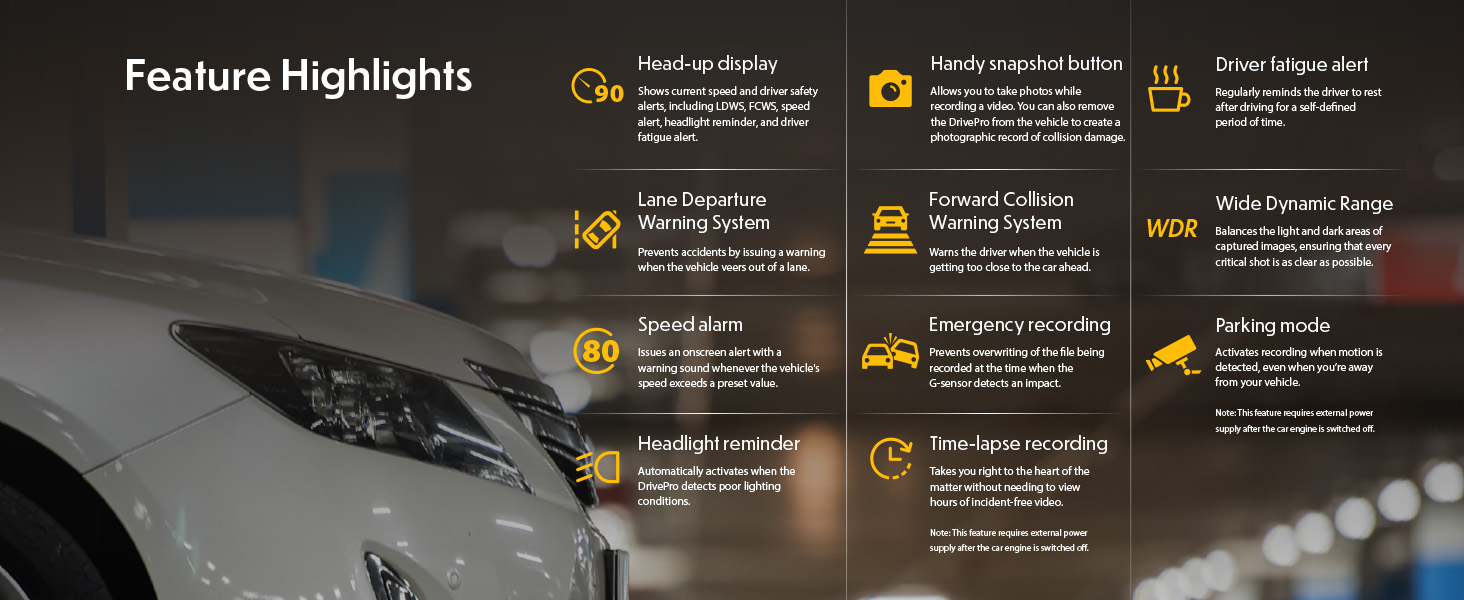
Image: Graphic illustrating the various feature highlights and ADAS functions of the DrivePro 550.
7. Entretien
7.1 Formatting the microSD Card
Regularly format the microSD card to ensure optimal performance and prevent data corruption. This can typically be done through the camera's menu settings. Formatting will erase all data on the card, so back up any important filec'est le premier.
7.2 Nettoyage de l'appareil photo
Use a soft, dry cloth to clean the camera body and screen. For lenses, use a specialized lens cleaning cloth and solution to avoid scratches. Do not use harsh chemicals or abrasive materials.
8. Dépannage
If you encounter issues with your DrivePro 550, refer to the following common problems and solutions:
- La caméra ne s'allume pas :
- Ensure the power cable is securely connected to both the camera and the vehicle's power outlet.
- Vérifiez si la prise 12V du véhicule fonctionne.
- La caméra n'enregistre pas :
- Verify that a microSD card is inserted correctly.
- Check if the microSD card is full; format it if necessary (after backing up important file(s).
- Ensure the recording function is enabled in the camera settings.
- Mauvaise qualité vidéo :
- Nettoyez les objectifs de l'appareil photo.
- Assurez-vous que la zone du pare-brise devant la caméra est propre.
- Check video resolution settings; ensure it's set to the desired quality (e.g., 1440P 2K QHD for front lens).
- Problèmes de connexion Wi-Fi :
- Assurez-vous que le Wi-Fi est activé sur l'appareil photo et sur votre appareil mobile.
- Redémarrez l'appareil photo et votre appareil mobile.
- Ensure you are within range of the camera's Wi-Fi signal.
9. Spécifications
| Fonctionnalité | Description |
|---|---|
| Marque | Transcender |
| Nom du modèle | Drive Pro 550 |
| Numéro de modèle | TS-DP550A-64G |
| Type de service de véhicule | Voiture |
| Technologie de connectivité | Infrarouge, Wi-Fi |
| Résolution de capture vidéo | Front: 1440P 2K QHD (30fps), Rear: 1080p (30fps) |
| Composants inclus | Dash Camera, 64GB microSD Card, Car Mount, Car Lighter Adapter, Hardwire Power Cable |
| Type de montage | Surface Mount (Suction Cup) |
| Couleur | Noir |
| Domaine de View | Avant : 150 degrés, Arrière : 140 degrés |
| Taille de l'écran | 2.4 pouces |
| Technologie de capteur optique | Sony (Front Lens) |
| Type de mémoire flash | microSD |
| Poids de l'article | 107 gramme |
| Dimensions de l'article (P x L x H) | 7.1" x 5.5" x 2.6" |
10. Garantie et assistance
10.1 Informations sur la garantie
The Transcend DrivePro 550 Dash Camera comes with a Garantie limitée de 2 ans. Please retain your proof of purchase for warranty claims. For detailed terms and conditions, refer to the warranty card included in your package or visit the official Transcend website.
10.2 Assistance clientèle
For further assistance, technical support, or to download the latest firmware updates and user manuals, please visit the official Transcend website or contact their customer service department. Contact information can typically be found on the Transcend website ou dans l'emballage de votre produit.


