
1. Introduction
Thank you for choosing the Targus W620 Wireless Optical Mouse. This manual provides detailed instructions for setting up, operating, and maintaining your mouse to ensure optimal performance and longevity. The Targus W620 offers reliable 2.4 GHz wireless connectivity, a precise 1600 DPI optical sensor, and a compact design suitable for both office and mobile use.
2. Contenu du colis
Veuillez vérifier que le colis contient les éléments suivants :
- Targus W620 Wireless Optical Mouse
- Récepteur USB
- 2 piles AAA
3. Produit terminéview
Familiarize yourself with the components of your Targus W620 Wireless Optical Mouse.
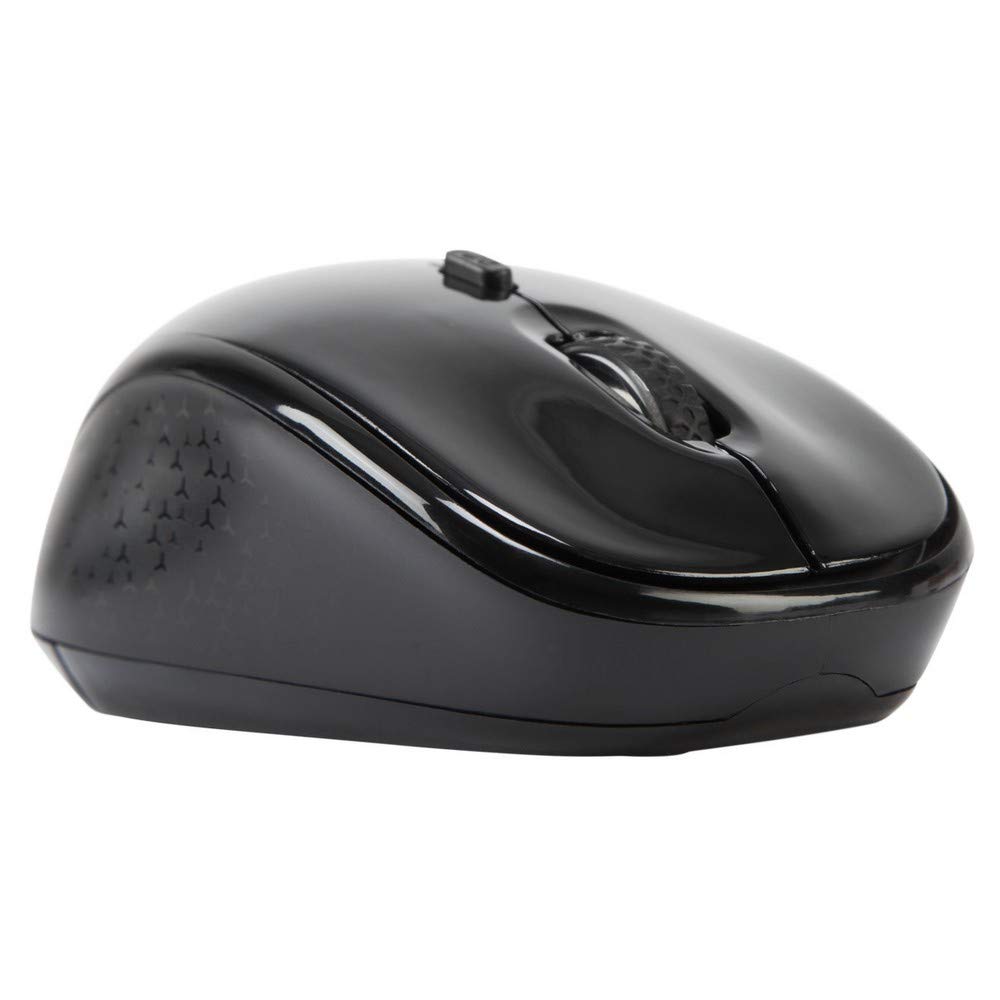
Image 3.1: Haut view of the Targus W620 Wireless Optical Mouse. This image displays the primary buttons and scroll wheel.
- Bouton clic gauche : Fonction de clic principal standard.
- Bouton clic droit : Fonction de clic secondaire standard.
- Molette: Pour le défilement vertical et la fonction de clic central.
- Bouton PPP : Ajuste la sensibilité de la souris (DPI).
- Capteur optique: Located on the bottom, detects mouse movement.
- Compartiment à piles : Located on the bottom, holds two AAA batteries.
- Stockage du récepteur USB : A dedicated slot on the bottom for storing the USB receiver when not in use.

Image 3.2: Bas view of the mouse, highlighting the battery compartment and optical sensor.
4. Instructions de configuration
Follow these steps to set up your Targus W620 Wireless Optical Mouse:
- Installer les piles :
- Repérez le couvercle du compartiment à piles sous la souris.
- Faites glisser le couvercle pour l'ouvrir.
- Insérez les deux piles AAA en veillant à respecter la polarité (+/-).
- Fermez soigneusement le couvercle du compartiment à piles.
- Connectez le récepteur USB :
- The USB receiver is typically stored in a slot on the bottom of the mouse for transport. Gently remove it.
- Branchez le récepteur USB dans un port USB disponible sur votre ordinateur.

Image 4.1: The mouse with its USB receiver, ready for connection.
- Mise sous tension :
- There is no explicit power switch on this model; the mouse activates upon movement and connection.
- Votre ordinateur devrait détecter et installer automatiquement les pilotes nécessaires. Cela peut prendre quelques instants.
- Once drivers are installed, the mouse is ready for use.
5. Mode d'emploi
The Targus W620 Wireless Optical Mouse is designed for intuitive use. Here are its primary functions:
- Navigation de base : Déplacez la souris sur une surface plane pour contrôler le curseur à l'écran.
- Click gauche: À utiliser pour sélectionner des articles, ouvrir files, ou fonctions d'activation.
- Clic-droit: À utiliser pour accéder aux menus contextuels ou aux fonctions secondaires.
- Molette: Rotate the wheel to scroll vertically through documents and web pages. Press the scroll wheel for a middle-click function, often used for opening links in new tabs or auto-scrolling.
- Ajustement PPP : Press the DPI button (located behind the scroll wheel) to cycle through the available DPI settings (800, 1200, 1600 DPI). This changes the sensitivity of the mouse cursor. A higher DPI means the cursor moves further with less physical mouse movement.
6. Entretien
Proper maintenance ensures the longevity and performance of your mouse.
- Nettoyage: Utilisez un chiffon doux, sec et non pelucheux pour nettoyer l'extérieur de la souris. Pour les saletés tenaces, frottez légèrement avec un chiffon doux.ampNettoyez le chiffon avec de l'eau. Évitez d'utiliser des produits chimiques agressifs ou des nettoyants abrasifs.
- Capteur optique: Keep the optical sensor area on the bottom of the mouse clean and free from dust or debris to ensure accurate tracking.
- Remplacement de la batterie : When the mouse performance degrades or stops responding, it is likely time to replace the batteries. Follow the steps in Section 4.1 to replace the two AAA batteries.
- Stockage: When transporting or storing the mouse, always place the USB receiver back into its dedicated storage slot on the bottom of the mouse to prevent loss.
7. Dépannage
If you encounter issues with your Targus W620 mouse, try the following solutions:
| Problème | Solution possible |
|---|---|
| La souris ne répond pas ou le curseur ne bouge pas. |
|
| Le mouvement du curseur est erratique ou saccadé. |
|
| Le bouton DPI ne modifie pas la sensibilité. |
|
| Problèmes de connexion sans fil. |
|
8. Spécifications
| Marque | Targus |
| Numéro de modèle | AMW620AP |
| Technologie de connectivité | Sans fil 2.4 GHz (fréquence radio) |
| Technologie de détection de mouvement | Optical (BlueTrace Technology) |
| Niveaux de PPP | 800 / 1200 / 1600 DPI (réglable) |
| Nombre de boutons | 4 (Gauche, Droite, Molette de défilement, DPI) |
| Orientation de la main | Right (Comfortable for ambidextrous use) |
| Source d'énergie | 2 piles AAA (incluses) |
| Poids de l'article | 26 gramme |
| Compatibilité du système d'exploitation | Linux, Windows XP (Compatible with modern Windows and macOS) |
| Plateforme matérielle | Mac, PC |
| Couleur | Noir |
9. Garantie et assistance
Informations sur la garantie : The Targus W620 Wireless Optical Mouse comes with a Garantie constructeur d'un an À compter de la date d'achat. Cette garantie couvre les défauts de matériaux et de fabrication dans des conditions normales d'utilisation. Veuillez conserver votre preuve d'achat pour toute réclamation au titre de la garantie.
Assistance clientèle : For technical assistance, troubleshooting beyond this manual, or warranty inquiries, please visit the official Targus website or contact their customer support service. Refer to the contact information provided with your product packaging or on the Targus official website.