
1. Introduction
This manual provides instructions for the SAFFUN 2.4 GHz Wireless USB Controller, designed for a retro gaming experience. This controller is compatible with various platforms including Windows PC, Mac, Linux, and Raspberry Pi systems. Please read this manual thoroughly before use to ensure proper setup and operation.
2. Produit terminéview
The SAFFUN Wireless USB Controller offers a classic SNES-style design with modern wireless connectivity. It features a 2.4 GHz wireless RF connection, providing a range of up to 10 meters for flexible gameplay.
Caractéristiques principales :
- Connectivité sans fil 2.4 GHz : Offers a stable connection with up to 10 meters range.
- Prêt à l'emploi : Generic USB controller that requires no additional setup for most compatible systems.
- Boutons sensibles : Designed for precision control.
- Durée de vie prolongée de la batterie : Up to 3 years battery life with a 240mA capacity.
- Chargement rapide : Environ 1 heure pour une charge complète.
Composants du contrôleur :
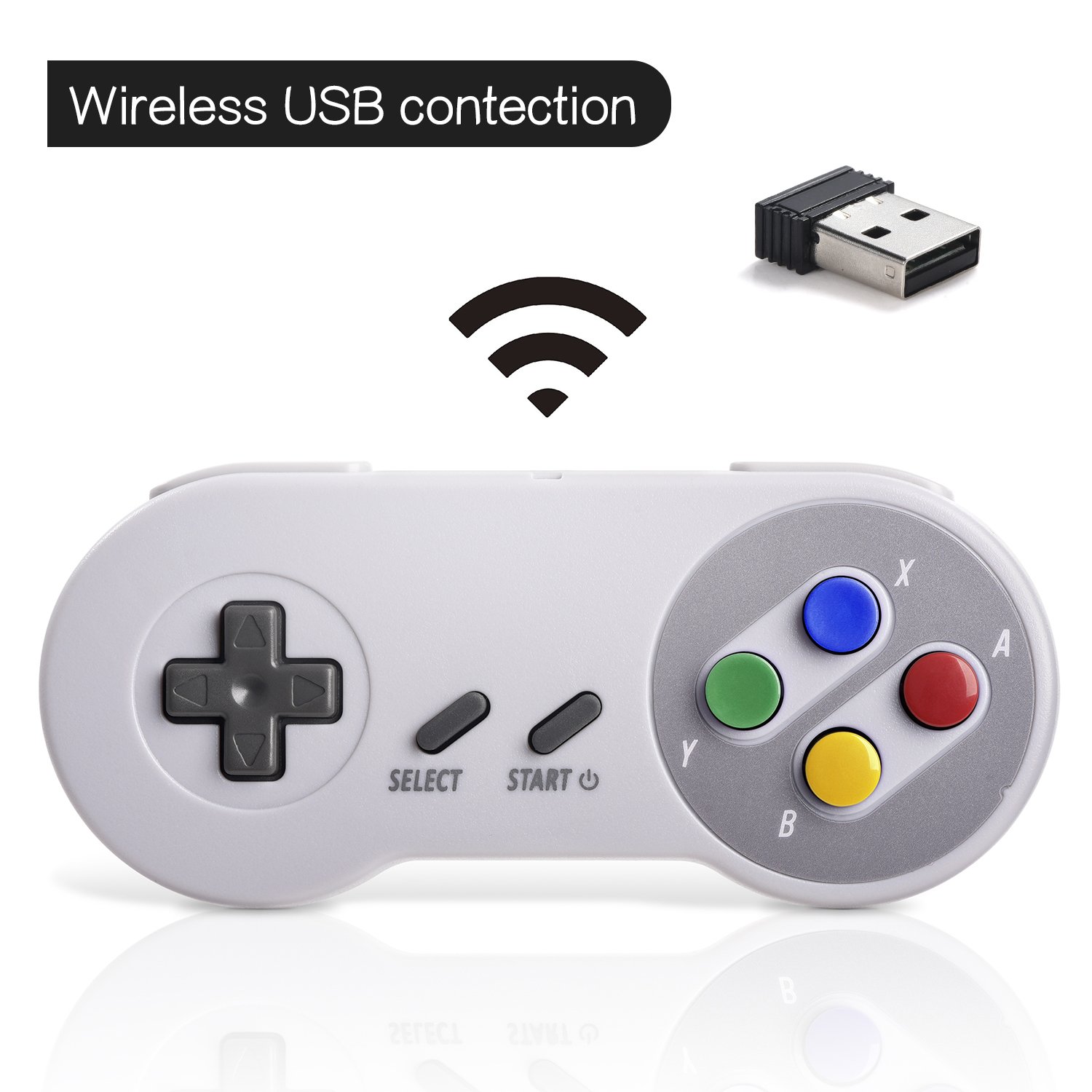

3. Installation
Connexion initiale :
- Insert the 2.4 GHz USB receiver into an available USB port on your PC, Mac, Linux device, or Raspberry Pi.
- Press the 'START' button on the controller to power it on. The controller should automatically connect to the USB receiver. A red indicator light on the controller will confirm connection status.
- If your program or application accepts USB controller input, the controller should be ready for use.
Pairing and Resetting:
If the controller does not pair automatically or experiences connection issues, you may need to reset it:
- Assurez-vous que le récepteur USB est correctement branché à votre appareil.
- Appuyez et maintenez enfoncé le SÉLECTIONNER, COMMENCER, et D-PAD DOWN buttons simultaneously on the controller to initiate a reset and re-pairing sequence.
- The controller should then attempt to re-establish a connection with the USB receiver.

4. Mode d'emploi
The controller functions similarly to a classic SNES controller. The buttons are mapped as follows:
- Croix directionnelle: Contrôle directionnel (Haut, Bas, Gauche, Droite).
- Bouton SÉLECTIONNER : Typically used for menu selections or secondary functions.
- Bouton Start: Used to pause games, confirm selections, or power on/off the controller.
- Action Buttons (Y, X, A, B): Boutons d'action principaux pour le jeu.
- Boutons d'épaule (G, D) : Located on the top edge of the controller for additional in-game actions.
For specific button assignments within games or emulators, refer to the in-game settings or emulator configuration options.
5. Compatibilité
Systèmes d'exploitation pris en charge :
- Windows (98, ME, 2000, 2003, XP, Vista, 7, 8, 8.1, 10)
- Linux (Ubuntu, Linux Mint, Android Linux via USB OTG cable)
- Mac OS X and beyond
- Retrogaming operating systems (RetroPie, Recalbox, Happi Game Center, Lakka, ChameleonPi, Piplay)
Appareils pris en charge :
- PC, Notebook Computer, Laptop Computer
- Android Smartphone (via USB OTG cable)
- Raspberry Pi (RPI, Raspberry pie): Raspberry Pi 1 Model B, Model A, Raspberry Pi 1 Model B+, Raspberry Pi Zero, Raspberry Pi 2, Raspberry Pi 3 Model B, Raspberry Pi 3, Retro Pie

Appareils non pris en charge :
- Boîtier TV Android
- C64 (Commodore 64)
- Chromebook de Google
- Téléviseur Fire
- Vapeur
- Tesla
- Nintendo NES Classic Edition Console, NES Mini Console, Nintendo SNES Classic Edition Console, SNES Mini Console

Émulateurs de jeu pris en charge :
- NES, SNES, Snes9x, ZSNES, Higan
- Handheld GBA emulator
- Sega Genesis emulator
- Sega OpenEmu (Only supports OS X)
- RetroArch (Works well on Android)
- BSNES (Ideal for two-player action)
6. Chargement et autonomie de la batterie
The controller is equipped with a rechargeable battery. To charge the controller:
- Connect the provided charging cable to the micro USB port on the top edge of the controller.
- Connectez l'autre extrémité du câble à une source d'alimentation USB standard (par exemple, un port USB d'ordinateur, un adaptateur secteur USB).
- The red indicator light on the controller will flash while charging and remain solid when fully charged.
Spécifications de la batterie :
- Capacité de la batterie : 240 mA
- Temps de charge : environ 1 heure
- Vol de chargetage : 3.7 V
- Usage time: Up to 3 hours on a full charge
- Indicateur de niveau de batterie : Oui
7. Dépannage
Problèmes de connexion :
- Le contrôleur ne répond pas : Ensure the USB receiver is properly inserted into a working USB port. Verify the controller is powered on by pressing the 'START' button.
- Connexion intermittente : Move closer to the USB receiver to ensure you are within the 10-meter range. Check for potential interference from other 2.4 GHz wireless devices.
- Ré-appariement : If connection is lost or unstable, perform the reset procedure by holding SELECT + START + D-PAD DOWN simultaneously.
Input/Button Mapping Problems:
- Incorrect button functions: Check the in-game or emulator settings to ensure the controller buttons are correctly mapped. Some emulators may require manual configuration.
- Controller not recognized as SNES type: Some systems or games might incorrectly identify the controller. If possible, manually select a generic USB gamepad or SNES controller profile dans les paramètres du logiciel.
Problèmes de charge :
- Manette ne chargeant pas : Ensure the charging cable is securely connected to both the controller and the power source. Try a different USB port or charging adapter. Check if the red indicator light flashes during charging.
8. Spécifications
| Fonctionnalité | Détail |
|---|---|
| Numéro de modèle | 8541667389 |
| Connectivité | 2.4 GHz Wireless RF |
| Portée sans fil | Jusqu'à 10 mètres |
| Dimensions du produit | 5.51 x 2.36 x 0.79 pouces |
| Poids de l'article | 8.1 onces |
| Type de batterie | Rechargeable (1 pile AA incluse) |
| Capacité de la batterie | 240 mA |
| Temps de charge | 1 heure |
| Vol de chargetage | 3.7V |
| Durée d'utilisation | 3 heures |
| Fabricant | SAFFUN |
| Date de première disponibilité | 8 mai 2018 |
9. Garantie et assistance
SAFFUN is registered with the United States Patent and Trademark Office. We are committed to 100% customer satisfaction.
- Garantie: We provide a hassle-free 12-month replacement warranty.
- Service client: Pour toute question ou demande d'assistance, n'hésitez pas à nous contacter.
