
1. Introduction
The INPHIC V780 Wireless Keyboard and Mouse Combo offers a convenient and efficient solution for your computing needs. Featuring 2.4GHz wireless technology, an ultra-thin design, silent keys, and rechargeable batteries, this combo is designed for comfort and portability. It is compatible with various operating systems, including Windows, Mac, Android, and Linux.

Figure 1: The INPHIC V780 combo highlighting its ultra-slim profile and lightweight design, with dimensions for both the keyboard and mouse.
2. Contenu du colis
- INPHIC V780 Wireless Keyboard
- INPHIC V780 Wireless Mouse
- Nano-récepteur USB (rangé à l'intérieur de la souris)
- Câble de chargement USB
- Protection de clavier en silicone
3. Instructions de configuration
- Chargez les appareils : Before first use, ensure both the keyboard and mouse are fully charged. Connect the provided USB charging cable to the charging ports on the keyboard and mouse, and then to a USB power source. The charging indicator will illuminate during charging and turn off when fully charged. Charging typically takes 2-3 hours.
- Localisez le récepteur USB : The USB nano receiver is conveniently stored in a compartment on the underside of the mouse. Gently slide open the compartment cover to retrieve it.
- Connectez le récepteur : Insert the USB nano receiver into an available USB 2.0 port on your computer (PC, Laptop, Desktop, Smart TV, etc.).
- Mise sous tension : Turn on the keyboard and mouse using their respective ON/OFF switches. The devices should automatically connect to your computer. No additional drivers are typically required for most operating systems (Plug and Play).

Figure 2: The keyboard, mouse, and USB receiver, illustrating compatibility with Mac, Android, Linux, and Windows systems.
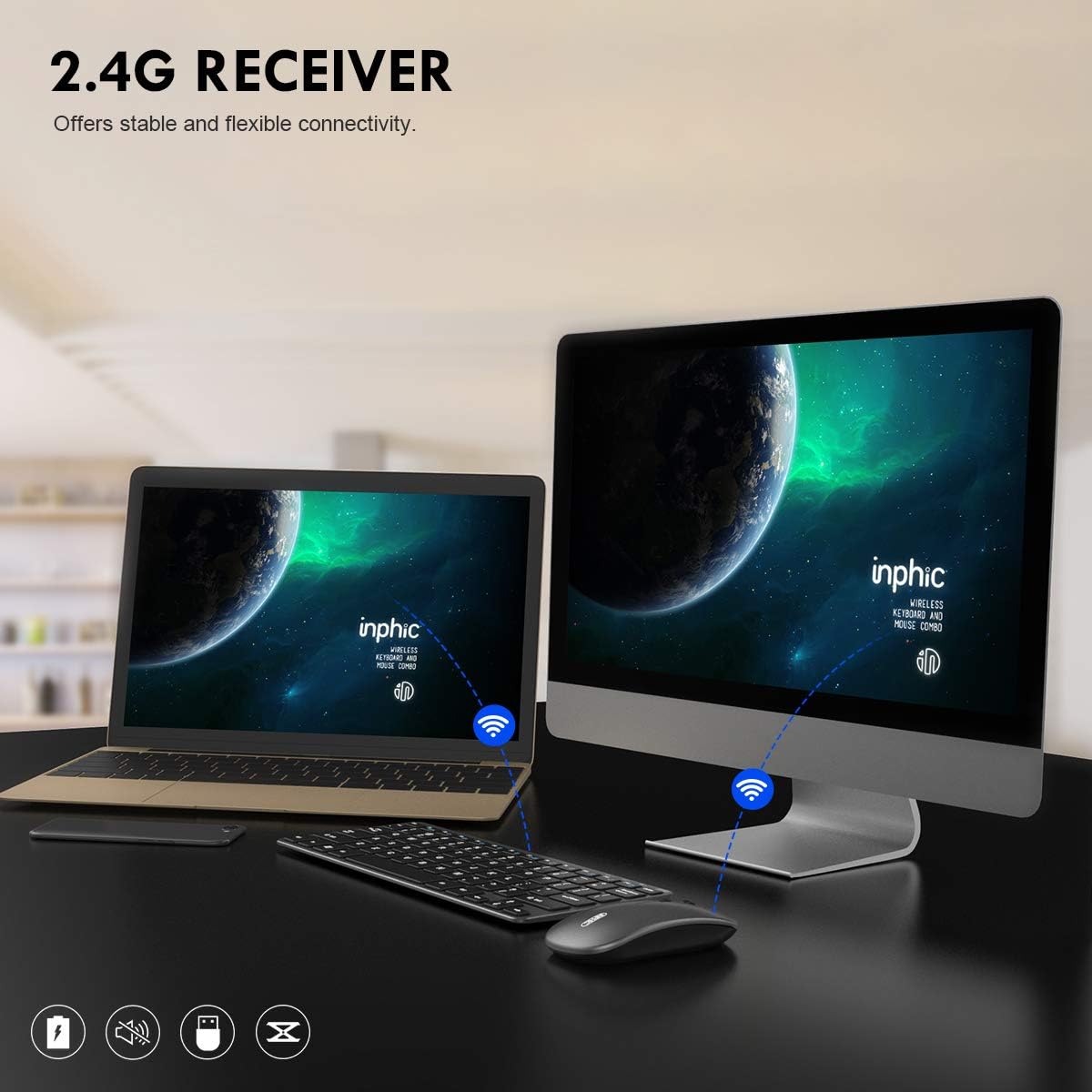
Figure 3: Demonstration of the 2.4G wireless receiver providing stable connectivity between the keyboard, mouse, and a computer setup.
Video: Connecting the INPHIC Wireless Combo
Video 1: This video demonstrates the unboxing and simple plug-and-play connection process of the INPHIC Wireless Keyboard and Mouse Combo to a laptop using the USB receiver.
4. Mode d'emploi
4.1. Connexion sans fil 2.4G
The combo utilizes a stable 2.4GHz wireless connection, providing a transmission distance of up to 10 meters (35 feet). The single USB nano receiver connects both the keyboard and mouse, freeing up USB ports and reducing cable clutter.
4.2. Réglage du DPI de la souris
The mouse features 3 adjustable DPI levels (800/1200/1600). Press the DPI button located on the top of the mouse to cycle through the sensitivity settings, allowing for quicker response and smoother tracking on various surfaces.
4.3. Keyboard Multimedia Keys
The keyboard includes 12 multimedia keys, providing instant access to common functions such as media playback controls (play/pause, next/previous track), volume adjustment, internet browser, email, and more. These functions are typically accessed by pressing the 'Fn' key in combination with the corresponding F-key.

Figure 4: The keyboard layout highlighting the 12 multimedia shortcut keys for quick access to various functions.
4.4. Silent Design and Typing Experience
Both the keyboard and mouse are designed for silent operation. The mouse uses an advanced sensor for silent clicks, and the keyboard features a scissor-switch structure with low-profile keys for comfortable and quiet typing. This makes the combo suitable for environments where noise reduction is important.

Figure 5: A close-up of a hand typing on the keyboard and clicking the mouse, emphasizing the scissor-switch keys for comfortable, silent typing and the mouse's durable, quiet clicks.
Video: Product Features Overview
Vidéo 2 : Cette vidéo présente un aperçuview of the INPHIC Wireless Keyboard and Mouse Combo's key features, including its slim design, silent operation, DPI adjustment, and charging capabilities.
5. Entretien
5.1. Chargement
Both the keyboard and mouse have built-in high-capacity lithium batteries. A full charge takes approximately 2-3 hours and can provide up to 3 months of use, depending on usage frequency. When the battery is low, the indicator light will flash. Connect the devices to a USB power source using the provided charging cable.

Figure 6: The keyboard and mouse connected via USB cables for recharging, indicating their built-in rechargeable batteries.
5.2. Économie d'énergie
To conserve battery life, both the mouse and keyboard will automatically enter sleep mode after 8 minutes of inactivity. To wake them up, simply move the mouse or press any key on the keyboard. For extended periods of non-use, it is recommended to turn off the devices using their ON/OFF switches.
5.3. Nettoyage
Pour nettoyer le clavier et la souris, utilisez un chiffon doux et sec.amp cloth. Avoid using harsh chemicals or abrasive materials. The included silicone keyboard cover can be removed and cleaned separately to protect the keys from dust and spills.
6. Dépannage
- No Connection/Lagging:
- Assurez-vous que les deux appareils sont sous tension.
- Vérifiez que le récepteur USB est bien branché sur un port USB fonctionnel. Essayez un autre port USB.
- Verify that the devices are charged. Recharge if necessary.
- Move the keyboard and mouse closer to the USB receiver to ensure they are within the 10m transmission range.
- Avoid using the devices on metal surfaces, which can interfere with the wireless signal.
- Keys Not Responding/Typing Incorrectly:
- Vérifiez le niveau de la batterie et rechargez-la si nécessaire.
- Assurez-vous que le clavier est correctement connecté via le récepteur USB.
- Redémarrez votre ordinateur.
- If using the silicone cover, ensure it is correctly aligned and not interfering with key presses.
- Mouse Cursor Jumps/Erratic Movement:
- Nettoyez le capteur optique situé sous la souris.
- Essayez de régler les paramètres DPI à l'aide du bouton DPI de la souris.
- Veillez à utiliser la souris sur une surface appropriée (ni trop réfléchissante ni transparente).
7. Spécifications
| Fonctionnalité | Détail |
|---|---|
| Méthode de connexion | Sans fil 2.4G |
| Distance de transmission | Jusqu'à 35 pi (10 m) |
| Type d'interface | USB 2.0 |
| Capacité de la batterie du clavier | 400mAh (batterie au lithium intégrée) |
| Poids du clavier | 285±5g (approx. 10 oz) |
| Taille du clavier | 284 x 121 x 16.5mm (11.2 x 4.8 x 0.65 pouces) |
| Capacité de la batterie de la souris | 400mAh (batterie au lithium intégrée) |
| DPI de la souris | 800/1200/1600 (Réglable) |
| Poids de la souris | 85±5g (approx. 3 oz) |
| Temps de charge | Environ 2 à 3 heures |
| Durée d'utilisation (charge complète) | Jusqu'à 3 mois |
| Compatibilité | PC, Laptop, Windows (XP/7/8/10), Mac, Android, Linux |
| Couleur | Gris |
8. Garantie et assistance
This INPHIC product comes with a Politique de remboursement sans motif sous 45 jours et un one-year repair warranty from the date of purchase. For any product inquiries, technical support, or warranty claims, please contact INPHIC customer service through the retailer's platform or the official INPHIC website.
Veuillez conserver votre preuve d'achat pour la validation de la garantie.