
1. Introduction
This manual provides detailed instructions for the setup, operation, maintenance, and troubleshooting of your Leopold FC750R PD 87-key High-end Mechanical Keyboard. Please read this manual thoroughly before using the product to ensure proper functionality and longevity.
2. Contenu du colis
À l'ouverture du colis, veuillez vérifier que tous les éléments suivants sont inclus :
- Leopold FC750R PD Mechanical Keyboard body
- Clavier
- Câble PS/2
- USB cable (removable type, 1.8m)
- Extracteur de capuchon
- Manuel de l'utilisateur (ce document)
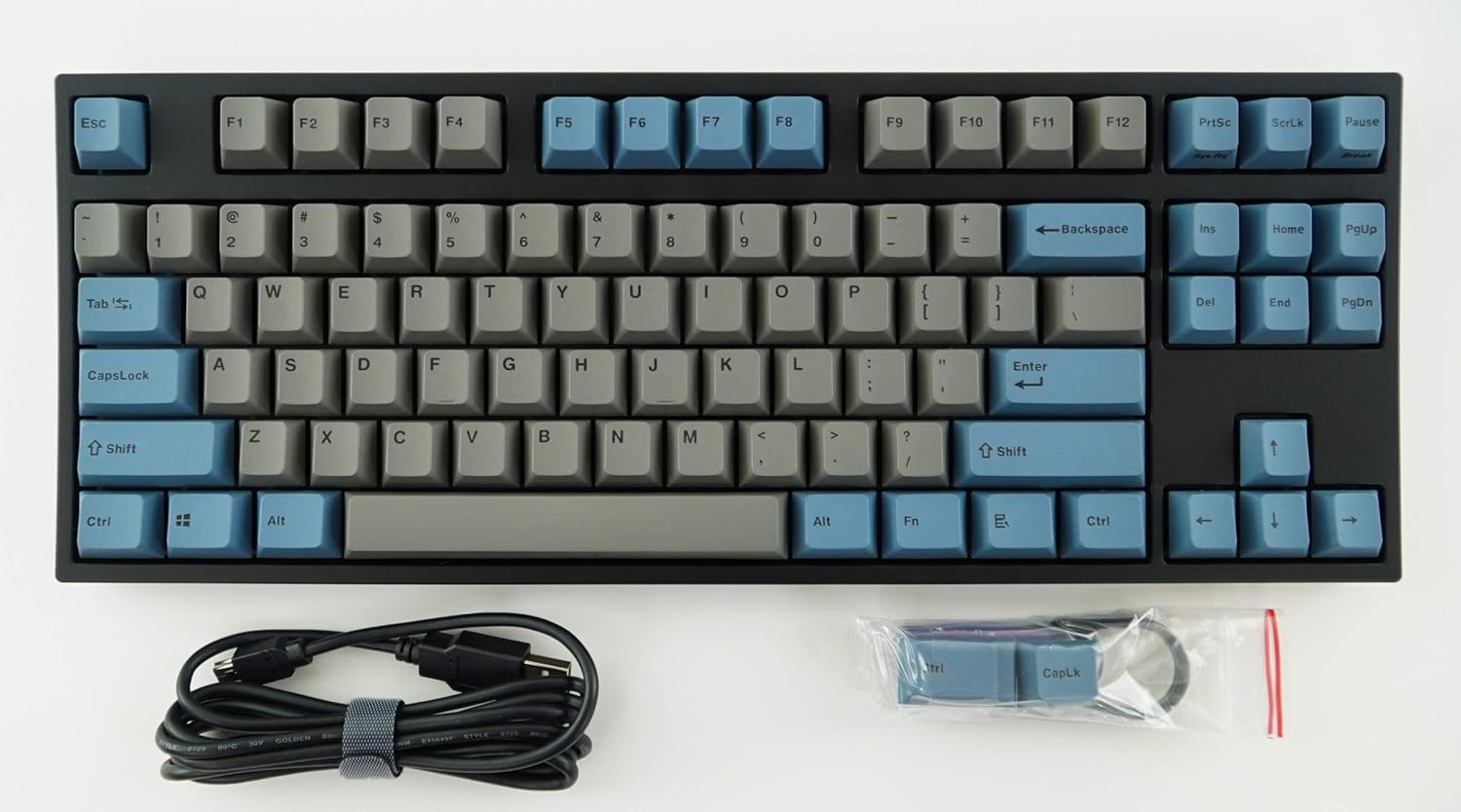
Image: The Leopold FC750R PD Mechanical Keyboard shown with its included accessories, including the USB cable and keycap puller.
3. Installation
Follow these steps to set up your Leopold FC750R PD Mechanical Keyboard:
- Déballer le clavier : Retirez soigneusement le clavier et tous les accessoires de leur emballage.
- Connectez le câble : The keyboard supports both USB and PS/2 interfaces.
- For USB connection: Connect the removable USB cable to the port on the back of the keyboard and then to an available USB port on your computer.
- For PS/2 connection: Connect the PS/2 cable to the port on the back of the keyboard and then to the PS/2 keyboard port on your computer.
- Compatibilité du système d'exploitation : The keyboard is compatible with Microsoft Windows 7, 8, 10, Vista, and XP. No special drivers are typically required for basic functionality.
- Placement: Place the keyboard on a stable, flat surface. You can adjust the keyboard's angle using the flip-out feet located on the underside.

Image : Côté view of the Leopold FC750R PD keyboard showing the adjustable feet extended for ergonomic tilt.
4. Mode d'emploi
The Leopold FC750R PD is an 87-key mechanical keyboard designed for standard typing and gaming. Its layout is a Tenkeyless (TKL) design, omitting the numeric keypad for a more compact form factor.
4.1. Utilisation de base
Once connected, the keyboard should be immediately recognized by your operating system. You can begin typing and using it for all standard computer input tasks.

Image : Vue de dessus complète view of the Leopold FC750R PD mechanical keyboard, showcasing its 87-key layout with grey and blue keycaps.
4.2. Touches de fonction (combinaisons Fn)
The keyboard may feature secondary functions accessible via the Fn key. Refer to the keycaps for printed legends indicating these functions (e.g., media controls, volume adjustment, etc.). To activate a secondary function, hold down the Fn key and press the desired function key (F1-F12) or other designated key.

Image : Un gros plan view of the left side of the Leopold FC750R PD keyboard, highlighting the Esc, F1-F4, Tab, CapsLock, Shift, and Ctrl keys.
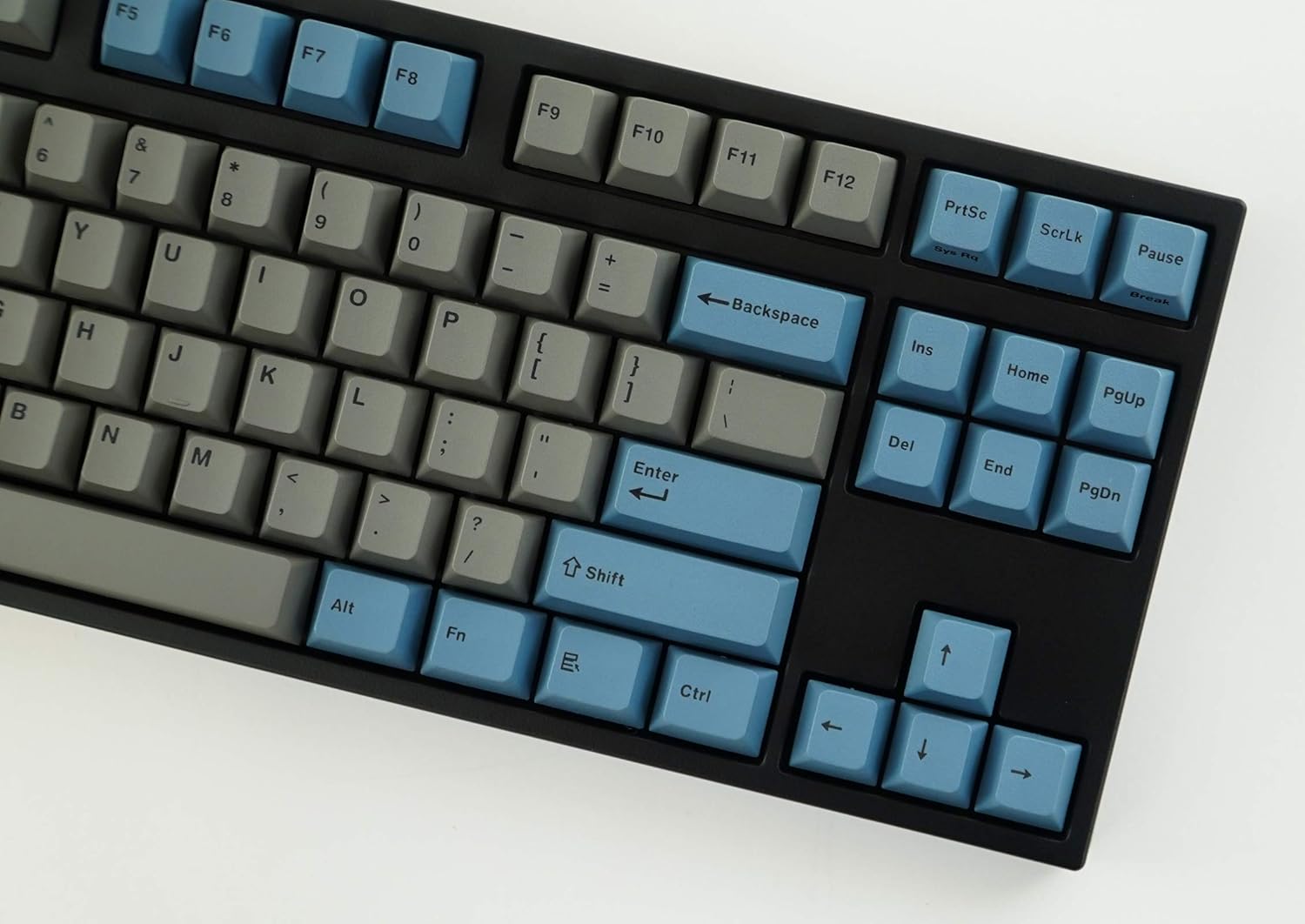
Image : Un gros plan view of the right side of the Leopold FC750R PD keyboard, showing the Backspace, Enter, Shift, and arrow keys, along with the Insert, Home, Page Up, Delete, End, and Page Down keys.
5. Entretien
Proper maintenance will extend the lifespan of your mechanical keyboard.
- Nettoyage des touches : Utilisez un chiffon doux et sec.amp cloth to wipe down the keycaps. For deeper cleaning, you can use the included keycap puller to remove keycaps and clean them with mild soap and water. Ensure keycaps are completely dry before reattaching.
- Nettoyage du boîtier du clavier : Use a soft, dry cloth to wipe dust from the keyboard body. For stubborn dirt, a slightly damp On peut utiliser un chiffon, mais il faut éviter une humidité excessive.
- Élimination de la poussière : Utilisez de l'air comprimé pour souffler la poussière et les débris entre les touches et les interrupteurs.
- Évitez les liquides : Ne renversez aucun liquide sur le clavier. En cas de renversement, débranchez immédiatement le clavier de votre ordinateur et laissez-le sécher complètement avant de le rebrancher.
- Stockage: When not in use, store the keyboard in a clean, dry environment, ideally using the included keyboard cover to protect it from dust.

Image: A low-angle side profile of the Leopold FC750R PD keyboard, showcasing the keycap profile and the keyboard's sturdy build.
6. Dépannage
If you encounter issues with your Leopold FC750R PD keyboard, try the following steps:
- Le clavier ne répond pas :
- Ensure the USB or PS/2 cable is securely connected to both the keyboard and the computer.
- Try connecting the keyboard to a different USB or PS/2 port on your computer.
- Test the keyboard on another computer to determine if the issue is with the keyboard or your computer's setup.
- Redémarrez votre ordinateur.
- Touches spécifiques ne fonctionnant pas :
- Vérifiez qu'aucun obstacle physique ne se trouve sous la touche.
- Carefully remove the keycap using the keycap puller and inspect the switch for any visible damage or debris.
- Délai d'entrée ou déconnexions :
- Vérifiez que le câble n'est ni endommagé ni plié.
- Avoid connecting the keyboard through unpowered USB hubs; connect directly to the computer if possible.
If the problem persists after trying these steps, please contact Leopold customer support for further assistance.
7. Spécifications
| Fonctionnalité | Détail |
|---|---|
| Numéro de modèle | FC750R_EGBPD |
| Switch Brand | Cherry MX (Black Switch) |
| Nombre de clés | 87 touches |
| Hauteur clé | 19 mm |
| Frappe de touche | 4 ± 0.5 mm |
| Matériau du capuchon | 1.5mm PBT (Polybutylene Terephthalate) |
| Dimensions (L x l x H) | 36.00cm X 14.00cm X 3.30cm (14.17"L x 5.51"W x 1.3"H) |
| Poids | 1 kg (2.2 livres) |
| Longueur du câble | 1.8m (Removable type) |
| PCB | FR-4 Dual Layer |
| Systèmes d'exploitation pris en charge | Microsoft Windows 7, 8, 10, Vista, XP |
| Interface | USB & PS/2 |
| Couleur | Gris/Bleu |
8. Garantie et assistance
Leopold products are manufactured to high quality standards. For information regarding warranty coverage, please refer to the warranty card included with your product or visit the official Leopold website. For technical support or service inquiries, please contact Leopold customer service through their official channels.
You can visit the Leopold Store on Amazon for more information: Leopold Store