
1. Introduction
This manual provides detailed instructions for the installation, operation, and troubleshooting of your Aigital US4605A AC1200 Dual Band USB WiFi Adapter. This device is designed to provide high-speed wireless connectivity for your desktop computer or laptop, supporting both 2.4GHz and 5GHz frequency bands.
2. Contenu du colis
Veuillez vérifier que tous les articles sont présents dans votre colis :
- Aigital US4605A AC1200 Dual Band USB WiFi Adapter
- Driver CD (if included, otherwise drivers are typically downloaded or plug-and-play)
- Guide d'installation rapide (ce document constitue un guide complet)
3. Produit terminéview
The Aigital US4605A is a compact and powerful USB WiFi adapter featuring dual-band capabilities and high-gain antennas for enhanced signal reception.

Image 3.1: Aigital US4605A AC1200 Dual Band USB WiFi Adapter. The adapter features a USB 3.0 connector, a main body with an indicator light, and two adjustable external antennas for improved signal reception.
Les principales caractéristiques comprennent :
- AC1200 Double bande : Supports 867Mbps on the 5GHz band and 300Mbps on the 2.4GHz band for flexible and high-speed connections.
- Powerful 5dBi Antennas: Two high-gain antennas provide extended range and stable signal.
- Interface USB 3.0: Offers up to 10 times faster data transfer speeds compared to USB 2.0, while remaining backward compatible.
- Large compatibilité : Supports Windows 11/10/8 and Mac OS 10.9~10.15, OS 11.0+.

Image 3.2: The adapter supports both 5GHz (up to 867Mbps for faster speed) and 2.4GHz (up to 300Mbps for longer range) bands, enhancing overall wireless performance.
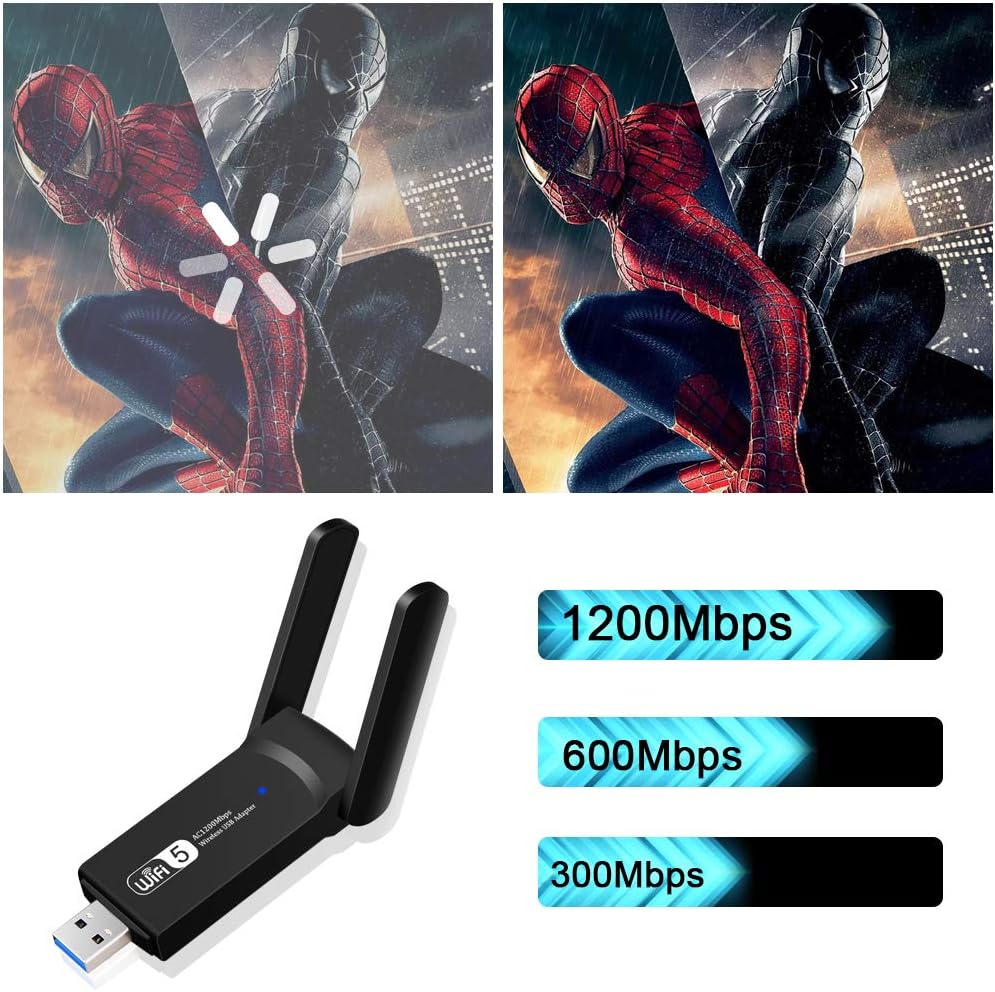
Image 3.3: The adapter supports a maximum combined speed of 1200Mbps, distributed across its dual bands.

Image 3.4: The USB 3.0 interface provides significantly faster data transfer rates compared to USB 2.0, ensuring optimal performance for the 1200Mbps WiFi adapter.
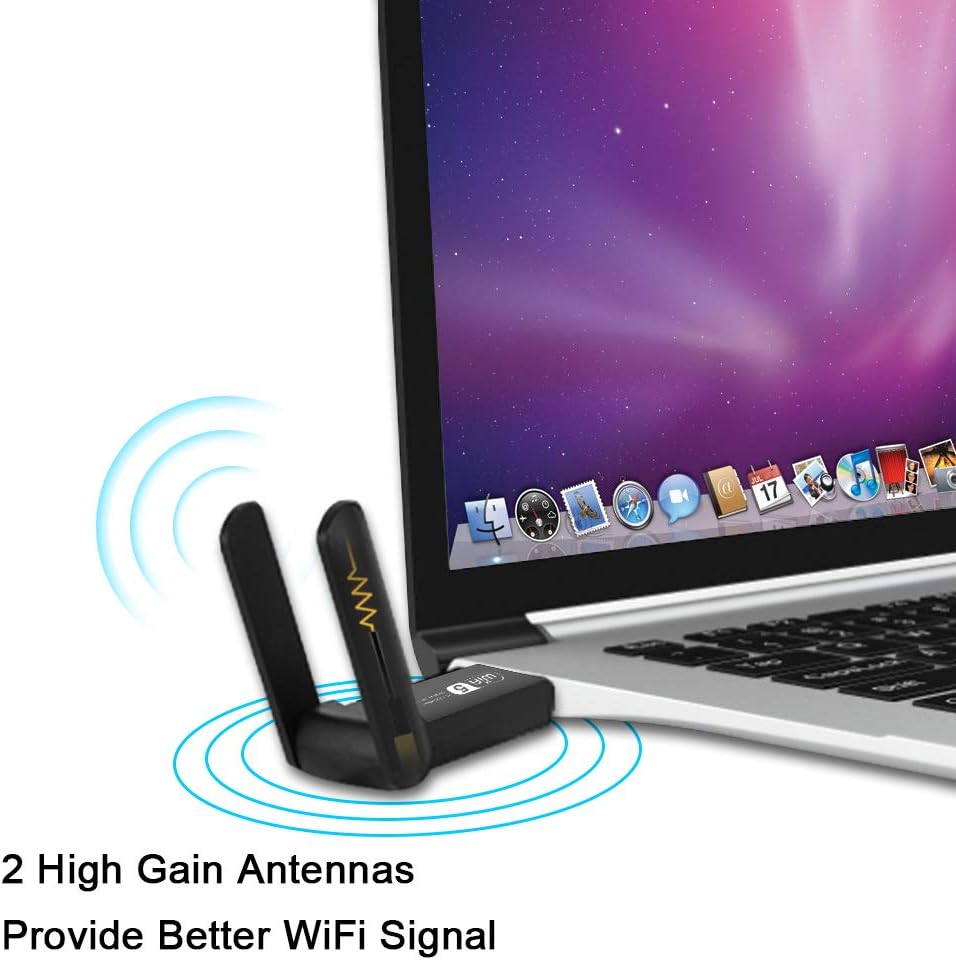
Image 3.5: The two external 5dBi high-gain antennas are designed to provide a stronger and more stable Wi-Fi signal.
4. Installation et configuration
Follow these steps to install your Aigital US4605A USB WiFi Adapter.
4.1. Installation du pilote
For optimal performance and full functionality, driver installation is required for most operating systems. For Windows 11/10, the adapter may be plug-and-play, but installing the latest drivers is recommended.
- Ne branchez PAS encore l'adaptateur.
- Télécharger les pilotes : Visit the official Aigital support website or use the provided driver CD (if applicable) to obtain the latest drivers for your operating system.
- Installer les pilotes : Exécutez le programme d'installation du pilote téléchargé. file and follow the on-screen instructions. Restart your computer if prompted.
- Adaptateur de connexion : Once the drivers are installed, plug the Aigital US4605A USB WiFi Adapter into an available USB 3.0 port on your computer. While compatible with USB 2.0, a USB 3.0 port is recommended for maximum speed.
- Vérifier l'installation : After connecting, the adapter's indicator light should illuminate, and your computer should recognize the device. You can verify this in Device Manager (Windows) or System Information (Mac).
Note: For Windows 11/10, the system might automatically install a generic driver. If you experience connectivity issues or wish to utilize the full features, manually install the specific drivers from the manufacturer's website.
5. Modes de fonctionnement
The Aigital US4605A USB WiFi Adapter supports two primary operating modes:
5.1. Mode station (récepteur de signal)
In Station Mode, the adapter allows your desktop computer or laptop to connect to an existing wireless network (Wi-Fi router).
- Assurez-vous que l'adaptateur est branché à votre ordinateur.
- Open your computer's network settings (e.g., Wi-Fi icon in the taskbar for Windows, Wi-Fi menu in the menu bar for Mac).
- Sélectionnez le réseau Wi-Fi souhaité dans la liste des réseaux disponibles.
- Saisissez le mot de passe réseau (si nécessaire) et cliquez sur « Se connecter ».
- Une fois connecté, vous devriez avoir accès à Internet.
5.2. AP Mode (Access Point / Hotspot)
In AP Mode, the adapter can create a wireless hotspot, allowing other devices (smartphones, tablets, other computers) to connect to your computer's internet connection (typically if your computer is connected via Ethernet).
- Ensure your computer has an active internet connection (e.g., via Ethernet cable).
- Plug in the Aigital US4605A adapter.
- Pour Windows : Go to Settings > Network & Internet > Mobile hotspot. Turn on "Mobile hotspot" and configure the network name (SSID) and password. Select your Ethernet connection as the source.
- Pour Mac : Go to System Settings > General > Sharing. Enable "Internet Sharing" and select your Ethernet connection as the source, then choose "Wi-Fi" for sharing with other computers. Configure Wi-Fi options (network name, security, password).
- Other devices can now search for and connect to the Wi-Fi hotspot created by your adapter.
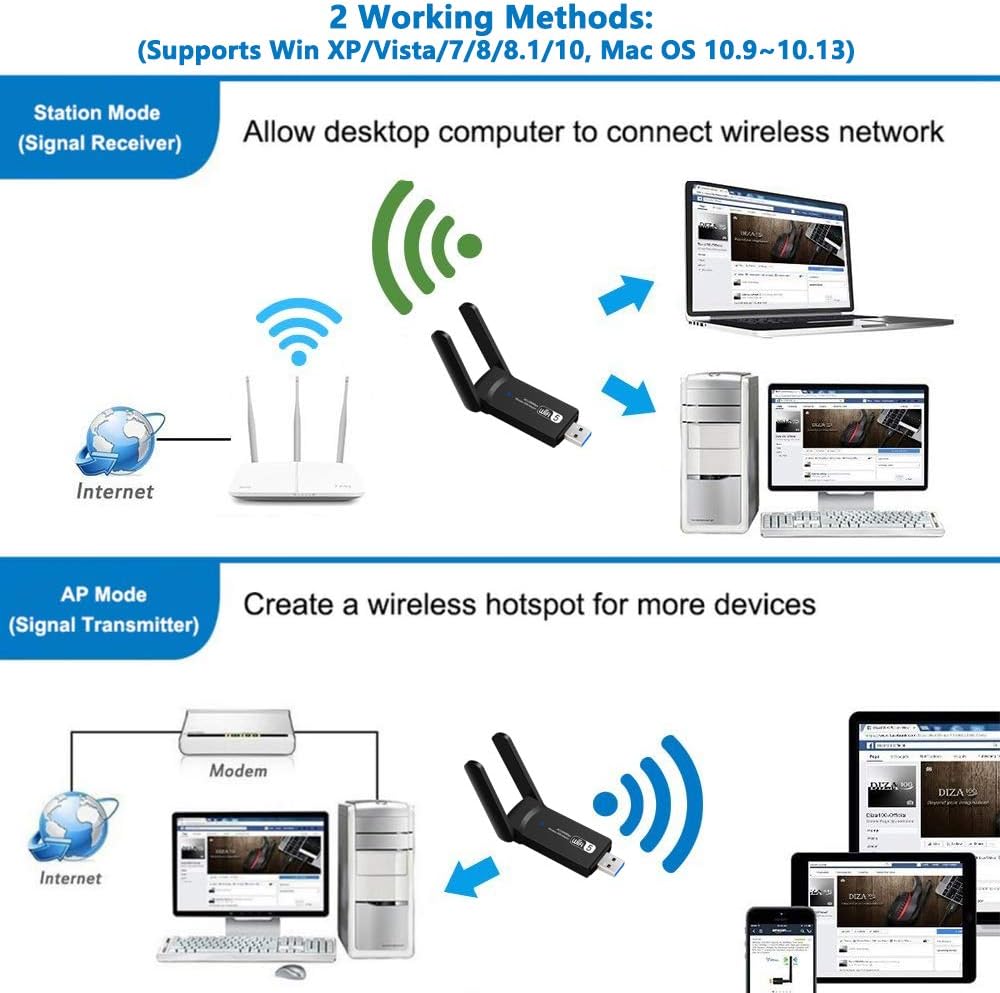
Image 5.1: Illustration of the two working methods: Station Mode (receiving Wi-Fi signal from a router) and AP Mode (creating a Wi-Fi hotspot from a wired connection).
6. Compatibilité
The Aigital US4605A USB WiFi Adapter is compatible with a range of operating systems:
- Windows 11
- Windows 10
- Windows 8.1
- Windows 8
- Windows 7
- Windows Vista
- Windows XP
- Mac OS 10.9 to 10.15 (Catalina)
- Mac OS 11.0+ (Big Sur and later)
Note: For Windows 11/10, the device may be plug-and-play. For other operating systems, driver installation is typically required. Always use the latest drivers from the manufacturer's website for best performance.
7. Spécifications
| Fonctionnalité | Détail |
|---|---|
| Marque | numérique |
| Numéro de modèle | US4605A |
| norme sans fil | IEEE 802.11ac/b/g/n |
| Taux de transfert de données | Jusqu'à 1200 Mbps (867 Mbps sur 5 GHz, 300 Mbps sur 2.4 GHz) |
| Bandes de fréquences | 2.4 GHz et 5 GHz (double bande) |
| Antennes | 2x 5dBi High Gain Antennas |
| Interface | USB 3.0 (Rétrocompatible avec USB 2.0) |
| Systèmes d'exploitation | Windows 11/10/8.1/8/7/Vista/XP, Mac OS 10.9~10.15, OS 11.0+ |
| Dimensions (L x l x H) | 2.56 x 1.1 x 0.39 pouces (environ) |
| Poids | 0.8 onces (environ) |
| Code UPC | 761780472738 |

Image 7.1: Physical dimensions of the Aigital US4605A adapter and icons indicating compatibility with Mac and Windows operating systems.
8. Dépannage
If you encounter issues with your Aigital US4605A USB WiFi Adapter, please refer to the following common problems and solutions:
- Aucun réseau Wi-Fi détecté :
- Assurez-vous que l'adaptateur est correctement branché dans un port USB.
- Verify that drivers are correctly installed. Check Device Manager (Windows) or System Information (Mac) for any error indicators. Reinstall drivers if necessary.
- Check if your router's Wi-Fi is enabled and broadcasting.
- Essayez de brancher l'adaptateur sur un autre port USB.
- Vitesse de connexion lente :
- Ensure the adapter is plugged into a USB 3.0 port for optimal performance.
- Confirm you are connected to the 5GHz band if your router supports it and you are within close range. The 5GHz band offers higher speeds but shorter range.
- Reduce interference by moving the adapter or computer away from other electronic devices (microwaves, cordless phones).
- Mettez à jour le micrologiciel de votre routeur.
- Vérifiez que votre fournisseur d'accès Internet (FAI) fournit les débits attendus.
- Déconnexions fréquentes :
- Check signal strength. If the signal is weak, try moving closer to the router or adjusting the adapter's antennas.
- Ensure power management settings are not turning off the USB device to save power. (Windows: Device Manager > USB Root Hub > Properties > Power Management > Uncheck "Allow the computer to turn off this device to save power").
- Mettez à jour vos pilotes à la dernière version.
- Redémarrez votre routeur et votre ordinateur.
- Adaptateur non reconnu :
- Essayez un port USB différent.
- Redémarrez votre ordinateur.
- Ensure drivers are installed correctly. If not, reinstall them.
- Check if the adapter is physically damaged.
9. Entretien
To ensure the longevity and optimal performance of your Aigital US4605A USB WiFi Adapter, consider the following maintenance tips:
- Garder propre: Essuyez délicatement l'adaptateur avec un chiffon doux et sec pour enlever la poussière. Évitez d'utiliser des nettoyants liquides.
- Protéger contre les dommages : Évitez de faire tomber l'adaptateur ou de l'exposer à des températures ou à une humidité extrêmes.
- Stockage approprié : Lorsqu'il n'est pas utilisé, rangez l'adaptateur dans un endroit sûr et sec.
- Mises à jour du pilote: Periodically check the Aigital support webSite web proposant des pilotes mis à jour pour garantir la compatibilité et améliorer les performances.
10. Garantie et assistance
Aigital products typically come with a standard manufacturer's warranty. Please refer to the warranty card included with your product or visit the official Aigital webConsultez le site pour connaître les conditions générales de garantie détaillées.
For technical support, driver downloads, or further assistance, please visit the Aigital official support website or contact their customer service. Contact information can usually be found on the product packaging or the manufacturer's website.
Note: Conservez votre reçu d’achat comme preuve d’achat pour les réclamations au titre de la garantie.
11. Video Information
Aucune vidéo produit officielle n'est disponible pour intégration sur la base des données produit fournies.