
1. Introduction
This manual provides essential information for the safe and efficient use of your Alienware AW3418DW 34.1-inch Curved Gaming Monitor. This monitor features a WQHD (3440x1440) resolution, a 120Hz refresh rate (overclocked), and NVIDIA G-SYNC technology for an immersive gaming experience. Please read this manual thoroughly before operating the device.
2. Consignes de sécurité
- Always disconnect the power cable from the wall outlet before cleaning the monitor.
- N’exposez pas le moniteur à la pluie ou à l’humidité afin d’éviter les risques d’incendie ou d’électrocution.
- N'ouvrez pas le moniteur casing. L'appareil ne contient aucune pièce réparable par l'utilisateur. Toute réparation doit être effectuée par un technicien qualifié.
- Placez le moniteur sur une surface stable et plane pour éviter qu'il ne tombe.
- Assurez une ventilation adéquate autour du moniteur. Ne bloquez pas les ouvertures de ventilation.
- Utilisez uniquement l'adaptateur secteur et les câbles fournis avec le moniteur.
3. Contenu du colis
Vérifiez que tous les composants sont présents dans le package :
- Moniteur Alienware AW3418DW
- Support pour écran (base et rehausseur)
- Câble d'alimentation
- Câble DisplayPort
- Câble HDMI
- Câble USB 3.0 en amont
- Documentation (Guide d'installation rapide, Informations de sécurité)
4. Installation
4.1 Configuration physique
Carefully remove the monitor and its components from the packaging. Place the monitor face down on a soft cloth or cushion to prevent scratches.
Fixation du support
- Fixez le support surélevé au panneau du moniteur jusqu'à ce qu'il s'enclenche.
- Attach the stand base to the stand riser and tighten the captive screw.

Figure 4.1 : Face avant view of the Alienware AW3418DW monitor with its stand attached.

Figure 4.2 : Côté view of the Alienware AW3418DW monitor with its stand.
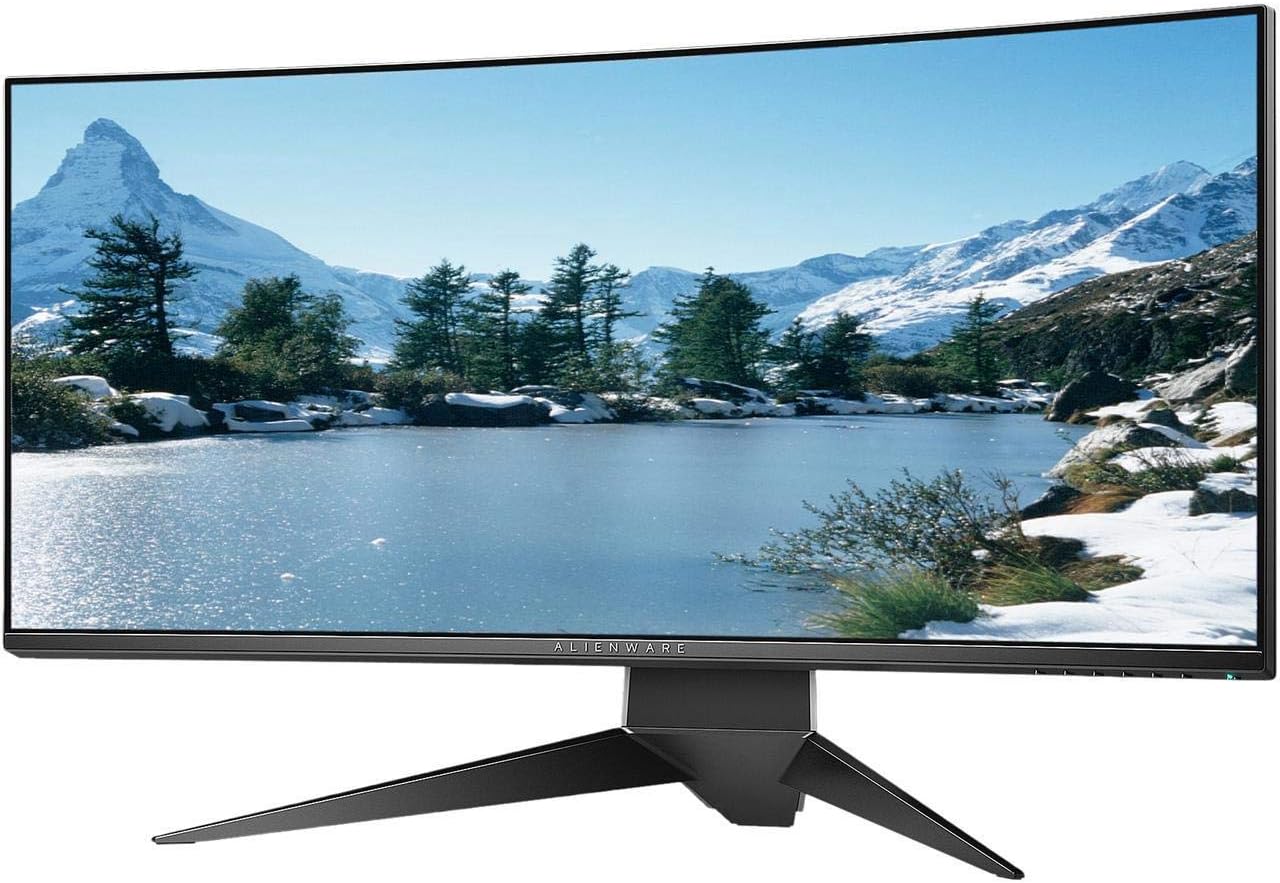
Figure 4.3 : Arrière view of the Alienware AW3418DW monitor showing the stand and AlienFX lighting.
Montage VESA
The monitor supports VESA mounting (100 x 100 mm). Remove the stand riser by pressing the release button and then attach the VESA-compatible mount to the monitor using appropriate screws. Ensure the mount can support the monitor's weight of 26.1 pounds (without stand).

Figure 4.4: Monitor dimensions for VESA mount compatibility.
4.2 Câbles de connexion
Connectez les câbles nécessaires à votre moniteur et à votre ordinateur.
- Câble d'alimentation: Branchez le câble d'alimentation au port d'alimentation du moniteur, puis à une prise murale.
- Câble vidéo : Connect either the DisplayPort cable or the HDMI cable from your computer's graphics card to the corresponding port on the monitor. For optimal performance, especially for 120Hz refresh rate and G-SYNC, use the DisplayPort connection.
- Câble USB amont : Connect the USB 3.0 upstream cable from your computer to the monitor's upstream USB port to enable the monitor's USB hub functionality.
- Ports USB en aval : Connect your USB devices (e.g., keyboard, mouse, webcam) to the four USB 3.0 downstream ports on the monitor.
5. Mode d'emploi
5.1 Mise sous/hors tension
Press the power button located on the monitor to turn it on or off. The power LED will indicate the monitor's status.
5.2 Navigation à l'écran (OSD)
The On-Screen Display (OSD) menu allows you to adjust various monitor settings. Use the control buttons, typically located on the bottom right or rear of the monitor, to navigate the OSD.
- Appuyez sur un bouton de commande pour activer le menu OSD.
- Use the navigation buttons (up/down/left/right) to move through menu options.
- Appuyez sur le bouton de sélection pour confirmer une sélection ou accéder à un sous-menu.
- Utilisez le bouton retour/sortie pour revenir au menu précédent ou quitter l'affichage à l'écran.
5.3 Paramètres d'affichage
Ajustez les paramètres d’affichage pour une viewing and gaming performance.
- Résolution: Set your computer's display resolution to 3440x1440 for the native WQHD experience.
- Taux de rafraîchissement : The monitor supports up to 120Hz refresh rate (overclocked). Ensure your graphics card drivers are updated and the refresh rate is set in your operating system's display settings or graphics control panel.
- NVIDIA G-SYNC : For tear-free and smooth gameplay, enable G-SYNC in your NVIDIA Control Panel. This feature synchronizes the monitor's refresh rate with your GPU's frame rate.
- Le contraste de luminosité: Adjust these settings in the OSD menu to suit your environment and preference.
5.4 AlienFX Lighting
Customize the AlienFX lighting zones on your monitor through the OSD menu or Alienware Command Center software (if installed on your PC). You can select colors, effects, and synchronize lighting with other Alienware devices.
5.5 USB Hub Usage
The monitor acts as a USB 3.0 hub, providing convenient access to four downstream USB ports for connecting peripherals. Ensure the USB upstream cable is connected to your computer for this feature to function.
6. Entretien
6.1 Nettoyage du moniteur
- Débranchez toujours le moniteur de la prise électrique avant de le nettoyer.
- Utilisez légèrement un chiffon doux et non pelucheux.ampterminer avec de l'eau ou un nettoyant pour écrans non abrasif.
- Ne pas vaporiser le nettoyant directement sur l'écran.
- Essuyez délicatement l'écran pour enlever la poussière et les traces de doigts.
- Nettoyer l'extérieur casing avec un chiffon doux et sec.
6.2 Stockage
If storing the monitor for an extended period, disconnect all cables, carefully disassemble the stand (if applicable), and store it in its original packaging in a cool, dry place.
7. Dépannage
Si vous rencontrez des problèmes avec votre moniteur, reportez-vous aux étapes de dépannage courantes suivantes :
- Pas d'affichage : Ensure all power and video cables are securely connected. Check if the monitor is powered on and the correct input source is selected in the OSD.
- Scintillement/Bégaiement : Verify that your graphics drivers are up to date. Ensure G-SYNC is properly configured in the NVIDIA Control Panel. Check for interference from other electronic devices.
- Résolution/fréquence de rafraîchissement incorrecte : Adjust the display settings in your operating system or graphics control panel to the native resolution (3440x1440) and desired refresh rate (up to 120Hz).
- Pixels morts : The Alienware AW3418DW comes with a Premium Panel Guarantee. Refer to the warranty information for details on pixel policy.
- Les ports USB ne fonctionnent pas : Assurez-vous que le câble USB 3.0 en amont est connecté entre le moniteur et votre ordinateur.
8. Spécifications
| Fonctionnalité | Spécification |
|---|---|
| Marque | Alienware |
| Numéro de modèle | AW3418DW |
| Taille de l'écran | 34.1 pouces |
| Résolution | WQHD (3440 x 1440 pixels) |
| Rapport hauteur/largeur | 21:9 |
| Taux de rafraîchissement | 120 Hz (Overclocké) |
| Temps de réponse | 4 millisecondes |
| Technologie de synchronisation adaptative | NVIDIA G-SYNC |
| Type d'affichage | LED IPS |
| Courbure | 1900R |
| Luminosité | 300 cd/m² |
| Rapport de contraste | 1000:1 |
| ViewAngle d'attaque | 178 degrés |
| Connectivité | 1x DisplayPort (1.2), 1x HDMI (1.4), 4x USB 3.0 Downstream, 1x USB 3.0 Upstream |
| Poids de l'article | 26.1 livres (sans support) |
| Type de montage | VESA Compatible (100 x 100 mm) |
9. Garantie et assistance
Your Alienware AW3418DW monitor is covered by a 3 Years Limited Hardware Warranty et 3 Years Advance Exchange Service, y compris un Premium Panel Guarantee. The Premium Panel Guarantee ensures a free panel replacement during the limited hardware warranty period even if only one bright pixel is found.
For technical support, warranty claims, or additional information, please visit the official Alienware or Dell support website. You may also find updated drivers and firmware there.
Support en ligne: www.dell.com/support