
Introduction
The Mercusys MW150US N150 Wireless Nano USB Adapter is a compact and convenient device designed to provide wireless internet connectivity to your desktop or laptop computer. With wireless speeds of up to 150 Mbps, it is suitable for essential internet activities such as web browsing, email, and stable online communication. Its miniature design allows it to remain connected to a USB port without obstruction.
This adapter also features a Soft AP function, enabling your computer to act as a Wi-Fi hotspot, sharing its wired internet connection with other wireless devices like smartphones and tablets.
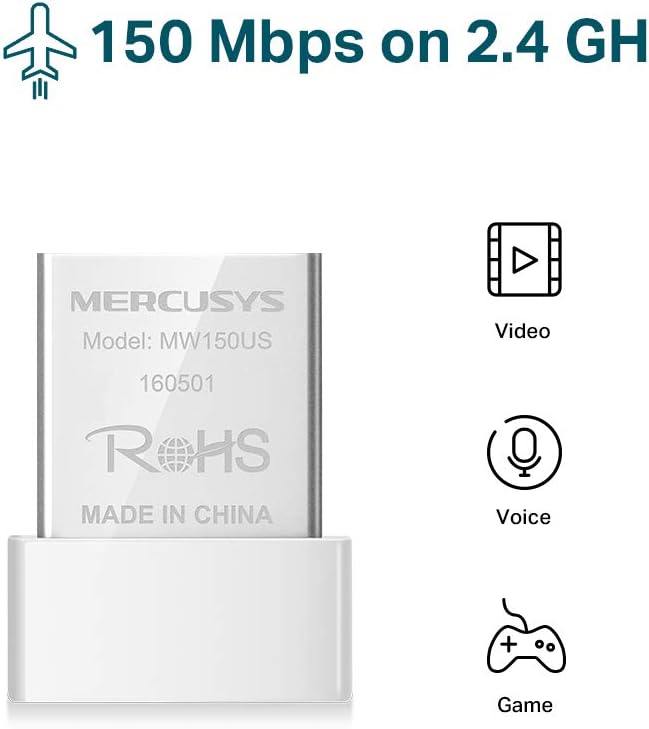
Image: The Mercusys MW150US N150 Wireless Nano USB Adapter, a compact device for wireless connectivity.
Guide d'installation
Follow these steps to install and set up your Mercusys MW150US N150 Wireless Nano USB Adapter:
- Insérez l'adaptateur : Carefully insert the MW150US adapter into an available USB port on your computer.
- Installer les pilotes :
- Using the included CD: Insert the driver CD into your computer's CD-ROM drive and follow the on-screen instructions to install the necessary drivers.
- Downloading from Mercusys website: If your computer does not have a CD-ROM drive, or if you prefer the latest drivers, visit the official Mercusys website (par exemple, www.mercusys.com/en/download/MW150US) to download the drivers for your specific operating system.
- Remarque pour les utilisateurs de Windows 10 : In many cases, Windows 10 may automatically install the necessary drivers upon insertion, making manual installation unnecessary.
- Se connecter à un réseau: After driver installation, your computer should detect available Wi-Fi networks. Select your desired network from the list and enter the password to connect.

Image: Visual guide for the three easy setup steps: insert, install software, and connect to Wi-Fi.

Image: The Mercusys MW150US adapter is compatible with Windows 10, 8.1, 8, 7, and XP.
Mode d'emploi
Connexion à un réseau Wi-Fi
Once the adapter is installed and drivers are loaded, you can connect to any available Wi-Fi network.
- Cliquez sur l'icône Wi-Fi dans la barre d'état système de votre ordinateur (généralement en bas à droite sous Windows).
- A list of available wireless networks will appear. Select the name (SSID) of your desired network.
- Click "Connect" and enter the network's security key or password when prompted.
- Une fois connecté, l'icône Wi-Fi indiquera une connexion réussie et vous pourrez accéder à Internet.
Using Soft AP Function (Wi-Fi Hotspot)
The Soft AP function allows your computer to share its wired internet connection wirelessly. This feature requires your computer to have a wired internet connection.
- Assurez-vous que votre ordinateur est connecté à Internet via un câble Ethernet.
- Open the Mercusys utility software (usually installed with the drivers).
- Localisez et activez la fonction « Soft AP » ou « Hotspot » dans l’utilitaire.
- Configure the hotspot's name (SSID) and password.
- Other wireless devices can now connect to your computer's Wi-Fi hotspot using the configured SSID and password.
Entretien
The Mercusys MW150US adapter is designed for durability and requires minimal maintenance.
- Garder propre: Periodically wipe the adapter with a soft, dry cloth to remove dust. Avoid using liquid cleaners.
- Protéger contre les dommages : While its nano size is convenient, avoid bending or applying excessive force to the adapter when it's plugged into a USB port.
- Stockage: When not in use, store the adapter in a clean, dry place away from extreme temperatures.

Image: The miniature design of the Mercusys MW150US adapter, highlighting its compact size for portability and convenience.
Dépannage
If you encounter issues with your Mercusys MW150US adapter, refer to the following common solutions:
- Adaptateur non détecté :
- Assurez-vous que l'adaptateur est complètement inséré dans un port USB fonctionnel. Essayez un autre port USB.
- Verify that the drivers are correctly installed. Check Device Manager (Windows) for any yellow exclamation marks next to the network adapter. Reinstall drivers if necessary.
- Redémarrez votre ordinateur.
- Impossible de se connecter au réseau Wi-Fi :
- Vérifiez à nouveau le mot de passe Wi-Fi.
- Assurez-vous que votre routeur Wi-Fi est allumé et émet un signal.
- Rapprochez-vous du routeur Wi-Fi pour améliorer la puissance du signal.
- Restart your Wi-Fi router and your computer.
- Vitesse Internet lente :
- Ensure you are within a reasonable range of your Wi-Fi router.
- Vérifiez les éventuelles interférences provenant d'autres appareils électroniques (par exemple, fours à micro-ondes, téléphones sans fil).
- Verify that your internet service provider (ISP) is delivering the expected speed.
- Update the adapter's drivers to the latest version from the Mercusys website.
Caractéristiques
| Marque | MERCUS |
| Numéro de modèle | MW150US |
| Interface matérielle | USB |
| Taux de transfert de données | 150 Mbps |
| Appareils compatibles | Desktop, Laptop, Smartphone (for Soft AP) |
| Systèmes d'exploitation compatibles | Windows (XP, 7, 8, 8.1, 10) |
| Poids de l'article | 50 gramme |
| Couleur | Rouge |
Informations sur la garantie
The Mercusys MW150US N150 Wireless Nano USB Adapter comes with a Garantie de 4 ans directly from the manufacturer. Please retain your proof of purchase for warranty claims.
Soutien
For technical assistance, driver downloads, or warranty inquiries, please contact Mercusys customer support directly. Support services are provided by the manufacturer.
You can typically find contact information and support resources on the official Mercusys website: www.mercusys.com.