
TP-Link Archer MR400
TP-Link Archer MR400 AC1350 Wireless Dual Band 4G LTE Router User Manual
Modèle : Archer MR400
1. Introduction
This manual provides instructions for setting up, operating, and maintaining your TP-Link Archer MR400 AC1350 Wireless Dual Band 4G LTE Router. Please read this manual carefully before using the device to ensure proper functionality and safety.
1.1 Contenu du paquet
- Routeur TP-Link Archer MR400
- Adaptateur secteur
- Câble Ethernet
- Guide d'installation rapide
1.2 Produit terminéview
The Archer MR400 is a 4G LTE router designed to provide high-speed internet access by utilizing a 4G LTE SIM card. It also supports dual-band Wi-Fi (2.4 GHz and 5 GHz) for connecting multiple devices.
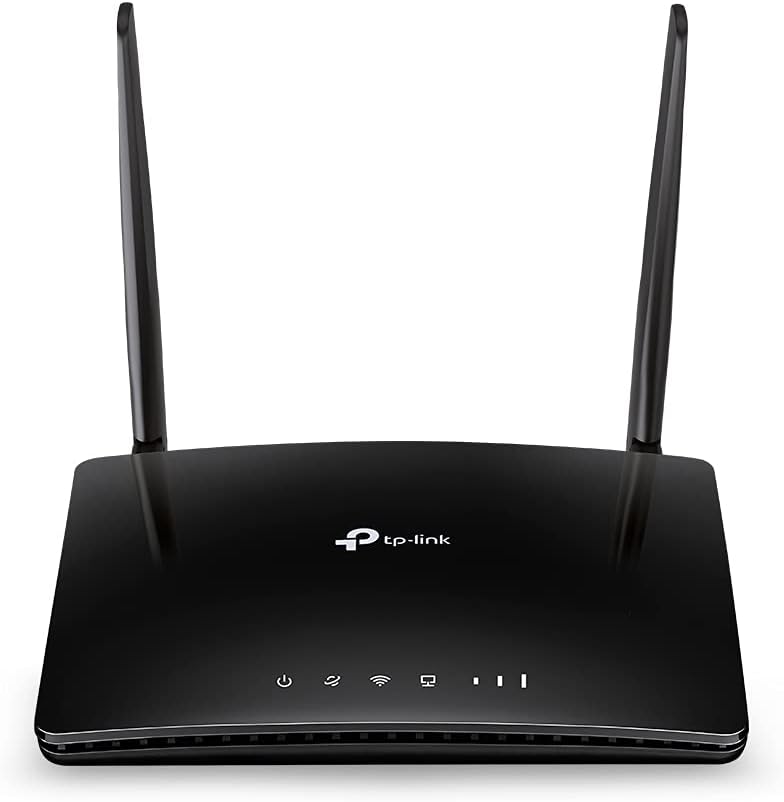
Image 1.2.1: Devant view of the TP-Link Archer MR400 AC1350 Wireless Dual Band 4G LTE Router. The router is black with two external antennas and LED indicators on the front panel.
1.2.1 Voyants du panneau avant
- Voyant d'alimentation : Indique l'état de l'alimentation.
- Voyant Internet : Indique l'état de la connexion Internet.
- Voyant Wi-Fi : Indicates Wi-Fi functionality status.
- Voyants LAN : Indiquer l'état de la connexion pour les ports LAN.
- LED d'intensité du signal : Indiquez la force du signal 4G LTE.

Image 1.2.2: Arrière view of the TP-Link Archer MR400 router. From left to right, it shows the power input, three yellow LAN ports (LAN1, LAN2, LAN3), one yellow LAN/WAN port, a WiFi ON/OFF button, a WPS/RESET button, and a Nano SIM Card slot.
1.2.2 Ports et boutons du panneau arrière
- Port d'alimentation : Se connecte à l'adaptateur secteur fourni.
- LAN1, LAN2, LAN3 Ports: Ethernet ports for connecting wired devices.
- Port LAN4/WAN : Can function as an additional LAN port or as a WAN port for connecting to a cable/fiber modem.
- WiFi ON/OFF Button: Toggles the wireless function on or off.
- Bouton WPS/RESET : Press briefly for WPS function; press and hold for 5 seconds to reset the router to factory defaults.
- Fente pour carte Nano SIM : Insert your 4G LTE Nano SIM card here.
2. Installation
2.1 Installation de la carte SIM
Before powering on the router, install your Nano SIM card. Ensure the router is powered off during this process.
- Locate the Nano SIM card slot on the rear panel of the router.
- Insert the Nano SIM card into the slot with the gold contacts facing down until it clicks into place.
- If you need to remove the SIM card, gently push it in until it springs out.

Image 2.1.1: Illustration demonstrating the correct method for inserting a Nano SIM card into the dedicated slot on the TP-Link Archer MR400 router's rear panel. The SIM card is shown being pushed into the slot.
2.2 Connexion matérielle
- Connect the provided power adapter to the POWER port on the router and plug the other end into a power outlet.
- Wait for the router to power on. The Power LED should become solid.
- If you wish to use a wired connection, connect one end of an Ethernet cable to a LAN port on the router and the other end to your computer's Ethernet port.
2.3 Configuration initiale (Web Interface de gestion)
- Connect your computer or mobile device to the router via Wi-Fi (using the default SSID and password printed on the router's label) or an Ethernet cable.
- Ouvrir un web navigateur et type
http://tplinkmodem.netorhttp://192.168.1.1dans la barre d'adresse. - Créez un nouveau mot de passe de connexion lorsque vous y êtes invité.
- Follow the on-screen Quick Setup wizard to configure your internet connection and wireless settings. This typically involves selecting your region, confirming APN settings (if required by your ISP), and setting up your Wi-Fi network name (SSID) and password.
- Once the setup is complete, the Internet LED should turn solid, indicating a successful connection.
3. Fonctionnement
3.1 Connexion d'appareils
3.1.1 Connexion Wi-Fi
Pour connecter des appareils sans fil :
- On your device (smartphone, tablet, laptop), enable Wi-Fi.
- Rechercher available Wi-Fi networks and select the SSID (network name) you configured during setup.
- Entrez le mot de passe Wi-Fi lorsque vous y êtes invité.
3.1.2 Connexion Ethernet
To connect devices via Ethernet:
- Connectez une extrémité d'un câble Ethernet à un port LAN du routeur.
- Connect the other end of the Ethernet cable to the Ethernet port on your device (e.g., desktop computer, game console).

Image 3.1.1: The TP-Link Archer MR400 router centrally located, providing wireless internet connectivity to various devices including a tablet, e-reader, laptop, and smartphone, illustrating its role in a connected home environment.
3.2 4G LTE Internet Access
The Archer MR400 primarily uses its inserted 4G LTE SIM card for internet access. Once the SIM card is installed and the router is powered on, it will automatically attempt to establish a 4G LTE connection. The signal strength LEDs on the front panel will indicate the quality of the cellular signal.

Image 3.2.1: A visual representation of the TP-Link Archer MR400's network capabilities. It shows 4G LTE download speeds up to 150 Mbps and upload speeds up to 50 Mbps. It also highlights dual-band Wi-Fi, with 2.4 GHz offering up to 300 Mbps and 5 GHz offering up to 433 Mbps, connecting to various devices like a smartphone, tablet, and game controller.
3.3 Sauvegarde de la connexion WAN
The Archer MR400 supports a WAN connection backup feature. If your 4G LTE internet connection fails, the router can automatically switch to a wired WAN connection (e.g., from a DSL/Cable/Fiber modem) connected to the LAN4/WAN port.
- Connect your primary modem (e.g., cable modem) to the LAN4/WAN port of the Archer MR400 using an Ethernet cable.
- Accéder au web interface de gestion (
http://tplinkmodem.net). - Navigate to the 'Network' > 'Internet' settings and configure the WAN connection type (e.g., Dynamic IP, Static IP, PPPoE) according to your ISP's requirements.
- Enable the 'WAN Backup' feature, setting 4G LTE as the primary connection and WAN as the backup.

Image 3.3.1: This image illustrates the WAN connection backup feature of the TP-Link Archer MR400. The router is shown connected to a separate modem via its LAN4/WAN port, which is then connected to the internet, providing an alternative internet source if the 4G LTE connection is unavailable.
3.4 Paramètres sans fil
You can modify your Wi-Fi network name (SSID) and password through the web management interface. Navigate to 'Wireless' > 'Wireless Settings' to adjust these parameters for both 2.4 GHz and 5 GHz bands.
Fonctionnalités WPS 3.5
The Wi-Fi Protected Setup (WPS) button allows you to quickly connect WPS-compatible devices to your Wi-Fi network without entering the password. Press the WPS/RESET button on the router, then activate WPS on your client device within two minutes.
4. Entretien
4.1 Mise à jour du micrologiciel
Regularly check for firmware updates to ensure optimal performance and security. Download the latest firmware from the TP-Link official website for your specific model (Archer MR400). Navigate to 'System Tools' > 'Firmware Upgrade' in the web interface de gestion pour effectuer la mise à niveau.
4.2 Configuration de sauvegarde et de restauration
Vous pouvez sauvegarder les paramètres de configuration de votre routeur sur un file on your computer. This allows you to restore the settings later if needed, for example, after a factory reset or firmware upgrade. This option is typically found under 'System Tools' > 'Backup & Restore'.
4.3 Journal système
The system log records various events and activities of the router, which can be useful for troubleshooting. Access the system log via 'System Tools' > 'System Log' in the web interface de gestion.
4.4 Reboot/Reset
- Redémarrer: You can reboot the router from the web management interface ('System Tools' > 'Reboot') or by simply unplugging and replugging the power adapter. A reboot can resolve minor issues.
- Retour aux paramètres d'usine: To restore the router to its factory default settings, press and hold the WPS/RESET button on the rear panel for approximately 5 seconds until the LEDs flash. Alternatively, you can perform a factory reset from the web management interface ('System Tools' > 'Backup & Restore' > 'Factory Restore'). Remarque : La réinitialisation d'usine effacera tous vos paramètres personnalisés.
5. Dépannage
5.1 Absence d'accès à Internet
- Ensure the SIM card is correctly inserted and activated with your mobile network provider.
- Check the signal strength LEDs on the front panel. If they are off or show low signal, try relocating the router to an area with better cellular reception.
- Verify the APN settings in the web management interface ('Network' > 'Internet'). These settings are usually provided by your mobile network operator.
- If using WAN backup, ensure the external modem is working correctly and connected to the LAN4/WAN port.
- Redémarrez le routeur.
5.2 Problèmes de connexion Wi-Fi
- Ensure the Wi-Fi LED on the front panel is on. If not, press the WiFi ON/OFF button on the rear panel.
- Vérifiez que vous saisissez le bon mot de passe Wi-Fi.
- Check your device's Wi-Fi settings and ensure it is connecting to the correct SSID.
- Try moving closer to the router to improve signal strength.
- If many devices are connected, consider reducing the number of active connections or optimizing Wi-Fi channels.
5.3 Impossible d'accéder Web Interface de gestion
- Assurez-vous que votre appareil est correctement connecté au routeur via Wi-Fi ou Ethernet.
- Vérifiez que vous saisissez l'adresse correcte :
http://tplinkmodem.netorhttp://192.168.1.1. - Videz le cache et les cookies de votre navigateur, ou essayez-en un autre. web navigateur.
- Désactivez temporairement tout pare-feu ou logiciel antivirus installé sur votre ordinateur.
- Si vous avez oublié votre mot de passe de connexion, vous devrez peut-être effectuer une réinitialisation d'usine.
6. Spécifications
| Fonctionnalité | Détail |
|---|---|
| Nom du modèle | TP-link AC1350 (Archer MR400) |
| norme sans fil | 802.11ac |
| Classe de bande de fréquence | Double bande (2.4 GHz et 5 GHz) |
| 2.4 GHz Wi-Fi Speed | Jusqu'à 300 Mbps |
| 5 GHz Wi-Fi Speed | Jusqu'à 433 Mbps |
| Vitesse de téléchargement 4G LTE | Jusqu'à 150 Mbps |
| Vitesse de téléchargement 4G LTE | Jusqu'à 50 Mbps |
| Technologie de connectivité | Wi-Fi, 4G LTE |
| Ports Ethernet | 3x LAN, 1x LAN/WAN |
| Emplacement pour carte SIM | Nano SIM |
| Dossier spécial | WPS |
| Dimensions du produit | 5.51 x 1.34 x 7.87 pouces |
| Poids de l'article | 11.6 onces |
| Couleur | Noir |
| Fabricant | TP-LINK |
7. Garantie et assistance
7.1 Informations sur la garantie
TP-Link products typically come with a limited warranty. For specific warranty terms and conditions applicable to your region and product, please refer to the warranty card included with your product or visit the official TP-Link website.
7.2 Assistance technique
Pour obtenir de l'aide technique, des mises à jour du micrologiciel et des ressources supplémentaires, veuillez consulter le site d'assistance officiel de TP-Link. website:
Vous trouverez des FAQ, des guides de dépannage et les coordonnées du service client sur leur site web. website.
Ask a question about this manual
Ask about setup, troubleshooting, compatibility, parts, safety, or missing instructions. Manuals+ will review the question and use this page’s manual context to help answer it.