
1. Produit terminéview
The Zelotes F18 is a versatile gaming mouse designed for both wired and 2.4G wireless operation. It features an ergonomic design, adjustable DPI settings, customizable LED lighting, and multiple programmable buttons to enhance your computing and gaming experience.
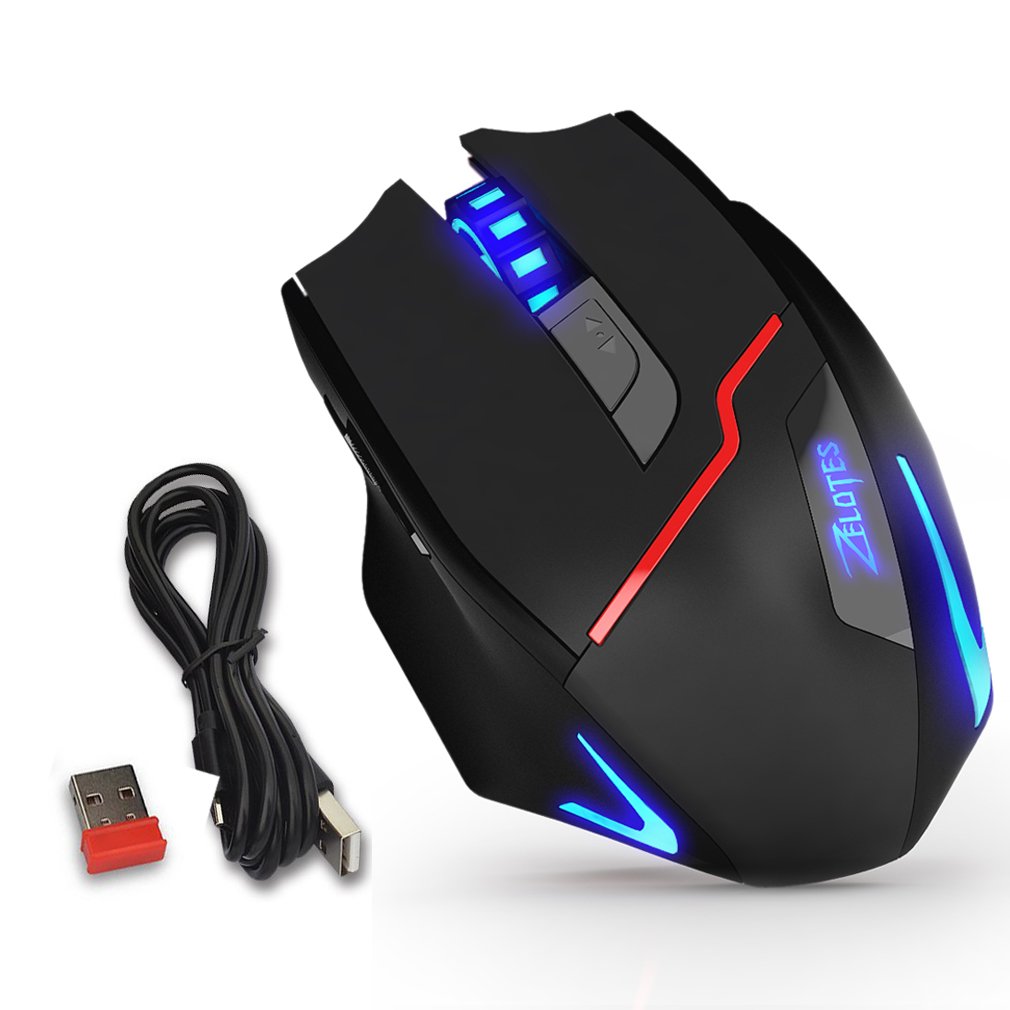
Figure 1: Zelotes F18 Gaming Mouse showcasing different LED lighting options and DPI levels.
The mouse is constructed with durable ABS material and features a braided USB cable for enhanced longevity. Its ergonomic shape is designed for comfortable long-term use.
2. Contenu du colis
- 1 x Zelotes F18 Gaming Mouse
- 1 x USB Charging/Data Cable (1.8m braided fabric)
- 1 x USB Wireless Receiver (stored in the mouse)
- 1 x Manuel d'instructions
3. Installation
3.1 Connexion sans fil (2.4 GHz)
- Locate the USB wireless receiver, typically stored in a compartment on the underside of the mouse.
- Branchez le récepteur sans fil USB sur un port USB disponible de votre ordinateur.
- Allumez la souris à l’aide de l’interrupteur d’alimentation situé en dessous.
- Votre ordinateur devrait détecter et installer automatiquement les pilotes nécessaires. La souris est prête à l'emploi.
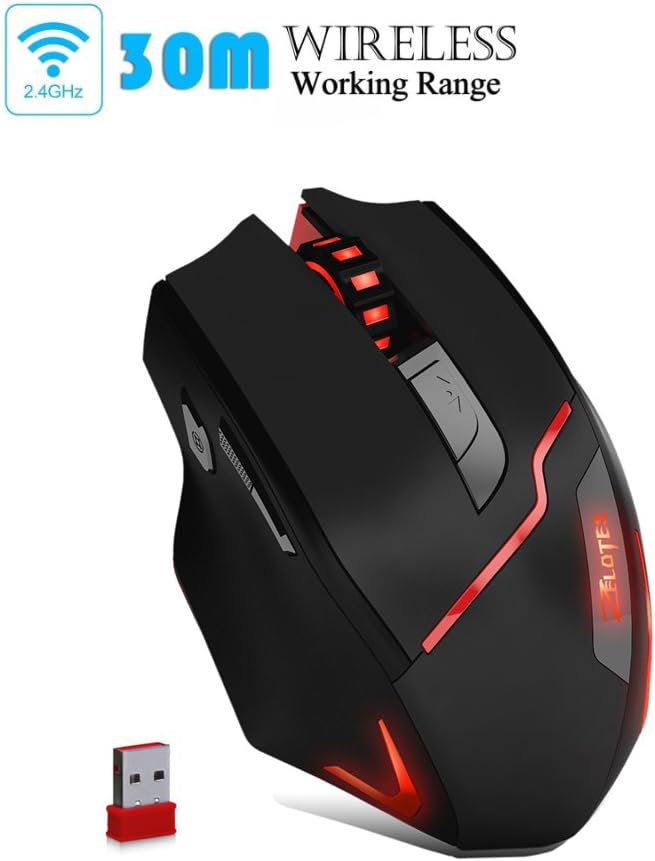
Figure 2: The Zelotes F18 mouse operating wirelessly with its USB receiver.
3.2 connexion filaire
- Connect the USB charging/data cable to the mouse's charging port.
- Branchez l'autre extrémité du câble USB sur un port USB disponible de votre ordinateur.
- La souris fonctionnera comme une souris filaire et rechargera également sa batterie interne.

Figure 3: The Zelotes F18 mouse connected via its USB cable, also illustrating comfortable grip.
4. Mode d'emploi
The Zelotes F18 mouse features 8 buttons, each with specific functions to enhance usability and gaming performance.

Figure 4: Labeled diagram of the Zelotes F18 mouse buttons.
- Touche droite
- Touche gauche
- Molette de défilement
- Bouton de cycle DPI: Press to cycle through DPI settings.
- Clé de feu:
- Short Press: Performs a double-click.
- Long Press (more than 2 seconds): Switches to a triple-click function. The light will flash 3 times to indicate successful switching.
- Forward/Previous Page Button (Thumb Function): Navigates forward in web browsers or folder windows.
- Backward/Next Page Button (Thumb Function): Navigates backward in web browsers or folder windows.
- Commutateur de mode d'éclairage (Not explicitly numbered in image, but described in features):
- Short Press: Cycles through 13 different light modes (color cycle breathing, 6 single-color breathing, 6 single-color constant light).
- Long Press (more than 2 seconds): Turns off the LED lights.
4.1 Ajustement PPP
The mouse offers 6 adjustable DPI settings for precision control. Press the Bouton de cycle DPI (Button 4) to switch between the following sensitivities:
- 1000 DPI (Red Light flashes orange 3 times)
- 1600 DPI (Green Light)
- 2400 DPI (Green Light)
- 3200 DPI (Light Blue Light)
- 5500 DPI (Blue Light)
- 9200 DPI (Purple Light)
The LED indicator color changes to reflect the current DPI setting.
5. Chargement et batterie
The Zelotes F18 mouse features a built-in rechargeable battery. To charge the mouse, connect it to your computer using the provided USB cable. The mouse can be used normally while charging in wired mode.
When the battery is low, the mouse's performance or lighting may be affected. Connect the USB cable to recharge promptly.
6. Entretien
- Nettoyage: Utilisez un chiffon doux et sec pour nettoyer la souris. Pour les saletés tenaces, un chiffon légèrement plus sec peut être utile.amp Un chiffon peut être utilisé, mais veillez à ce qu'aucun liquide ne pénètre dans la souris.
- Stockage: Store the mouse in a dry environment, away from extreme temperatures and direct sunlight.
- Film protecteur : Before initial use, ensure you remove any protective film from the mouse's foot pads to ensure smooth gliding.
7. Dépannage
- Souris ne répondant pas :
- Ensure the mouse is powered on (if in wireless mode).
- Check the USB receiver connection or the wired USB cable connection. Try a different USB port.
- Assurez-vous que la batterie est chargée. Connectez la souris via un câble USB pour la recharger.
- Le mouvement du curseur est erratique ou lent :
- Nettoyez le capteur optique situé sous la souris.
- Assurez-vous d'utiliser la souris sur une surface appropriée (par exemple, un tapis de souris).
- Adjust the DPI setting using the DPI Cycle Button.
- LED lights are off:
- Short press the Light Mode Switch to cycle through modes.
- Ensure the lights haven't been turned off by a long press of the Light Mode Switch.
- Retour aux paramètres d'usine: If you experience persistent issues, you can restore the mouse to factory settings by pressing the Left and Right buttons simultaneously for more than 2 seconds.
8. Spécifications
| Fonctionnalité | Détail |
|---|---|
| Numéro de modèle | F18 |
| Connectivité | Wired (USB) / Wireless (2.4G) |
| Système de suivi | Optical (Red Wave Type) |
| Paramètres PPP | 1000/1600/2400/3200/5500/9200 |
| Nombre de boutons | 8 |
| Longueur du câble | 1.8 meters (braided fabric) |
| Vol de travailtage/Courant | 5 V / 100 mA |
| Dimensions (L x l x H) | 130 x 81 x 40 mm (environ 5.1 x 3.2 x 1.6 pouces) |
| Poids | 160g +/- 5g |
| Contrepoids | 8 x 2.5 Gram tuning weights (internal) |
| Dossier spécial | LED Light, Ergonomic Design |

Figure 5: Physical dimensions of the Zelotes F18 Gaming Mouse.

Figure 6: The ergonomic design of the Zelotes F18 mouse, crafted for comfort during extended use.
9. Compatibilité
The Zelotes F18 Gaming Mouse is compatible with a wide range of operating systems, including:
- Windows 98/2000/ME/NT/XP/Vista/7/8/10
- Mac OS
- Linux
Simply connect the mouse to an available USB port for plug-and-play functionality.
10. Garantie et assistance
For warranty information and technical support, please refer to the documentation included with your purchase or contact Zelotes customer service. Keep your purchase receipt as proof of purchase for warranty claims.