
Xprinter XP-Q200
Manuel d'utilisation de l'imprimante thermique Xprinter XP-Q200
Model: XP-Q200
Marque : Xprinter
1. Introduction et plusview
This manual provides detailed instructions for the setup, operation, and maintenance of your Xprinter XP-Q200 80mm Thermal Printer. The XP-Q200 is a high-speed thermal receipt printer designed for various operating systems including Windows, Android, and iOS. It offers versatile connectivity options such as USB, Bluetooth, and Ethernet, making it suitable for a wide range of business environments.

Figure 1.1 : Face avant view of the Xprinter XP-Q200 Thermal Printer.
2. Consignes de sécurité
Please read the following safety precautions carefully before using the printer to ensure safe and proper operation:
- Ne touchez pas la tête d'impression thermique immédiatement après l'impression, car elle peut être chaude.
- Use only the power adapter supplied with the printer. Using an incorrect adapter may damage the printer or cause fire.
- Do not disassemble or modify the printer. Refer all servicing to qualified personnel.
- Tenez l'imprimante à l'écart de l'eau, de l'humidité et de la lumière directe du soleil.
- Assurez-vous que l’imprimante est placée sur une surface stable et plane.
3. Contenu du colis
Vérifiez que tous les éléments énumérés ci-dessous sont inclus dans l'emballage de votre imprimante :
- Xprinter XP-Q200 Thermal Printer Unit
- Adaptateur secteur
- Câble USB
- Thermal Paper Roll (initial)
- Manuel d'utilisation
4. caractéristiques du produit
The Xprinter XP-Q200 offers a range of features designed for efficient and reliable thermal printing:
- Impression à grande vitesse : Achieves print speeds of up to 260mm/sec with an integrated auto cutter.
- Interfaces multiples: Equipped with USB, Bluetooth, and Ethernet connectivity for flexible integration.
- Large compatibilité: Supports Windows, Linux, and Android operating systems.
- Logo and Barcode Support: Allows for downloading and printing of store logos (BMP file format) and various barcode types on thermal paper.
- La manipulation du papier: Designed to handle thermal paper rolls up to 80x80mm.
- International Language Support: Supports a variety of international languages and scripts.
- Alarmes d'erreur : Features print job tips and error alarm functions for operational awareness.
- Black Mark Detection: Includes a black mark detection function for specific printing applications.
- Missing Orders Function: Incorporates a feature to help avoid "missing orders."
- Capacités de surveillance : Supports Ethernet and Serial port monitoring functions.
- NV Logo Storage: Provides 256K Bytes of NV Logo download storage.
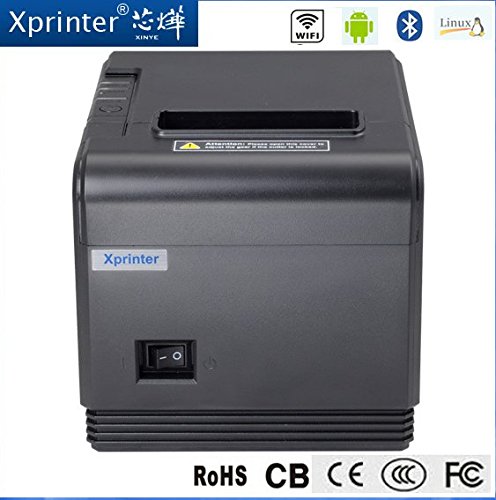
Figure 4.1 : Face avant view highlighting connectivity options.
5. Installation
5.1 Configuration physique
- Unpack the printer and remove all protective packaging materials.
- Place the printer on a stable, flat surface near a power outlet and your host device.
- Connect the power adapter to the printer's power port and then plug it into a wall outlet.
5.2 Chargement du papier thermique
- Press the cover open button (usually located on the side or front) to open the printer's top cover.
- Insert the thermal paper roll into the paper compartment with the printing side facing the thermal print head. Ensure the roll unwinds from the bottom.
- Tirez un petit morceau de papier au-delà du massicot.
- Close the top cover firmly until it clicks into place. The printer will automatically feed the paper to the correct position.
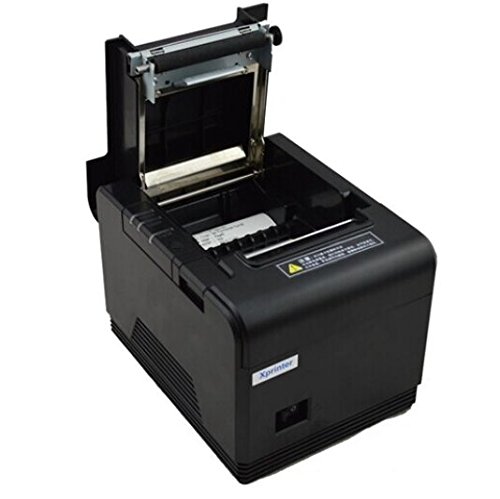
Figure 5.1 : Chargement du papier thermique dans l'imprimante.
5.3 Connexion à un appareil
The XP-Q200 supports USB, Bluetooth, and Ethernet connections.

Figure 5.2 : Arrière view de l'imprimante avec ports de connectivité.
5.3.1 Connexion USB
- Connectez une extrémité du câble USB au port USB de l'imprimante et l'autre extrémité au port USB de votre ordinateur.
- The computer should detect the printer automatically.
5.3.2 Bluetooth Connection (for Android/iOS)
- Assurez-vous que l'imprimante est sous tension.
- On your Android or iOS device, go to Bluetooth settings and enable Bluetooth.
- Rechercher available devices. The printer should appear as "XP-Q200" or similar.
- Select the printer to pair. The default PIN is usually "0000" or "1234".
- Once paired, you can select the printer from your application's print settings.
5.3.3 Connexion Ethernet
- Connectez un câble Ethernet du port Ethernet de l'imprimante à votre routeur ou commutateur réseau.
- The printer will obtain an IP address automatically via DHCP. For static IP configuration, refer to the advanced settings utility provided with the printer drivers.
5.4 Installation du pilote
For Windows and Linux systems, you will need to install the appropriate printer drivers. Drivers are typically available on the Xprinter official website or on a CD included with the printer. Follow the on-screen instructions during installation.
6. Mode d'emploi
6.1 Impression de base
Once the printer is connected and drivers are installed (if applicable), you can send print jobs from your application. Ensure the printer is powered on and has paper loaded.
- From your application (e.g., POS software, web browser), select the print option.
- Choose "Xprinter XP-Q200" from the list of available printers.
- Adjust any print settings as needed (e.g., paper size, copies).
- Cliquez sur « Imprimer » pour envoyer la tâche à l'imprimante.
6.2 Logo and Barcode Printing
The XP-Q200 supports custom logo and barcode printing. Refer to the printer's utility software (usually provided with drivers) for instructions on how to upload logos (BMP format) to the printer's NV memory and configure barcode printing settings.
7. Entretien
7.1 Nettoyage de l'imprimante
Un nettoyage régulier permet de maintenir la qualité d'impression et de prolonger la durée de vie de l'imprimante.
- Tête d'impression: Utilisez un coton-tige légèrement dampened with isopropyl alcohol to gently wipe the thermal print head. Allow it to dry completely before closing the cover. Clean the print head regularly, especially if print quality degrades.
- Rouleau à plateau : Clean the rubber platen roller with a soft cloth dampenrichi avec de l'alcool isopropylique.
- Extérieur: Essuyez l'extérieur de l'imprimante avec un chiffon doux et sec. N'utilisez pas de nettoyants abrasifs ni de solvants.
7.2 Déblocage du papier
En cas de bourrage papier :
- Éteignez l'imprimante.
- Ouvrez le capot supérieur.
- Carefully remove any jammed paper. Ensure no small pieces of paper remain inside.
- Close the top cover firmly.
- Turn the printer back on.
8. Dépannage
This section addresses common issues you might encounter with your XP-Q200 printer.
| Problème | Cause possible | Solution |
|---|---|---|
| L'imprimante ne s'allume pas. | Power cable loose; Power outlet faulty; Power adapter faulty | Check power connections; Try a different outlet; Contact support if adapter is faulty. |
| Aucune sortie d'impression | No paper; Paper loaded incorrectly; Printer offline; Driver issue | Load paper correctly; Check printer status; Reinstall drivers. |
| Mauvaise qualité d'impression | Print head dirty; Low quality paper; Print head worn out | Clean print head; Use recommended thermal paper; Contact support for service. |
| Bourrage de papier | Paper loaded incorrectly; Foreign object inside | Refer to Section 7.2 for clearing jams. |
| Bluetooth/Ethernet connection fails | Incorrect pairing; Network issue; IP address conflict | Re-pair device; Check network cables/settings; Verify IP address. |
9. Spécifications
| Fonctionnalité | Spécification |
|---|---|
| Nom du modèle | XP-Q200 |
| Technologie d'impression | Thermique |
| Vitesse d'impression | 260 mm/sec |
| Sortie de l'imprimante | Monochrome |
| Technologie de connectivité | Bluetooth, USB, Ethernet |
| Taille de la feuille | Thermal (80mm) |
| Impression recto verso | Oui |
| Couleur | Noir |
| Type de contrôleur | iOS, Android |
| Composants inclus | Papier |
| Dossier spécial | USB |
| Type de scanner | Portable |
Ask a question about this manual
Ask about setup, troubleshooting, compatibility, parts, safety, or missing instructions. Manuals+ will review the question and use this page’s manual context to help answer it.