
Introduction
Merci pour votre achatasing the QUMOX L165U 2.4GHz Wireless Gamepad. This high-quality game controller is designed for use with PC and Android devices, offering a reliable 2.4GHz wireless connection for an enhanced gaming experience. Please read this manual carefully to ensure proper setup and operation of your new gamepad.

Figure 1: QUMOX L165U Gamepad with included USB adapter and OTG connection kit.
Contenu du colis
Vérifiez que tous les articles sont présents dans votre colis :
- 1x QUMOX L165U Gamepad
- 1x 2.4GHz USB Wireless Adapter
- 1x OTG Connection Kit (Micro USB to USB-A adapter)
Installation
1. Installation de la batterie
The QUMOX L165U Gamepad is powered by 2 AAA batteries (not included). To install the batteries:
- Repérez le compartiment à piles à l'arrière de la manette.
- Faites glisser le couvercle de la batterie pour l'ouvrir.
- Insérez 2 piles AAA en veillant à respecter la polarité (+/-).
- Fermez soigneusement le couvercle de la batterie.

Figure 2: Open battery compartment for AAA battery installation.
2. Connexion à un PC
- Plug the 2.4GHz USB Wireless Adapter into an available USB port on your PC.
- Turn on the gamepad by pressing the 'START' button. The gamepad will automatically attempt to connect.
- The PC should recognize the gamepad and install necessary drivers automatically.
- If the gamepad does not connect, press the 'MODE' button on the gamepad to cycle through connection modes until it is recognized by your PC.
3. Connecting to an Android Device (with OTG support)
- Connect the OTG Connection Kit to your Android device's Micro USB port.
- Plug the 2.4GHz USB Wireless Adapter into the USB-A end of the OTG Connection Kit.
- Turn on the gamepad by pressing the 'START' button. The gamepad will automatically attempt to connect.
- Your Android device should recognize the gamepad.
- If the gamepad does not connect, press the 'MODE' button on the gamepad to cycle through connection modes until it is recognized by your Android device.
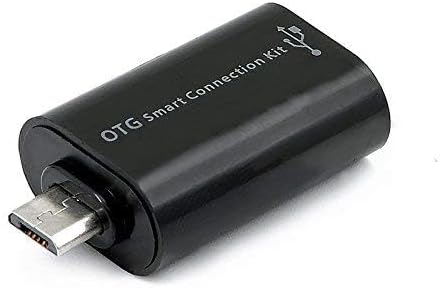
Figure 3: OTG Connection Kit for Android device connectivity.
Mode d'emploi
Once connected, your QUMOX L165U Gamepad is ready for use. The layout is standard for most game controllers.
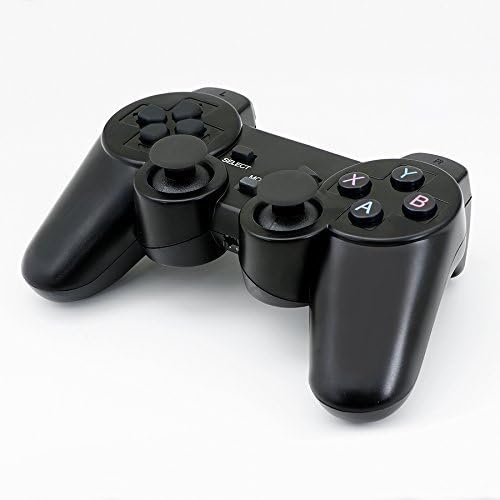
Figure 4 : Haut view of the QUMOX L165U Gamepad, highlighting button layout.
- Croix directionnelle (D-Pad) : Pour une saisie directionnelle précise.
- Joysticks analogiques : Deux joysticks analogiques pour les mouvements à 360 degrés et le contrôle de la caméra.
- Boutons d'action (A, B, X, Y) : Boutons d'action standard pour les commandes en jeu.
- Boutons d'épaule (L1, R1) et gâchettes (L2, R2) : Located on the top of the gamepad for additional actions.
- Bouton SÉLECTIONNER/RETOUR : Utilisé généralement pour la navigation dans les menus ou pour des fonctions spécifiques du jeu.
- Bouton Start: Used to pause games or confirm selections.
- Bouton MODE : Cycles through different operating modes (e.g., Android, PC) if automatic detection fails.
Démonstration vidéo
Vidéo 1 : Une vidéo fournie par le vendeurview of a 2-pack wireless controller, demonstrating its features and compatibility. While showing a similar product, it illustrates general wireless controller usage and setup.
Entretien
- Nettoyage: Utilisez un chiffon doux et sec pour nettoyer la manette. Évitez d'utiliser des produits chimiques agressifs ou des matériaux abrasifs.
- Stockage: Rangez la manette dans un endroit frais et sec, à l'abri de la lumière directe du soleil et des températures extrêmes.
- Entretien de la batterie: Retirez les piles si la manette n'est pas utilisée pendant une période prolongée afin d'éviter les fuites.
Dépannage
| Problème | Cause possible | Solution |
|---|---|---|
| La manette de jeu ne se connecte pas. | Low batteries, incorrect mode, adapter not properly inserted. | Replace batteries. Press the 'MODE' button to cycle through modes. Ensure USB adapter is fully inserted into PC or OTG adapter. |
| Les boutons ou les joysticks ne répondent pas. | Connection issue, game incompatibility, physical damage. | Reconnect the gamepad. Check game settings for controller support. If issue persists, contact support. |
| Android device does not recognize gamepad. | Android device lacks OTG support, OTG adapter issue. | Verify your Android device supports OTG. Ensure OTG adapter is functioning correctly. |
Caractéristiques
| Fonctionnalité | Détail |
|---|---|
| Numéro de modèle | L165U |
| Technologie de connectivité | 2.4GHz Wireless (via USB Adapter) |
| Appareils compatibles | PC, Android (with OTG support) |
| Source d'énergie | 2 piles AAA |
| Poids de l'article | 5.3 onces |
| Dimensions du colis | 8.07 x 5.63 x 2.95 pouces |
| Couleur | Noir |
Garantie et assistance
For warranty information or technical support, please refer to the contact details provided with your purchase or visit the official QUMOX webConsultez le site. Conservez votre preuve d'achat pour toute réclamation au titre de la garantie.