
1. Introduction
Merci pour votre achatasing the ELECOM M-XGM10DBBK Wireless 5-Button BlueLED Mouse. This mouse is designed for comfort and precision, featuring an ergonomic shape that fits naturally in your hand and BlueLED technology for reliable tracking on various surfaces. This manual provides essential information for proper setup, operation, and maintenance of your device.
2. Produit terminéview
The M-XGM10DBBK mouse is part of the "EX-G" series, known for its ergonomic design and comfortable grip. It features five buttons, including dedicated back and forward buttons, to enhance productivity.
Caractéristiques principales :
- Conception ergonomique : Shaped to fit the hand for ultimate grip comfort.
- BlueLED Sensor: Provides precise tracking on a wide range of surfaces, including glass and fabric.
- Fonctionnalités à 5 boutons : Includes left, right, scroll wheel, and dedicated back/forward buttons.
- Connexion sans fil 2.4 GHz : Offers a stable connection with a range of approximately 10 meters (3 meters on steel desks).
- Boutons personnalisables : Button functions can be re-assigned using the free "ELECOM Mouse Assistant" software (Windows/Mac only).
- Indicateur de batterie : Un lamp indicates remaining battery life.
Composants:
Familiarisez-vous avec les composants de la souris :

Figure 2.1 : Haut view de la souris, en mettant en évidence les boutons principaux.
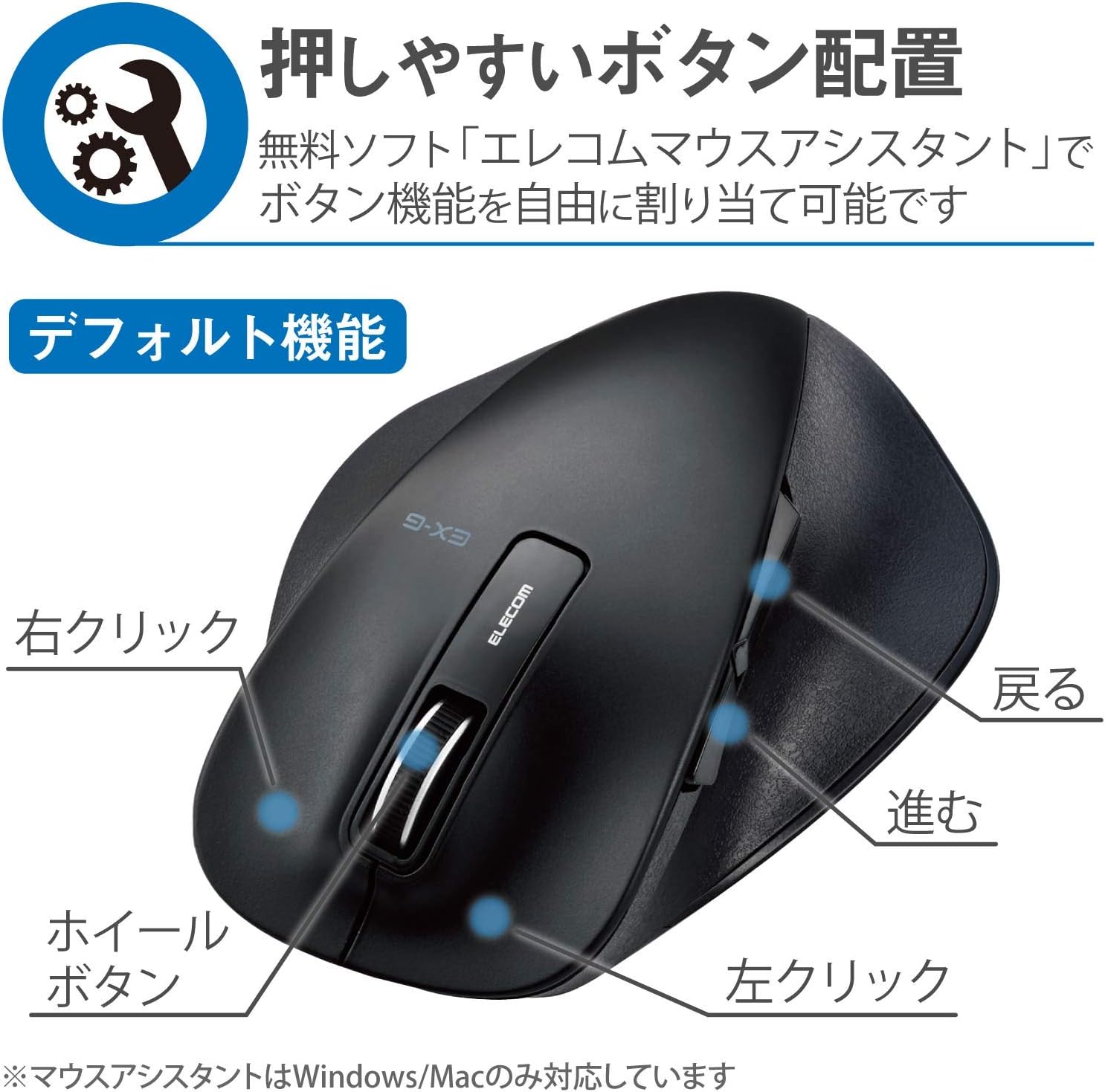
Figure 2.2 : Côté view of the mouse, showing the back and forward buttons.
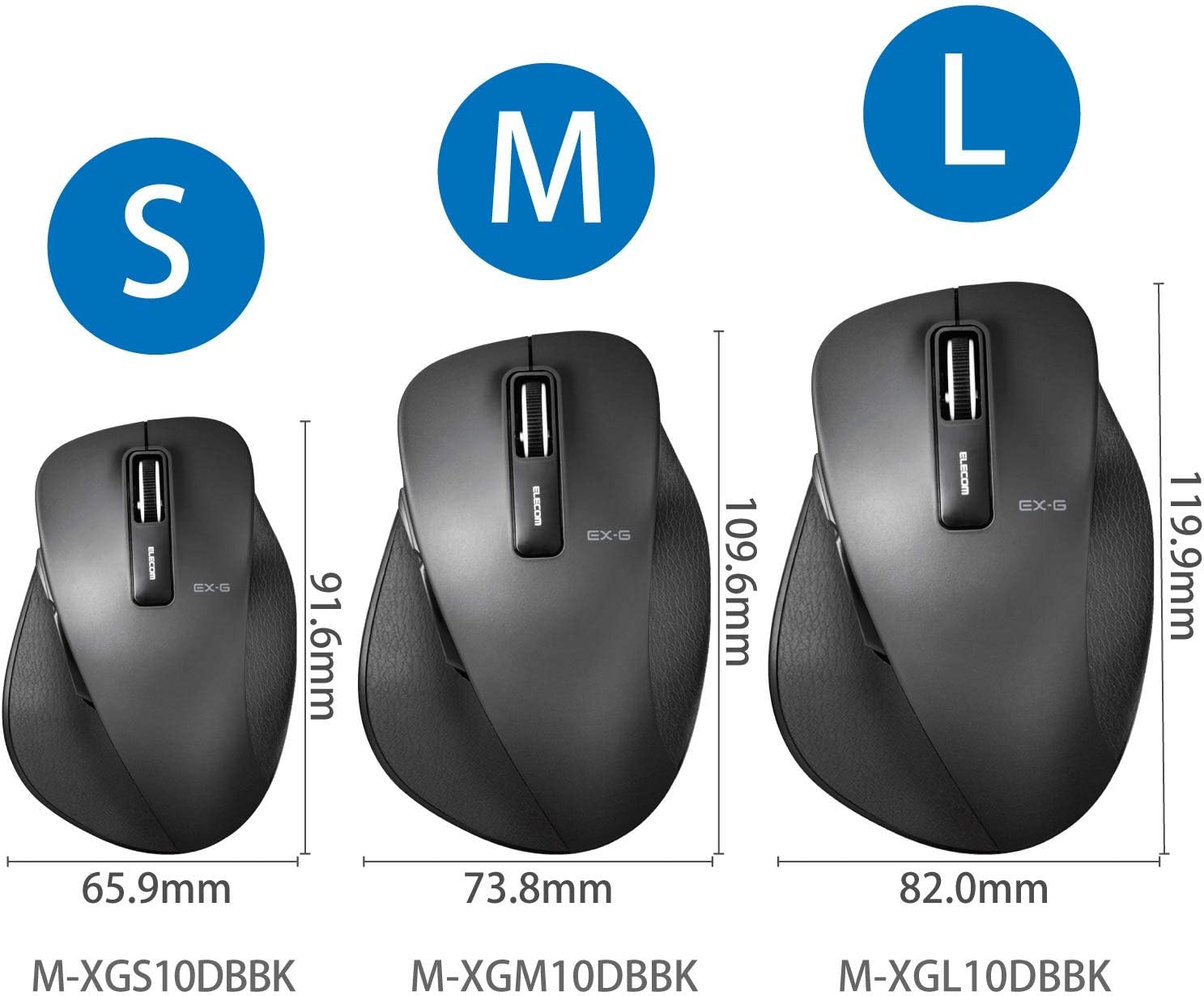
Figure 2.3: Size comparison of EX-G mice (S, M, L). The M-XGM10DBBK is the M size.

Figure 2.4 : Bas view of the mouse, indicating the optical sensor, power switch, and receiver storage compartment.

Figure 2.5: Illustration of the durable Omron switches used for the left and right click buttons.
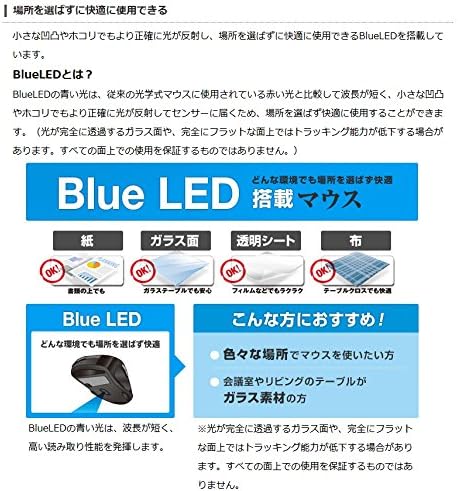
Figure 2.6: Explanation of BlueLED technology, demonstrating its versatility on different surfaces. Note: Tracking performance may decrease on completely transparent or perfectly flat surfaces.

Figure 2.7: Details on 2.4GHz wireless, battery indicator, and 2000 DPI resolution for smooth operation.

Figure 2.8: The ELECOM M-XGM10DBBK mouse is certified to work with Chromebooks.
3. Installation
3.1 Installation de la batterie
- Locate the battery cover on the bottom of the mouse.
- Faites glisser le couvercle pour l'ouvrir.
- Insert one AA alkaline, manganese, or nickel-metal hydride battery, ensuring correct polarity (+/-).
- Fermez soigneusement le couvercle de la batterie.
3.2 Connexion du récepteur
- Retirez le récepteur USB de son compartiment de rangement situé sous la souris.
- Branchez le récepteur USB sur un port USB-A disponible de votre ordinateur.
- Votre ordinateur devrait détecter et installer automatiquement les pilotes nécessaires. Cela peut prendre quelques instants.
3.3 Mise sous tension
- Faites glisser l'interrupteur d'alimentation situé sous la souris sur la position « ON ».
- La souris est maintenant prête à l'emploi.
4. Mode d'emploi
4.1 Fonctions de base
- Click gauche: Sélection et activation primaires.
- Clic-droit: Ouvre les menus contextuels.
- Molette: Documents et rouleaux web Pages verticales. Possibilité de cliquer dessus pour activer la fonctionnalité du clic central.
4.2 Back/Forward Buttons
The dedicated back and forward buttons located on the side of the mouse allow for quick navigation in web navigateurs et file explorateurs.
- Appuyez sur le Dos button to go to the previous page or folder.
- Appuyez sur le Avant button to go to the next page or folder.
4.3 Customizing Buttons (ELECOM Mouse Assistant)
For advanced customization, download the free "ELECOM Mouse Assistant" software from the official ELECOM website. This software allows you to re-assign functions to the mouse buttons according to your preferences. Please note that this software is compatible with Windows and macOS only.
5. Entretien
5.1 Nettoyage
Pour maintenir des performances et une hygiène optimales, nettoyez régulièrement votre souris :
- Éteignez la souris à l'aide de l'interrupteur d'alimentation.
- Utilisez un chiffon doux et sec pour essuyer la surface de la souris.
- Pour les saletés tenaces, appliquez légèrementampImbibez le chiffon d'eau ou d'une solution nettoyante douce, puis essuyez-le immédiatement.
- Évitez d'utiliser des produits chimiques agressifs, des abrasifs ou des solvants.
- Gently clean the optical sensor area on the bottom of the mouse with a cotton swab if tracking issues occur.
5.2 Remplacement de la batterie
When the battery indicator lamp flashes or the mouse performance degrades, replace the battery:
- Éteignez la souris.
- Ouvrez le couvercle de la batterie.
- Retirez l'ancienne batterie et jetez-la conformément aux réglementations locales.
- Insérez une pile AA neuve en respectant la polarité.
- Close the battery cover and turn the mouse back on.
6. Dépannage
Si vous rencontrez des problèmes avec votre souris, consultez les problèmes et solutions courants suivants :
| Problème | Cause possible | Solution |
|---|---|---|
| La souris ne répond pas | Low battery; Power switch off; Receiver not connected; Receiver interference. | Replace battery; Turn power switch ON; Ensure receiver is firmly plugged in; Try a different USB port; Move closer to the receiver. |
| Mouvement erratique du curseur | Capteur optique sale ; Surface inadaptée ; Interférences. | Clean optical sensor; Use on a suitable mouse pad or surface; Reduce interference from other wireless devices. |
| Les boutons ne fonctionnent pas | Conflit logiciel ; problème de pilote. | Restart computer; Reinstall mouse drivers; Check for conflicting software. |
| Problèmes de connexion sans fil | Distance trop importante ; Obstructions ; Interférences. | Ensure mouse is within range (10m); Remove obstructions between mouse and receiver; Avoid using near other 2.4GHz devices. |
7. Spécifications
| Fonctionnalité | Détail |
|---|---|
| Numéro de modèle | M-XGM10DBBK |
| Méthode de connexion | Sans fil 2.4 GHz (récepteur USB-A) |
| Type de capteur | BlueLED Optical |
| Boutons | 5 buttons (Left, Right, Scroll Wheel, Back, Forward) |
| Résolution | 2000 DPI |
| Dimensions (L x P x H) | 73.8 x 109.6 x 40.8 mm (M Size) |
| Poids | Environ 151.95 g (batterie incluse) |
| Source d'énergie | 1 x AA battery (Alkaline, Manganese, or Ni-MH) |
| Durée de vie estimée de la batterie | Approx. 722 days (based on typical usage) |
| Systèmes d'exploitation compatibles | Windows 11, 10, RT8.1, 8.1, 7, Vista; macOS High Sierra 10.13, OS X 10.10; Chrome OS |
| Couleur | Noir |
8. Garantie et assistance
8.1 Informations sur la garantie
Ce produit est livré avec un Garantie de 6 mois À compter de la date d'achat, veuillez conserver votre preuve d'achat pour toute réclamation au titre de la garantie. La garantie couvre les défauts de fabrication dans des conditions normales d'utilisation. Elle ne couvre pas les dommages causés par une mauvaise utilisation, un accident, des modifications non autorisées ou l'usure normale.
8.2 Assistance clientèle
For technical assistance, troubleshooting, or warranty inquiries, please visit the official ELECOM website or contact ELECOM customer support. Contact details can typically be found on the ELECOM website under the 'Support' or 'Contact Us' section.