
Introduction
This manual provides instructions for the LogicKeyboard XL Print Bluetooth Mini Keyboard. This keyboard is designed with large, high-contrast yellow keys and black lettering to enhance visibility and ease of use, particularly for individuals with visual impairments. It offers wireless connectivity via Bluetooth, making it compatible with various devices including Apple iPad, iPhone, iPod, and Android devices.
Consignes de sécurité
- Gardez le clavier à l’abri des liquides et de l’humidité excessive.
- Évitez d'exposer le clavier à des températures extrêmes.
- N’essayez pas de démonter ou de réparer le clavier vous-même. Veuillez faire appel à un technicien qualifié.
- Jetez les piles conformément aux réglementations locales.
Produit terminéview
The LogicKeyboard XL Print features a compact design with clearly visible keys. Below are images illustrating the keyboard's layout and features.

Figure 1 : Vue de dessus view of the LogicKeyboard XL Print Bluetooth Mini Keyboard, highlighting the large yellow keys with black characters.

Figure 2 : Angulaire view of the keyboard, showing its slim profile et l'agencement des clés.
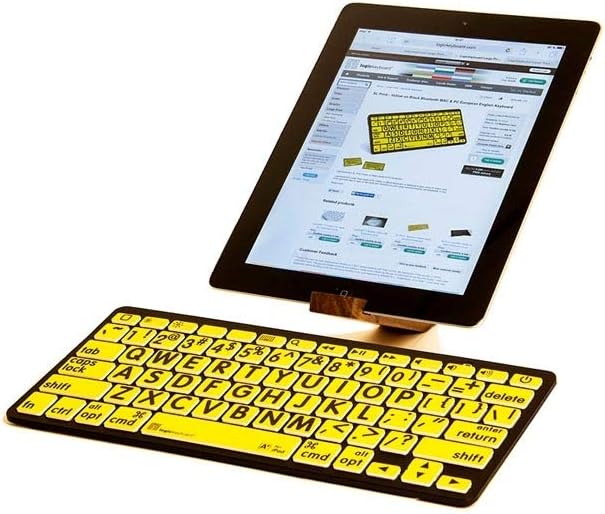
Figure 3: The keyboard in use with an Apple iPad, demonstrating its compact size and compatibility.

Figure 4 : Côté profile of the keyboard, illustrating its ergonomic design for comfortable typing.
Installation
1. Mise sous tension du clavier
Locate the power switch, typically on the side or back of the keyboard. Slide the switch to the "ON" position. An indicator light may illuminate briefly.
2. Couplage Bluetooth
- Assurez-vous que le clavier est sous tension.
- On your device (iPad, iPhone, iPod, or Android), navigate to the Paramètres menu.
- Sélectionner Bluetooth et assurez-vous que le Bluetooth est activé.
- The device will scan for available Bluetooth devices. Look for "LogicKeyboard" or a similar name in the list.
- Appuyez sur le nom du clavier pour lancer le processus d'appairage.
- Your device may display a pairing code. Type this code on the LogicKeyboard and press Entrer.
- Once paired, the device will show the keyboard as "Connected."
Note: The keyboard is designed for easy setup. If you encounter issues, ensure your device's Bluetooth is active and the keyboard has sufficient power.
Mode d'emploi
Dactylographie de base
Once paired, the keyboard functions like a standard QWERTY keyboard. Simply open any text input application on your device and begin typing. The large print keys are designed for enhanced readability.
Touches de fonction spéciales
The top row of the keyboard includes various function keys (F-keys) that can control media playback, volume, and other system functions on compatible devices. These functions are typically accessed directly or by holding the Fn key (if present) and pressing the desired F-key. Examples of these keys include icons for brightness control (sun icons), media playback (play/pause, stop, previous, next track icons), and volume control (speaker icons).
Note: The exact functionality of these keys may vary depending on the connected device and its operating system.
Entretien
Nettoyage
Pour nettoyer le clavier, essuyez délicatement sa surface avec un chiffon doux et sec.ampUtilisez un chiffon non pelucheux. Évitez les produits chimiques agressifs, les nettoyants abrasifs et l'humidité excessive, car ils peuvent endommager les touches ou les composants internes.
Stockage
When not in use for extended periods, store the keyboard in a cool, dry place. It is recommended to turn off the keyboard to conserve battery life.
Dépannage
| Problème | Cause possible | Solution |
|---|---|---|
| Le clavier ne s'allume pas. | Batteries faibles ou déchargées. | Replace the batteries with fresh ones. Ensure correct polarity. |
| Le clavier ne se connecte pas via Bluetooth. | Bluetooth is off on the device; keyboard not in pairing mode; interference. |
|
| Les touches ne répondent pas ou la saisie est retardée. | Keyboard entered sleep mode; low battery; connection issue. |
|
| Specific function keys do not work. | Device incompatibility; operating system settings. |
|
Caractéristiques
- Numéro de modèle : LKBU-LPBY-BTON-US
- Connectivité : Bluetooth, RF
- Appareils compatibles : Apple iPad, iPhone, iPod, Android devices
- Type de clavier: Wireless, Mini Keyboard
- Caractéristiques principales : Large Print, High Contrast (Black on Yellow), Ergonomic
- Couleur: Black (keyboard body), Yellow (keys)
- Dimensions du produit : 12.8 x 5.5 x 1.3 pouces (32.5 x 14 x 3.3 cm)
- Poids: Environ 11.11 onces (315 grammes)
Informations sur la garantie
LogicKeyboard products typically come with a limited manufacturer's warranty. Please refer to the warranty card included with your purchase or visit the official LogicKeyboard webConsultez le site pour connaître les conditions générales de garantie détaillées. Conservez votre preuve d'achat pour toute réclamation au titre de la garantie.
Soutien
For technical assistance, troubleshooting, or product inquiries, please visit the official Logickeyboard website ou contactez leur support client.
- Support en ligne: Visite www.logickeyboard.com for FAQs, drivers, and support resources.
- Contact: Se référer à la website for contact information, including email and phone support.