
1. Introduction
This manual provides instructions for the installation, operation, and maintenance of your DIGITUS DN-70542 Wireless LAN USB 2.0 Adapter. This device allows your computer to connect to a wireless network using the 802.11n standard, offering data transfer rates of up to 300 Mbps.
The adapter is backward compatible with IEEE 802.11g and 802.11b standards and operates within the 2.4-2.4835GHz frequency range. It also features a Wireless Protected Setup (WPS) function for easy and secure network connection.

Figure 1.1 : Haut view of the DIGITUS DN-70542 Wireless LAN USB 2.0 Adapter.

Figure 1.2 : Angulaire view of the DIGITUS DN-70542 adapter, highlighting its compact design.

Figure 1.3 : Détaillé view of the USB 2.0 connector of the DIGITUS DN-70542 adapter.
2. Contenu du colis
Veuillez vérifier que tous les articles sont présents dans le colis :
- 1 x DIGITUS DN-70542 Mini USB WiFi Adapter
- 1 x Product Support CD-ROM (containing drivers and utilities)
- 1 x Manuel d'utilisation (ce document)
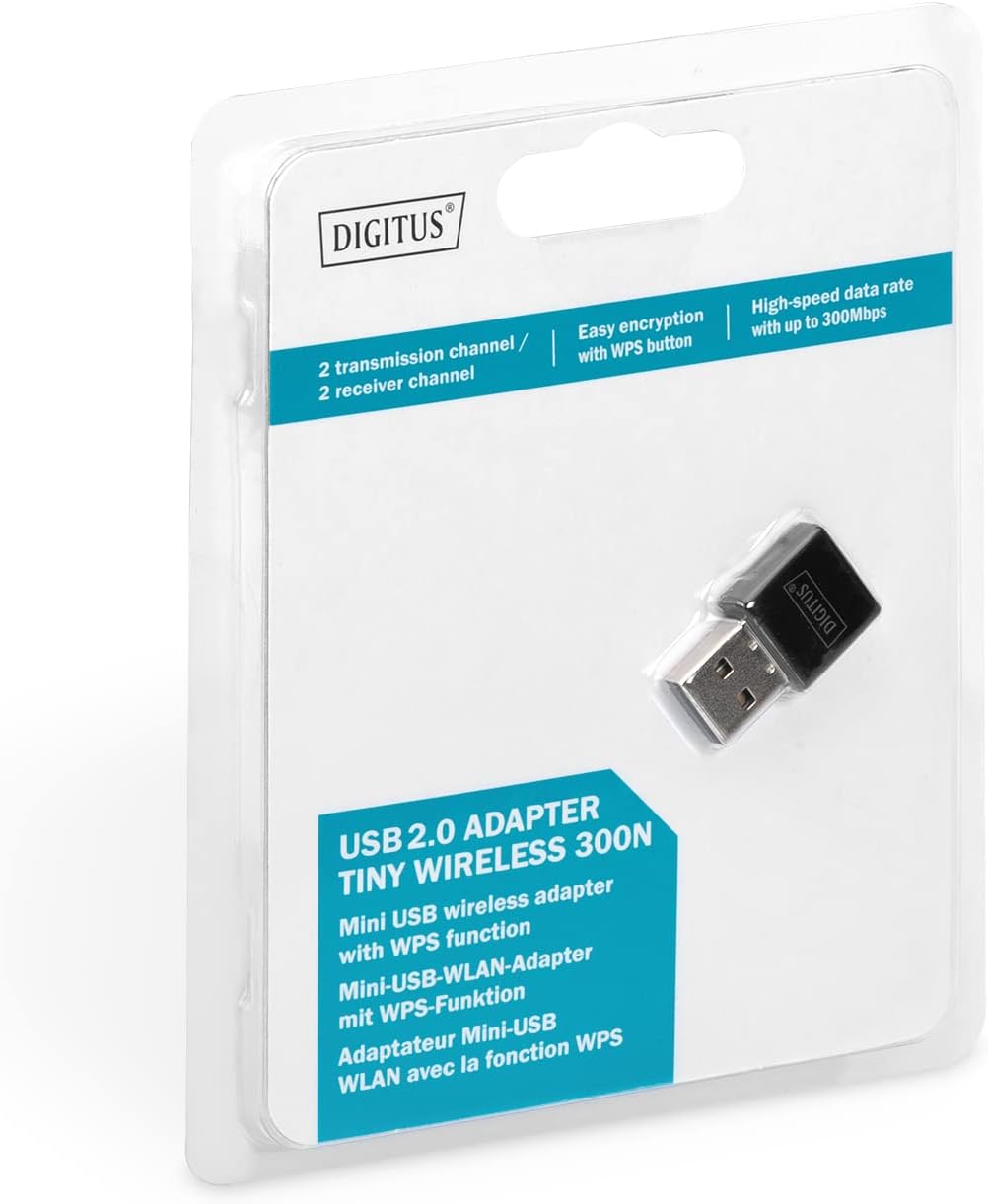
Figure 2.1: Retail packaging of the DIGITUS DN-70542 adapter, showing the adapter and its key features.
3. Guide de configuration
Follow these steps to install your Wireless LAN USB Adapter:
- Installer les pilotes : Before connecting the adapter, insert the included Product Support CD-ROM into your computer's optical drive. Follow the on-screen instructions to install the necessary drivers. If your computer does not have an optical drive, or if you encounter issues, please visit the official DIGITUS website to download the latest drivers for your operating system (Windows).
Note: Some operating systems, particularly older versions of Windows, may require driver installation prior to connecting the device. Refer to the Troubleshooting section if you encounter issues during this step.
- Connectez l'adaptateur : Locate an available USB 2.0 port on your computer. Carefully insert the DIGITUS DN-70542 Wireless LAN USB 2.0 Adapter into the USB port.
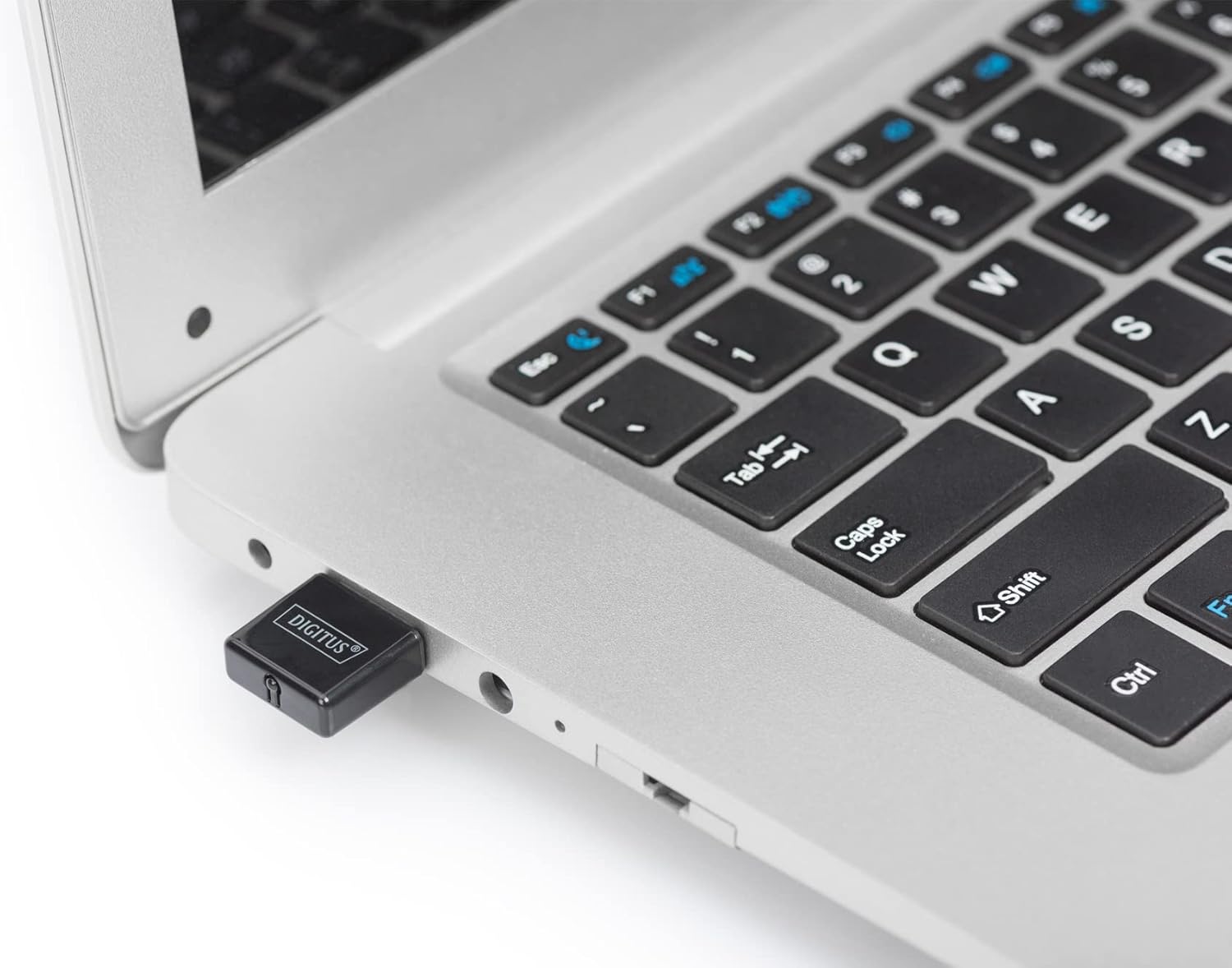
Figure 3.1: The DIGITUS DN-70542 adapter inserted into a laptop's USB port.

Figure 3.2 : Un gros plan view of the adapter connected to a laptop, showing its compact size.
- Vérifier l'installation : After connecting, your operating system should detect the new hardware and complete the installation. You can verify the installation by checking your computer's Device Manager (for Windows) to ensure the wireless adapter is listed and functioning correctly.
4. Mode d'emploi
Once the adapter is successfully installed, you can connect to a wireless network.
- Connexion à un réseau sans fil :
- Open your computer's wireless network settings.
- Recherchez les réseaux sans fil disponibles.
- Select your desired network (SSID) from the list.
- Saisissez la clé de sécurité réseau (mot de passe) si vous y êtes invité.
- Cliquez sur « Se connecter » pour établir la connexion sans fil.
- Utilisation du WPS (Wi-Fi Protected Setup) :
The adapter supports WPS for a simplified and secure connection to compatible routers.
- Appuyez sur le bouton WPS de votre routeur sans fil.
- Within two minutes, press the WPS button on the DIGITUS DN-70542 adapter. The WPS button is a small, recessed button on the side of the adapter.
- L'adaptateur et le routeur établiront automatiquement une connexion sécurisée.

Figure 4.1: The WPS button located on the side of the adapter.
5. Entretien
To ensure optimal performance and longevity of your DIGITUS DN-70542 adapter, follow these guidelines:
- Veillez à ce que l'adaptateur reste propre et exempt de poussière. Utilisez un chiffon doux et sec pour le nettoyer.
- Évitez d'exposer l'adaptateur à des températures extrêmes, à l'humidité ou à la lumière directe du soleil.
- N’essayez pas de démonter ou de réparer l’adaptateur vous-même. Cela annulera la garantie.
- Rangez l'adaptateur dans un endroit sûr lorsqu'il n'est pas utilisé afin d'éviter tout dommage physique.
6. Dépannage
If you encounter issues with your DIGITUS DN-70542 Wireless LAN USB 2.0 Adapter, refer to the following common problems and solutions:
- Adapter Not Detected / Driver Installation Issues:
- Assurez-vous que l'adaptateur est complètement inséré dans un port USB fonctionnel.
- Essayez un port USB différent.
- Reinstall the drivers from the provided CD-ROM.
- Download the latest drivers from the official DIGITUS website.
- If using Windows 8.1 or newer and encountering issues like "Bluescreen" or "infected file" warnings during driver installation, temporarily disable antivirus software (like Windows Defender) during driver installation, then re-enable it immediately after. Ensure you are downloading drivers from a trusted source (DIGITUS official webplacer).
- Check Device Manager to see if the adapter is listed with any error symbols.
- Impossible de se connecter au réseau sans fil :
- Verify that your wireless router is powered on and broadcasting a signal.
- Ensure you are entering the correct network security key (password).
- Rapprochez-vous du routeur sans fil pour améliorer la puissance du signal.
- Redémarrez votre ordinateur et votre routeur sans fil.
- Check if other devices can connect to the same wireless network.
- Vitesse de connexion lente :
- Ensure your router supports 802.11n for optimal speeds.
- Minimisez les interférences provenant d'autres appareils électroniques (par exemple, fours à micro-ondes, téléphones sans fil).
- Mettez à jour le micrologiciel de votre routeur.
- Vérifiez si d'autres appareils consomment de la bande passante sur votre réseau.
7. Spécifications
| Fonctionnalité | Description |
|---|---|
| Modèle | DN-70542 |
| Interface matérielle | USB 2.0 |
| Normes sans fil | Normes IEEE 802.11n, IEEE 802.11g, IEEE 802.11b |
| Taux de transfert de données | Jusqu'à 300 Mbps |
| Gamme de fréquences | 2.4 - 2.4835 GHz |
| Fonctionnalités de sécurité | WPS (Wireless Protected Setup) function |
| Prise en charge du système d'exploitation | Fenêtres |
| Dimensions du produit | 24 x 15 x 2 mm (approximate); 15 g |
| Fabricant | ASSMANN Electronic GmbH PES - BO DE |
8. Garantie et assistance
For warranty information and technical support, please refer to the documentation included with your product or visit the official DIGITUS webLes coordonnées du service client se trouvent généralement sur le site du fabricant. website.
Veuillez conserver votre preuve d'achat pour toute réclamation au titre de la garantie.