
1. Introduction
The D-Link GO-SW-5G is a 5-Port Unmanaged Gigabit Desktop Switch designed for home and small office environments. This device provides a simple and cost-effective solution to expand your network connectivity, offering high-speed Gigabit Ethernet ports for reliable data transfer. It incorporates D-Link's Green Technology for energy efficiency, reduced heat generation, and extended product lifespan.
This switch is a plug-and-play device, requiring no complex configuration or software installation, making it easy to integrate into an existing network.
2. Contenu du colis
Veuillez vérifier que tous les éléments énumérés ci-dessous sont inclus dans votre colis :
- D-Link GO-SW-5G 5-Port Gigabit Desktop Switch
- Adaptateur secteur
- Guide d'installation rapide
Si des articles sont manquants ou endommagés, veuillez contacter votre revendeur pour obtenir de l'aide.
3. Instructions de configuration
The D-Link GO-SW-5G switch is designed for easy plug-and-play installation. Follow these steps to set up your device:
3.1. Connectez l'adaptateur secteur
- Locate the power input port on the side of the D-Link GO-SW-5G switch.
- Branchez l'adaptateur secteur fourni à ce port.
- Branchez l'autre extrémité de l'adaptateur secteur dans une prise électrique standard.
- The power LED on the front of the switch will illuminate, indicating that the device is receiving power.

Figure 1 : Côté view of the D-Link GO-SW-5G switch with the power input port.
3.2. Connectez-vous à votre réseau
- Using a standard Ethernet cable (RJ45), connect one end to an available LAN port on your router (not your modem).
- Connect the other end of this Ethernet cable to any of the five available ports on the back of the D-Link GO-SW-5G switch.
- The corresponding LED on the front of the switch will light up, indicating an active connection.
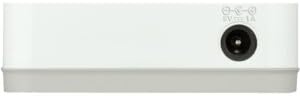
Figure 2 : Arrière view of the D-Link GO-SW-5G switch with five Ethernet ports.
3.3. Connect Network Devices
- Connect your network devices (e.g., computers, gaming consoles, network printers, smart TVs) to the remaining available Ethernet ports on the D-Link GO-SW-5G switch using Ethernet cables.
- Each connected device will have its corresponding LED on the front of the switch illuminate, confirming a successful connection.

Figure 3 : Devant view of the D-Link GO-SW-5G switch showing active port LEDs.
4. Mode d'emploi
The D-Link GO-SW-5G is an unmanaged switch, meaning it operates automatically without requiring user configuration. Once connected as described in the Setup section, it will begin forwarding network traffic between connected devices.
- Négociation automatique : The switch automatically detects the network speed (10/100/1000 Mbps) and duplex mode (half/full) of connected devices and adjusts accordingly.
- Auto MDI/MDIX : All ports support automatic MDI/MDIX crossover, eliminating the need for crossover cables when connecting to other switches or hubs.
- Indicateurs LED : Each port has an LED indicator on the front panel. A lit LED indicates an active link, and blinking indicates network activity.
5. Entretien
To ensure optimal performance and longevity of your D-Link GO-SW-5G switch, consider the following maintenance guidelines:
- Placement: Placez l'interrupteur dans un endroit frais et sec, à l'abri de la lumière directe du soleil, des sources de chaleur et de l'humidité excessive. Assurez-vous d'une ventilation adéquate autour de l'appareil.
- Nettoyage: Use a soft, dry cloth to clean the exterior of the switch. Avoid using liquid or aerosol cleaners, as they may damage the device.
- Gestion des câbles: Rangez soigneusement vos câbles Ethernet pour éviter les nœuds et les déconnexions accidentelles.
- Cycle d'alimentation : If you experience network issues, a simple power cycle (unplugging the power adapter for 10 seconds and then plugging it back in) can often resolve minor problems.
6. Dépannage
If you encounter issues with your D-Link GO-SW-5G switch, refer to the following common troubleshooting steps:
- Voyant d'absence d'alimentation :
- Assurez-vous que l'adaptateur secteur est correctement branché à la fois à l'interrupteur et à une prise électrique fonctionnelle.
- Vérifiez le bon fonctionnement de la prise électrique en y branchant un autre appareil.
- No Link/Activity LED for a Connected Device:
- Vérifiez que le câble Ethernet est correctement branché à la fois au port du commutateur et au périphérique réseau.
- Essayez un autre câble Ethernet pour exclure un câble défectueux.
- Vérifiez que l'appareil connecté est allumé et que sa carte réseau fonctionne correctement.
- Essayez de connecter l'appareil à un autre port du commutateur.
- Vitesse du réseau lente :
- Verify that all connected devices and cables support Gigabit Ethernet (1000 Mbps) for optimal performance. The switch will operate at the lowest common speed.
- Ensure your router and internet service provider (ISP) plan support the desired speeds.
- Perform a power cycle on the switch and your router.
- Connectivité intermittente :
- Vérifiez les connexions de câble desserrées.
- Ensure the switch is not overheating; provide adequate ventilation.
- Effectuez le test avec différents câbles Ethernet.
7. Spécifications
| Marque | Lien D |
| Numéro de modèle | GO-SW-5G/B |
| Nombre de ports | 5 |
| Type de commutateur | Non géré |
| Taux de transfert de données | 1 gigabit par seconde (10/100/1000 Mbps) |
| Interface | RJ45 |
| Couleur | Blanc |
| Poids de l'article | 0.22 livres |
| Voltage | 100-240 Volts |
| Appareils compatibles | PC, Mac, and other Ethernet-enabled devices |
| Tissu de commutation | 10 Gbit/s |
| Code UPC | 790069365669 |
8. Garantie et assistance
Garantie limitée : The D-Link GO-SW-5G switch comes with a 3-year limited warranty. For detailed terms and conditions, please refer to the warranty information included in your package or visit the official D-Link website.
Support technique : For technical assistance, product registration, or to download the latest firmware and documentation, please visit the Prise en charge de D-Link Website ou contactez le service client de D-Link.