Introduction
The Wacom Bamboo Splash Pen Tablet (CTL471) is a compact and versatile pen tablet designed for digital art creation, including drawing, sketching, painting, and document markup. It offers an intuitive interface for creative expression on your computer. This manual provides essential information for setting up, operating, maintaining, and troubleshooting your device.
1. Installation
1.1 Contenu de la boîte
- Bamboo Tablet
- Stylo
- Guide de démarrage rapide
- Bamboo Installation CD
1.2 Connexion de la tablette
To begin using your Wacom Bamboo Splash Pen Tablet, connect it to your computer using the provided USB cable. The tablet is powered via the USB connection and does not require an external power adapter.

Image: The Wacom Bamboo Splash tablet connected to a laptop, ready for use.
1.3 Installation du logiciel
The Bamboo Splash tablet includes free downloadable creative software: Autodesk Sketchbook Express and ArtRage Studio. To obtain this software, follow these steps:
- Insert the included Bamboo Installation CD into your computer's CD/DVD drive.
- Suivez les instructions à l'écran pour enregistrer votre appareil.
- The registration process will direct you to download.wacom.com to download the bundled software.
- Install the software applications as per their respective instructions.

Image: A user interacting with the Wacom Bamboo Splash tablet, with creative software displayed on the monitor.
2. Utilisation de la tablette
2.1 Using the Pen
The Wacom Bamboo Splash Pen is ergonomically designed and battery-free, providing comfort and precise control for various creative tasks. It features 1024 levels of pressure sensitivity, allowing for natural drawing and painting strokes.
- Mouvement du curseur : Move the pen tip over the tablet surface without touching it to move the cursor on your screen.
- Clicking/Drawing: Gently touch the pen tip to the tablet surface to perform a click or draw, depending on the active software.
- Boutons personnalisés : The pen includes two customizable side buttons. These can be configured through the tablet's settings to perform various functions, such as right-click or specific software commands.
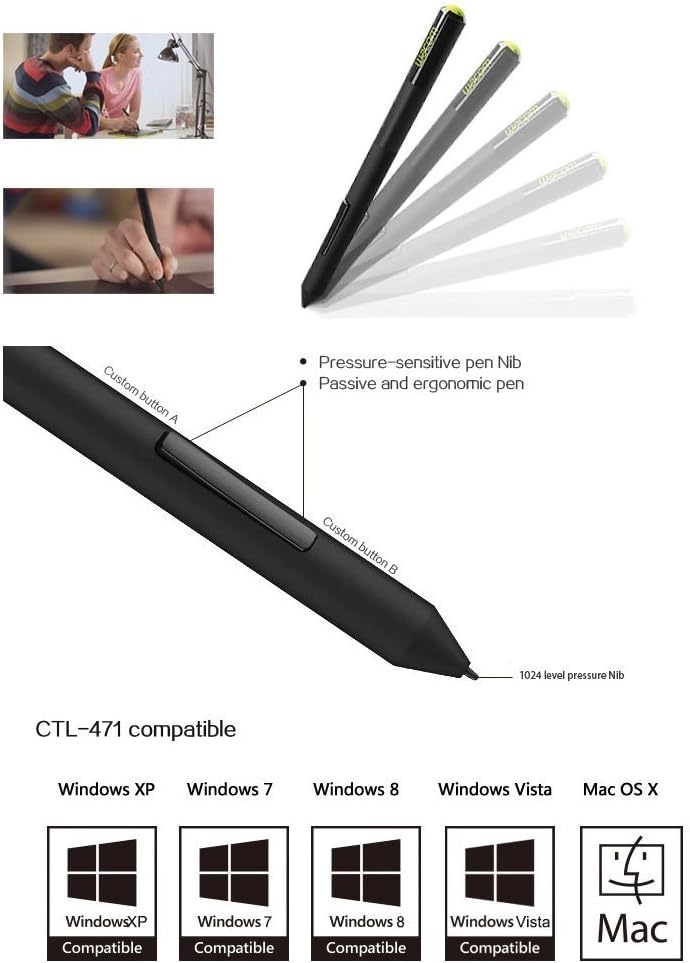
Image: Close-up of the Wacom Bamboo Splash pen, showing its ergonomic design, custom buttons, and pressure-sensitive nib.
2.2 Applications créatives
The Bamboo Splash tablet is compatible with various creative software. The included ArtRage Studio and Autodesk Sketchbook Express provide tools for:
- Creating paintings on different surfaces like canvas, concrete, and various paper types.
- Using diverse media such as watercolors, oils, chalk, inks, and crayons.
- Adding embellishments with tools like the 'stickers' tool in ArtRage.
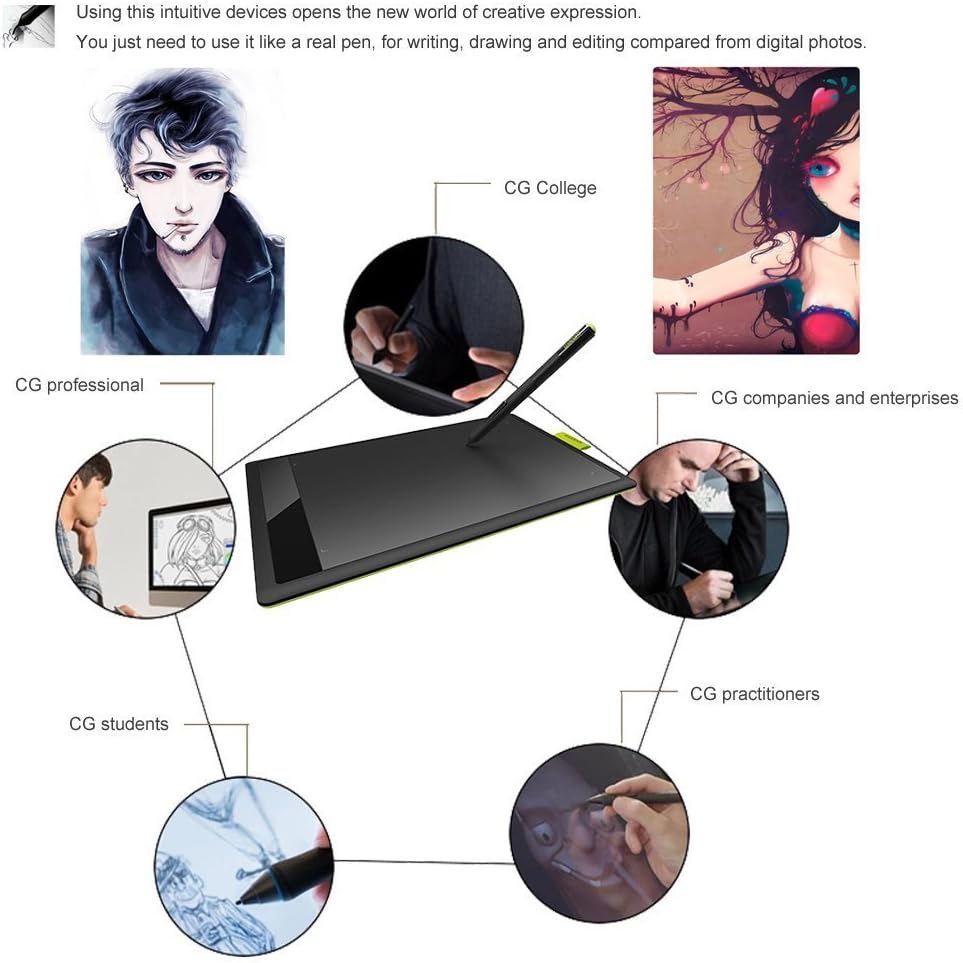
Image: Illustration depicting diverse users, from students to professionals, utilizing the Wacom Bamboo Splash tablet for creative tasks.
2.3 Vidéo officielle du produit
Video: An official Wacom video demonstrating the creative possibilities and ease of use of the Bamboo Splash Pen Tablet.
3. Entretien
3.1 Entretien général
To ensure the longevity and optimal performance of your Wacom Bamboo Splash tablet:
- Keep the tablet surface clean and free from dust and debris. Use a soft, dry cloth for cleaning.
- Évitez d'exposer la tablette à des températures extrêmes ou à la lumière directe du soleil.
- Store the pen securely when not in use to prevent damage to the nib.
3.2 Remplacement de la pointe du stylo
The pen nib is a consumable part and may wear down with extended use. Replacement nibs are available from Wacom. To replace a nib:
- Gently pull the old nib straight out of the pen using tweezers or a small pair of pliers.
- Insert a new nib firmly into the pen until it is seated properly.

Image: The underside of the Wacom Bamboo Splash tablet, displaying the model number (CTL-471) and serial number.
4. Dépannage
4.1 Pen Not Responding
- Ensure the USB cable is securely connected to both the tablet and your computer.
- Verify that the Wacom drivers are correctly installed. If issues persist, try reinstalling the drivers from the official Wacom website.
- Check if the pen nib is properly inserted. A loose or missing nib can affect pen functionality.
4.2 Cursor Mapping Issues (Dual Monitors)
If you are using a dual monitor setup and experience incorrect cursor mapping, adjust the pen settings in the Wacom Tablet Properties. Ensure the tablet is mapped to only one monitor for accurate control, especially during drawing tasks.
4.3 Accidental Drawing/Clicking
If the pen is registering clicks or drawing unintentionally when hovering, you may need to adjust the tip sensitivity in the Wacom Tablet Properties. For advanced users, removing the nib can disable the tip button, allowing you to assign drawing functions to the side buttons for more controlled input.
4.4 Software Not Recognizing Tablet
Confirm that all Wacom drivers are up-to-date. Sometimes, older drivers can cause compatibility issues with newer operating systems or software. Visit the official Wacom support page for the latest drivers.
5. Spécifications
| Marque | Wacom |
| Série | CTL471 |
| Numéro de modèle de l'article | CTL471 |
| Technologie de connectivité | USB |
| Sensibilité à la pression | 1024 niveaux |
| Poids de l'article | 14.4 livres |
| Dimensions du produit | 11 x 6.8 x 0.4 pouces |
| Compatibilité du système d'exploitation | Windows XP, Vista, 7, 8; Mac OS X |
6. Garantie et assistance
6.1 Garantie du produit
For detailed warranty information, please refer to the documentation included with your product or visit the official Wacom website. Les conditions de garantie couvrent généralement les défauts de fabrication dans des conditions normales d'utilisation.
6.2 Retours et remboursements
Refunds are typically processed within 7 days if the product is returned in its original condition. The seller reserves the right to reject returns if the condition is deemed otherwise. Returning shipping costs may not be included in the refund.
6.3 Assistance clientèle
For further assistance, technical support, or to download the latest drivers and software, please visit the official Wacom support website: