
1. Introduction
This manual provides essential instructions for the safe and efficient use of your FSP ATX-300PA 300W ATX Power Supply. Please read this manual thoroughly before installation and operation to ensure proper functionality and to prevent damage to the unit or other components. Keep this manual for future reference.
2. Consignes de sécurité
Respectez les consignes de sécurité suivantes afin d'éviter les blessures ou les dommages :
- Always disconnect the power cord from the wall outlet before installing, removing, or servicing the power supply.
- Ne pas ouvrir le bloc d'alimentation casing. Vol. élevétage components are present inside, which can cause electric shock. There are no user-serviceable parts within.
- Ensure proper ventilation around the power supply to prevent overheating. Do not block any ventilation openings.
- Use the power supply only in dry environments. Avoid exposure to moisture, humidity, or liquids.
- This product is designed for internal computer use only. Do not use it for any other purpose.
- Ensure the power supply is compatible with your system's motherboard and components before installation.
3. Configuration et installation
Follow these steps to install the FSP ATX-300PA power supply into your computer system:
- Préparez votre système : Éteignez votre ordinateur et débranchez le cordon d'alimentation de la prise murale. Ouvrez le boîtier de votre ordinateur.
- Retirez l'ancien bloc d'alimentation (le cas échéant) : Disconnect all power cables from the motherboard, graphics card, and other components. Unscrew and remove the old power supply from the case.
- Installer une nouvelle alimentation électrique : Carefully place the FSP ATX-300PA into the power supply bay of your computer case. Ensure the fan is oriented correctly for optimal airflow (typically facing downwards or inwards, depending on case design). Secure the power supply with screws provided with your computer case.
- Brancher l'alimentation de la carte mère : Connect the main 20+4 pin ATX power connector to the corresponding socket on your motherboard. Ensure it clicks into place.
- Alimentation du processeur : Connect the 4-pin (or 4+4 pin) CPU power connector to the CPU power socket on your motherboard.
- Alimentation périphérique : Connect SATA power connectors to your hard drives, SSDs, and optical drives. Connect Molex connectors to any other peripherals that require them.
- Connect Graphics Card Power (if applicable): If your graphics card requires additional power, connect the appropriate PCIe power connectors from the power supply.
- Gestion des câbles: Disposez les câbles proprement pour améliorer la circulation de l'air et l'esthétique à l'intérieur du boîtier.
- Fermer le boîtier et brancher l'alimentation : Close your computer case. Connect the AC power cord to the power supply's input socket and then to a wall outlet or surge protector.
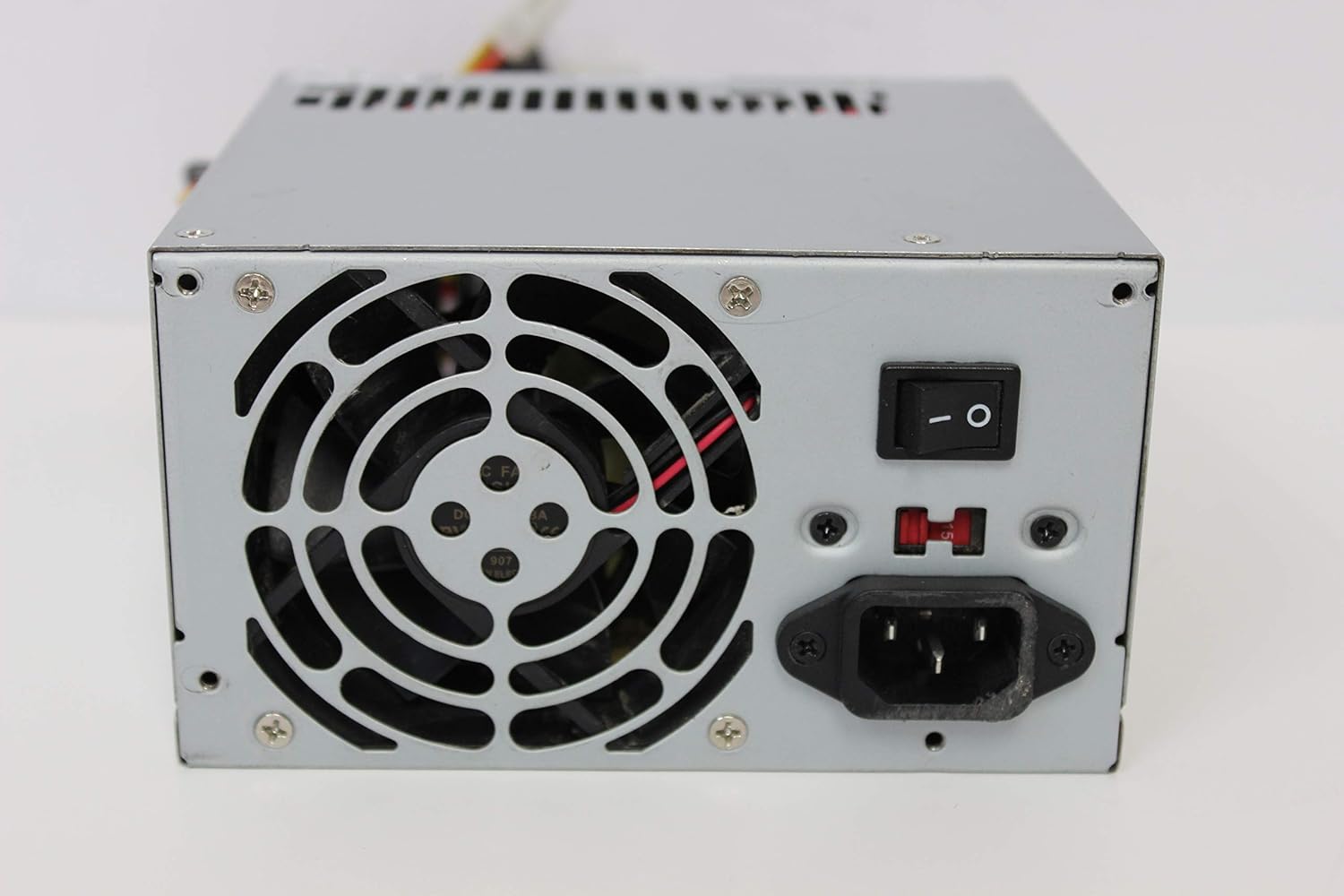
Image : Arrière view of the FSP ATX-300PA power supply. This image displays the rear panel of the FSP ATX-300PA power supply. Visible components include the AC power input socket, the main power on/off switch, and the exhaust fan grille. A fuse holder is also present.

Image: Power connectors of the FSP ATX-300PA. This image shows a selection of power cables and connectors extending from the FSP ATX-300PA power supply. The prominent connector is the 20+4 pin ATX motherboard power connector, alongside several peripheral power connectors (e.g., Molex, SATA, 4-pin CPU).
4. Mode d'emploi
Une fois l'alimentation correctement installée et toutes les connexions sécurisées :
- Ensure the power switch on the rear of the power supply is in the "ON" (I) position.
- Appuyez sur le bouton d'alimentation de votre ordinateur pour démarrer le système.
- The power supply will provide stable power to all connected components.
5. Entretien
Un entretien régulier contribue à assurer la longévité et les performances optimales de votre alimentation :
- Nettoyage de la poussière : Periodically (e.g., every 6-12 months), disconnect the power supply from the wall outlet and open your computer case. Use compressed air to gently remove dust buildup from the power supply's fan and vents. Hold the fan blades to prevent them from spinning excessively during cleaning.
- Inspection des ventilateurs : Check the power supply fan for any obstructions or unusual noises. A clean, unobstructed fan is crucial for effective cooling.
- Vérification des câbles : Ensure all power cables remain securely connected to their respective components.
Avertissement: Do not attempt to lubricate or disassemble the power supply fan. Do not open the power supply casing pour une raison quelconque.
6. Dépannage
If you encounter issues with your FSP ATX-300PA power supply, consider the following troubleshooting steps:
- Système hors tension :
- Assurez-vous que le cordon d'alimentation secteur est correctement branché à la fois à la prise de courant et à la prise murale.
- Verify that the power switch on the rear of the power supply is in the "ON" (I) position.
- Vérifiez le bon fonctionnement de la prise murale en y branchant un autre appareil.
- Confirm all internal power connectors (20+4 pin ATX, CPU, peripherals) are firmly seated.
- Instabilité du système ou arrêts inopinés :
- Ensure the power supply is adequately ventilated and not overheating.
- Verify that the total power draw of your components does not exceed the power supply's 300W capacity.
- Check for loose connections to any components.
- Bruits inhabituels :
- If you hear grinding or rattling, it may indicate a fan issue. Disconnect power and inspect the fan for obstructions. Do not attempt to repair the fan yourself.
If issues persist after performing these checks, it may indicate a faulty power supply or another component. Consider professional diagnosis.
7. Spécifications
| Marque | FSP |
| Numéro de modèle | ATX-300PA |
| Puissance de sortietage | 300 watts |
| Facteur de forme | ATX |
| Type de connecteur | ATX |
| Code UPC | 754031288653 |
| Fabricant | FSP GROUP INC. |
8. Garantie et assistance
For detailed warranty information, technical support, or service inquiries regarding your FSP ATX-300PA power supply, please refer to the official FSP Group INC. webConsultez le site web ou contactez directement leur service client. Les conditions de garantie peuvent varier selon la région et la date d'achat.